Settings
Settings overview
This chapter is the starting point for account, billing and access configuration. It covers personal account settings, subscription management, payment methods, confirmation of email changes, and Access control (IAM) with security groups and module permissions.
To keep the manual practical, settings specific to a feature are documented alongside that feature:
- Company-wide administration settings are in Company and Staff.
- Time tracking policies are in Time tracking.
- Trustee client management is in Integrations.
As a rule of thumb, if a setting changes how a feature works day to day, start with that feature's chapter. For profile, billing or Access control (IAM), use this chapter.
Employee settings
Overview
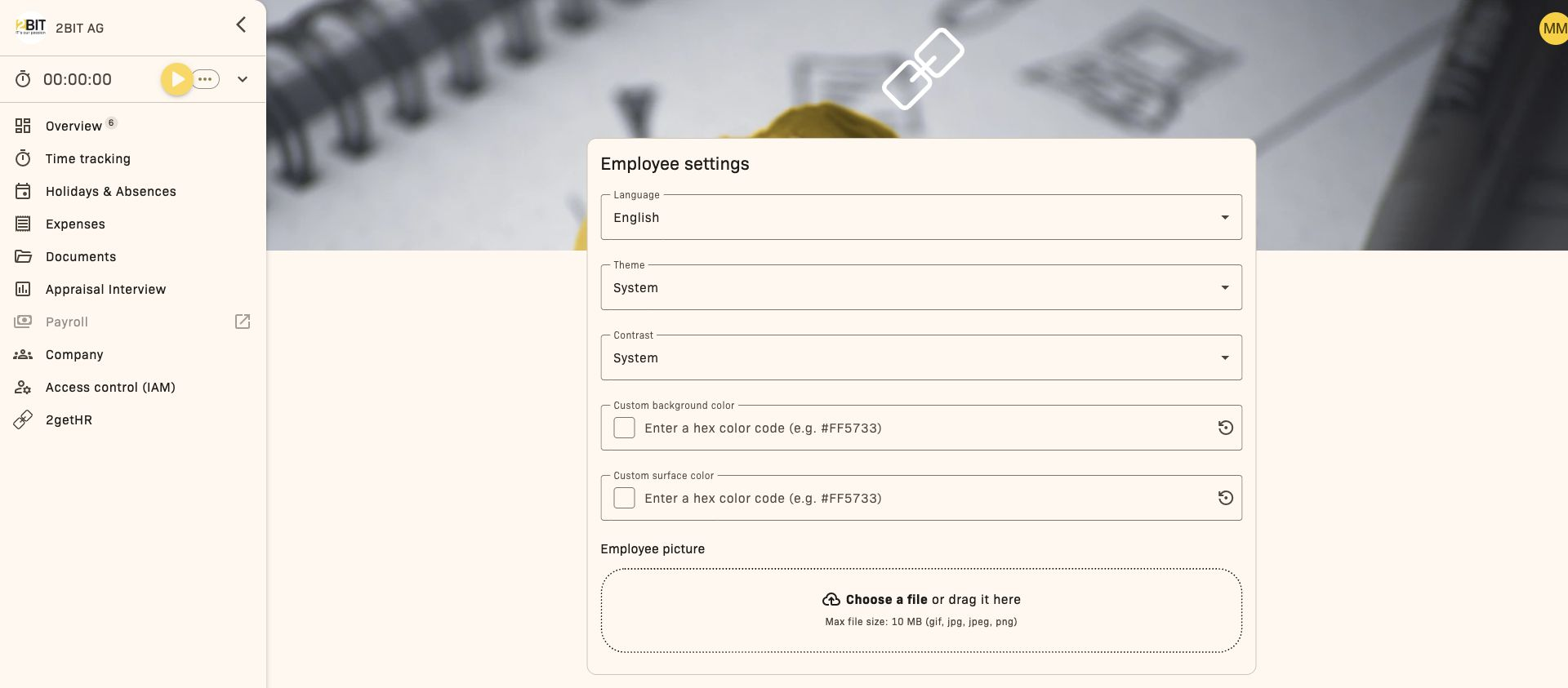
Use Employee settings to manage your own 2getHR account. Open the page after signing in to the selected company. Here you manage your profile, notifications and security. The individual settings available depend, among other things, on your verification status, login methods and company policy.
Most employees use this page for four things: changing language/theme, updating credentials, controlling notifications and enabling stronger authentication.
What you can control here
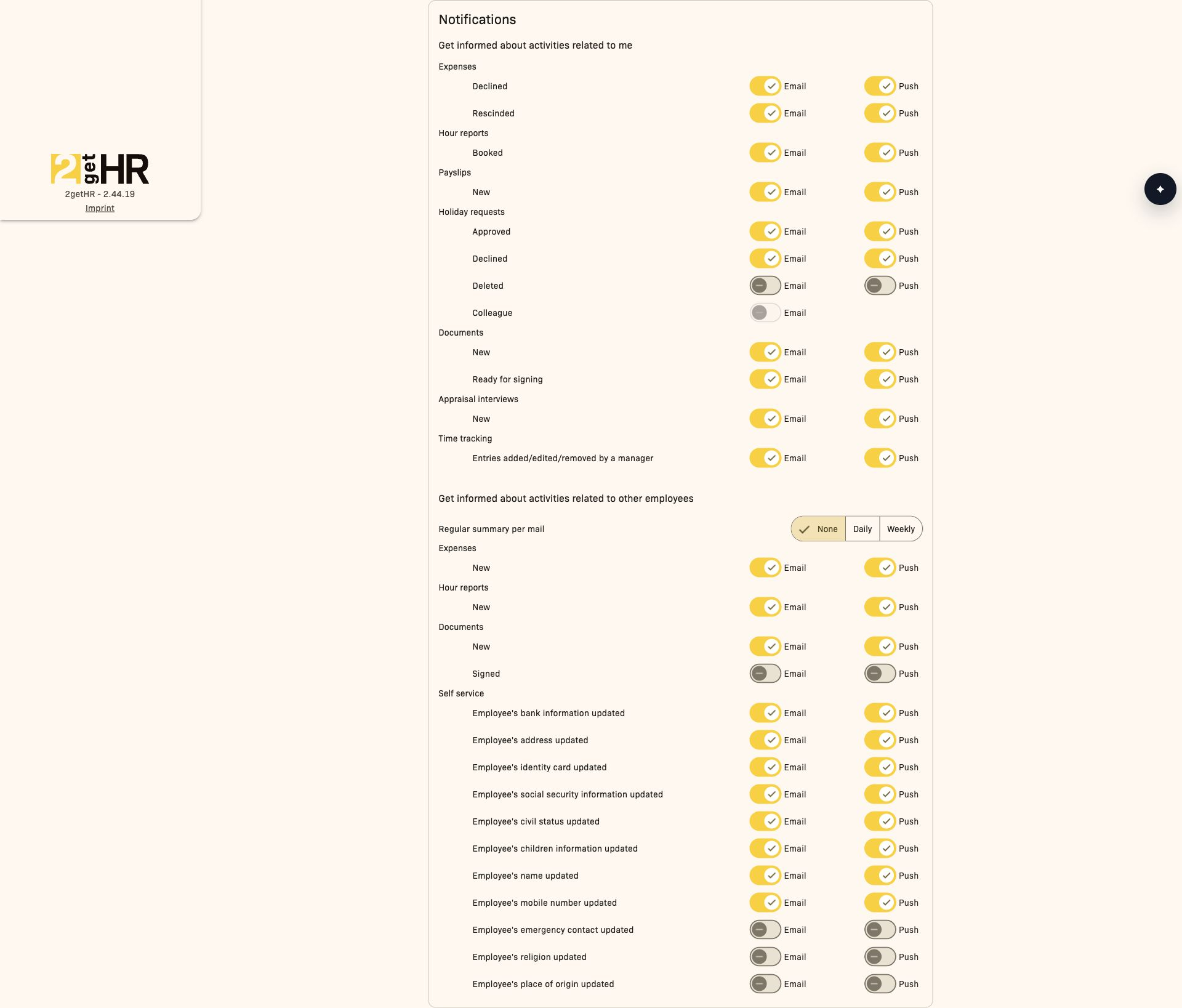
Under Employee settings, you control language and appearance. Under Notifications, you define notification channels. Password, email, two-factor authentication and WebAuthn are managed in separate cards on the Profile menu > Employee settings page.
If your company uses external identity providers, some changes may trigger a brief sign-in again. This is normal and improves security.
Common tasks
Change language
- Open Profile menu > Employee settings.
- Under Employee settings, select a Language.
- Wait for the interface to update in the selected language.
- Check that menus and labels display correctly.
Change theme
- Open Profile menu > Employee settings.
- Under Employee settings, select your preferred Theme.
- Check that the appearance has been applied in all views.
Adjust contrast and colors
- Under Employee settings, select the required Contrast.
- Adjust Custom background color and Custom surface color if needed. You can select a color or enter a hex color code, for example #FF5733.
- The appearance is applied without an additional Save button. Check that text and controls remain readable.
- Use Reset color on the relevant field to remove the custom color.
Add, replace or remove a profile picture
- In the same area, go to Employee picture. Select an image file using the upload field; if a picture already exists, first open Edit.
- Adjust the crop in Crop your new profile picture. The image must be at least 100 × 100 pixels.
- Confirm with Set new profile picture and check the displayed image.
- To remove an existing profile picture, use Delete below it.
Control notifications
- In Employee settings, open Notifications.
- Select the required channels for the displayed events, such as email or in-app notifications.
- Check the selections for your own entries and management events.
Account security
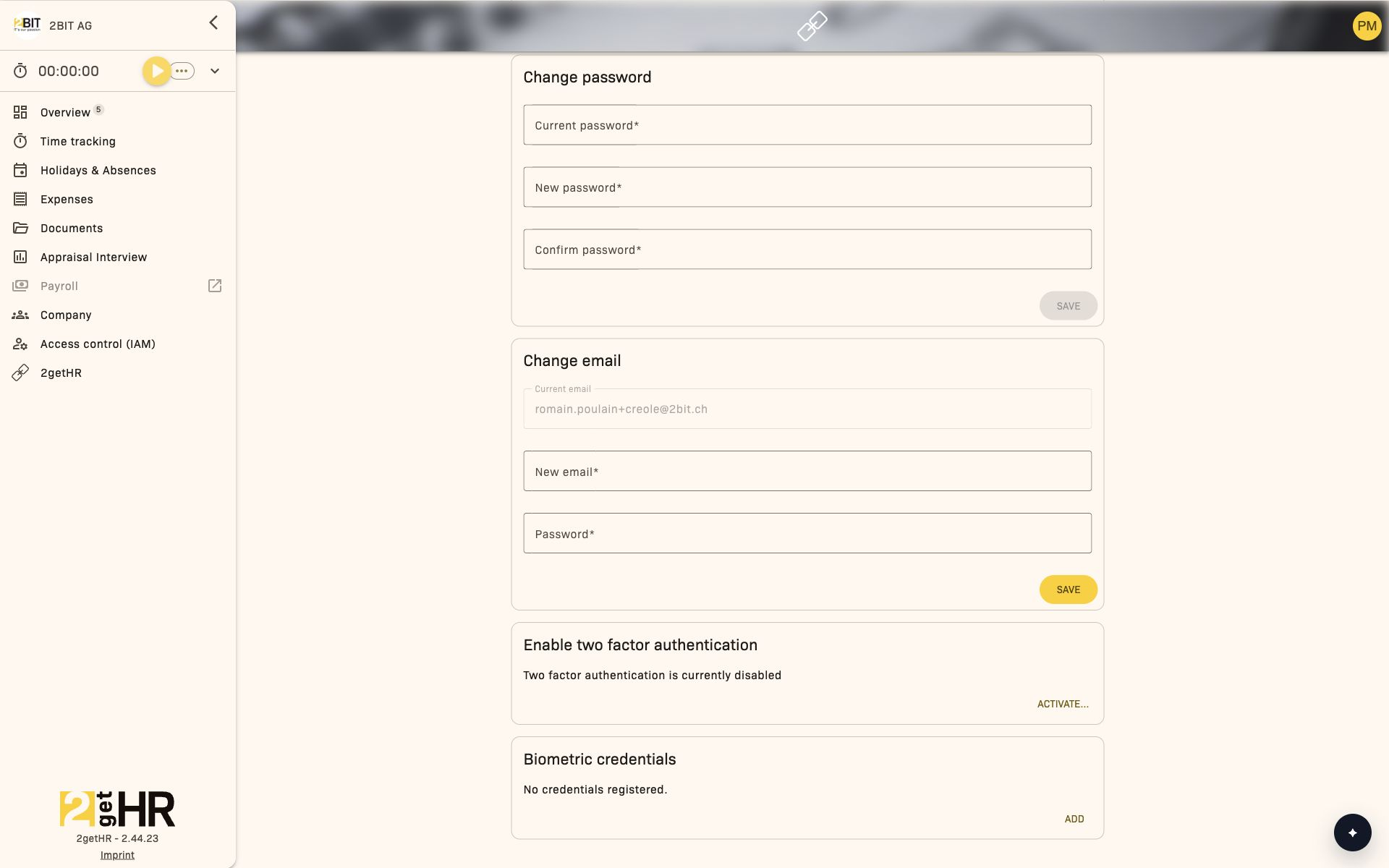
The following cards contain settings for password, email address, two-factor authentication and biometric credentials.
Update your password
- Open Profile menu > Employee settings.
- Under Change password, enter your current password.
- Enter the new password and confirm it.
- Click Save and use the success message as confirmation.
Change your email address
- Open Profile menu > Employee settings.
- Under Change email, enter the new email address.
- Confirm with your current password.
- Send the request, then complete email confirmation.
Change your stored signature
The Change signature card appears only if your employee status is Verified. If it is missing, ask the responsible administrator to check your verification status.
- Open Change signature on the same page.
- If needed, remove the existing drawing with Clear and draw the new signature in the field.
- Click Save and check the confirmation.
This updates your stored signature. Signing a specific document or appraisal interview still takes place in the corresponding signing workflow.
Enable two-factor authentication (OTP)
- Open Profile menu > Employee settings and start 2FA activation.
- Install an authenticator app and use Next to proceed to the activation code.
- Scan the QR code or enter the secret key in the authenticator app. Back up the key and confirm this in the dialog.
- Under 2FA validation, enter the current Code and your password if requested. Complete activation.
- Check the confirmation and use the current code from the app at your next sign-in.
If company policy requires OTP and it has not yet been set up, activation appears during sign-in. Complete it to continue. Deactivation is only possible within company policy.
Manage WebAuthn credentials
- On the same page, open Biometric credentials.
- Select Add, enter a name in Credential name and follow the registration process for your device or security key.
- Use Edit to rename existing credentials. Use Delete to remove them after confirmation.
WebAuthn requires a supported browser and compatible authenticator. If the feature is unavailable in the browser, the page displays a corresponding notice.
Notes and good practice
Use an email address you can access directly, as confirmation is part of the process. For security, it is advisable to enable at least one additional sign-in method if your policy provides for it.
Tips and troubleshooting
- If language changes do not appear, reload the page once.
- If the password change fails, check your current password and try again with a stronger new password.
- If the email change is rejected, check the format and password confirmation.
- If notification settings are missing, your role or module access may be restricted.
Subscription
Overview
Use Subscription to manage your subscription's lifecycle: package changes, discount codes, billing overview and status actions.
This page is mainly relevant to administrators responsible for subscription and billing decisions.
What you can do here
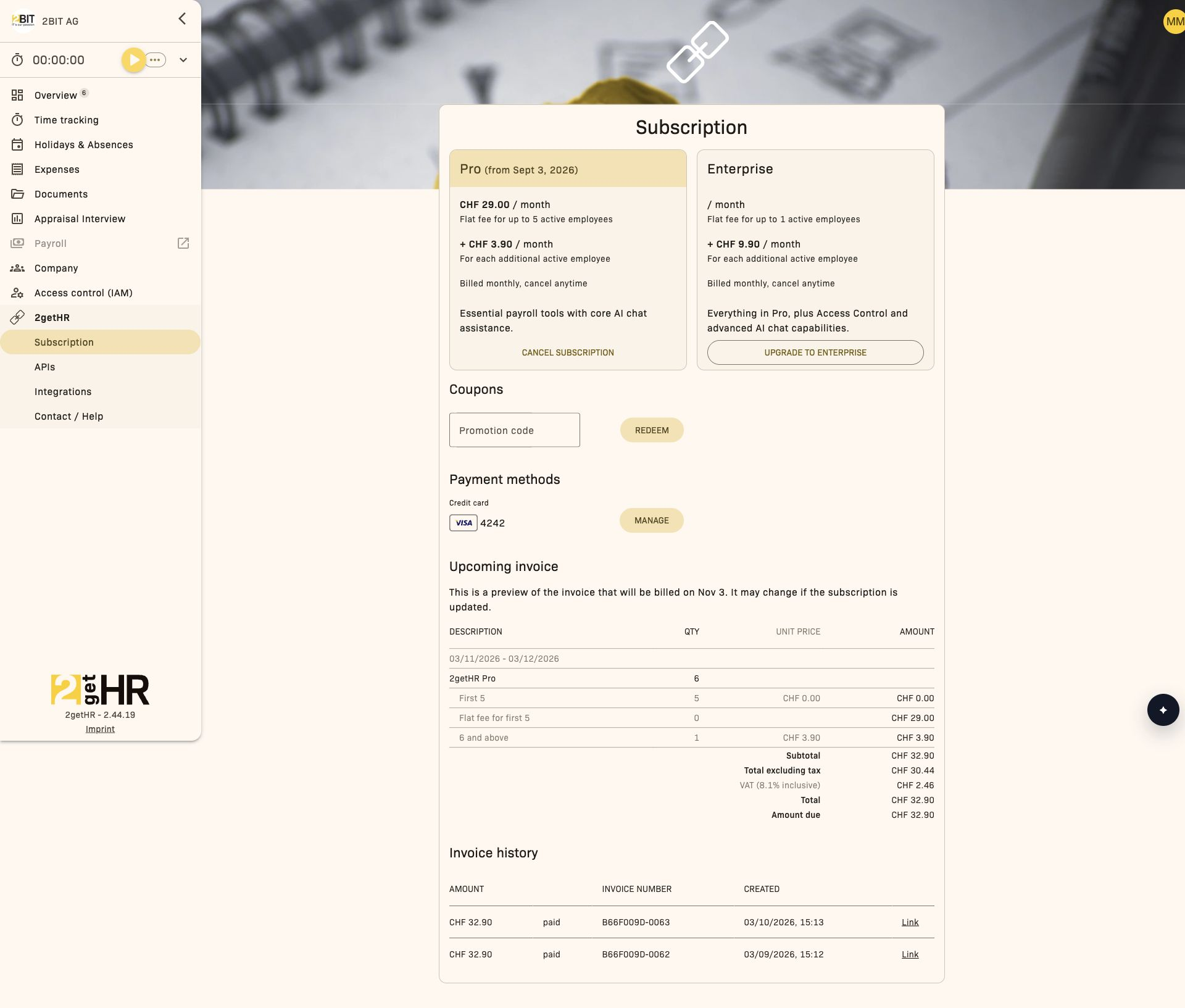
In this area, you can check the current package, redeem promotion codes, start an upgrade, and cancel or resume a subscription.
Common tasks
Redeem a promotion code
- Open 2getHR > Subscription.
- Enter the code under Promotion code in the subscription area.
- Click Redeem.
- Check the updated amount in the next invoice preview.
Upgrade a subscription
- Open 2getHR > Subscription.
- Click Upgrade to Enterprise.
- Confirm the package change.
- Check that the new package status is displayed.
Cancel or resume a subscription
- Open 2getHR > Subscription.
- Use Cancel subscription or Resume subscription, depending on the current status.
- To cancel, enter CANCEL in capital letters and confirm the action.
- Check the effective status and date in the subscription area.
Notes
Use cancellation and resumption actions deliberately, and inform the relevant people internally if this changes the modules available to employees.
Tips and troubleshooting
- If a promotion code fails, check its spelling and validity.
- If checkout is blocked, complete the required authorization steps.
- If billing information is delayed, wait briefly and reload the page.
- If you do not have access, check your assigned permissions.
Payment methods
Overview
Use Payment methods to manage the cards saved for recurring subscription charges. Keep this list up to date to prevent failed payments.
When to update this page
Update this page when cards expire, a new company card is issued or the default card needs to change.
Common tasks
Add a payment method
- Open 2getHR > Subscription > Payment methods > Manage.
- Enter billing and card details.
- Click Save.
Set the default payment method
- Open 2getHR > Subscription > Payment methods > Manage.
- Select a valid card that is not already the default.
- Click Set default and confirm.
Remove a payment method
- Open 2getHR > Subscription > Payment methods > Manage.
- Select a card that is not set as the default.
- Click Delete and confirm.
Notes
There should always be exactly one default card. Before deleting a card, make sure another active card is available.
Tips and troubleshooting
- If card validation fails, check the card and billing details.
- If Delete is unavailable, the card is probably the current default.
- Keep at least one valid card active to avoid billing interruptions.
Change email address
Overview
Email changes in 2getHR are confirmed through a link to protect account ownership. After you request the change in Employee settings, the system sends a confirmation email to the new address. The change is complete only after the link is opened.
Common tasks
Request a new email address
- Open Profile menu > Employee settings.
- Open the Change email card.
- Enter your new address under New email and your current password under Password.
- Click SAVE.
- Open the confirmation email sent to your new address.
Confirm a new email address
- Open the confirmation email sent to your new address.
- Click the confirmation link.
- Wait for the success message.
- Continue in 2getHR.
What to expect
If the confirmation link is valid, a success message appears and you can return to the application. If it is invalid or expired, no change is applied.
Tips and troubleshooting
- If the link has expired or has already been used, start a new request.
- Always use the original email link without changes.
- If you use several accounts, sign out first and then open the link.
- If you have not set a password for your account, set one first.
- If you sign in with a Microsoft account, you will no longer be able to sign in with that Microsoft account after changing your email address.
Access control settings
Overview
In Access control (IAM) > Settings, you enable or disable enforcement of permissions from security groups. This page is available only to administrators. Being assigned as owner does not replace the Administrator role.
When access control is enabled and included in the subscription, effective permissions apply to module access and the actions designed to use them, such as project management. Existing role restrictions, areas of responsibility, owner rights and record rules still apply. When it is disabled, these IAM rules are not enforced; access depends on roles, available modules and the rules of the relevant feature.
Groups and permissions are edited in the corresponding security group and module areas, rather than on this page.
Settings
The page contains Enable access control and the Reset to initial setup action.
Common tasks
Enable or disable access control
- Open Access control (IAM) > Settings.
- Turn Enable access control on or off.
- Wait until the change has been applied.
Your access in the application is updated after the change. When enabling the setting, permissions from security groups apply only if the Access Control module is included in the subscription.
Restore the initial setup
Resetting replaces all access groups and permissions with the initial setup. Users are assigned back to the original role-specific security groups. Custom security groups, memberships and permissions are lost.
- Check whether custom groups and permissions are still needed.
- Open Access control (IAM) > Settings.
- Select Reset to initial setup.
- Confirm the notice with OK.
Access Control activation and the purchased module remain unchanged.
Rules and validation
- A reset cannot be undone.
- While an activation, deactivation or reset is being processed, you cannot start another change.
- Administrators and Backoffice configure the default group for each role, automatic assignment on role changes and synchronization under Company > Staff > Settings (
/staff/settings). Save the assignments before synchronizing; the staff management instructions explain the effects on existing memberships. - If Access Control is not included in the package, settings are saved but not enforced. Add Access Control to the subscription or contact an administrator or support.
Tips and troubleshooting
- If Enable access control is unavailable, wait for any ongoing change to finish, then reload the page.
- If permissions are not enforced despite the setting being enabled, check that the Access Control module is included in the subscription.
- If the initial setup has been restored, recreate any required custom security groups and permissions.
Security groups
Overview
Use Security groups to bring together users, organizational units (Org unit) and other security groups. You then use permissions to control who can create and manage security groups or access a particular security group.
This area is available when access control is enabled and you have permission to read security groups. In the navigation, open Access control (IAM) > Security groups.
Manage security groups
The list shows existing security groups in the Name column. Use search to find groups by name; changing the search clears the selection and returns the list to the first page.
Create or edit a security group
- Click Add to create a new security group, or select Edit for an existing group.
- Enter or change the Name.
- Click Save.
A name is required. When editing, you can only save if you have changed the name.
Delete a security group
Select Delete for the relevant security group and confirm the prompt. You can also select multiple groups and use the delete action; confirmation is required in this case too.
Common tasks
Manage members
- Select Manage members for the security group.
- Click Add.
- Search for an entry in Search and add... and select it from the suggestions.
Available members include active users, Org unit entries and other security groups. An existing member and the currently open security group cannot be selected again. Text entered without selecting an entry from the suggestions cannot be saved.
The member list contains Type and Name. Use Delete to remove individual or multiple members; removing multiple members requires confirmation.
Set permissions for all security groups
Open Access control (IAM) > Security groups > Permissions to specify who can create and manage all security groups. The description in this area reads: Grant or deny permissions to create and manage all groups.
- Click Grant group permissions.
- Select a user, an Org unit or a security group.
- Set Create, Read, Update and Delete individually to Allow, Deny or Not set.
- Save the permission.
At least one permission must be set when creating an entry. To edit, select Edit group permissions. The permission's target cannot be changed. Entries already used as a target cannot be selected again.
Set permissions for a security group
- Open Access control (IAM) > Security groups and select Permissions for the relevant group.
- Click Grant permission.
- Select the target and set the desired effect for Read, Update and Delete.
- Save the permission.
Here too, Allow, Deny and Not set are available for each action. When editing a permission, its target remains locked. New permissions require a target and at least one effect to be set; when editing, all effects can be changed to Not set.
Settings
Security groups have no separate settings. Access is controlled through Group permissions for all groups and Permissions for an individual security group.
Rules and validation
- A security group requires a name.
- A member or permission target cannot be added twice.
- A security group cannot be a direct member of itself.
- Permissions apply independently to each action. Not set means that no direct effect is defined for that action.
- Lists show a dash for effects that are not set.
- Only active users can be selected for Effective access.
How multiple permissions interact
For an action to be allowed, at least one applicable Allow rule must exist and no applicable Deny rule may apply. Deny takes precedence, including over an allowance from another group or organizational unit. If no applicable allowance exists, access is denied. Not set does not grant access by itself or override existing rules.
Check Effective access when rules conflict. For example, one group allows reading and another denies it; the result is denied.
If all reading rules are Not set and there is no inherited allowance, reading is denied.
Tips and troubleshooting
- Open Access control (IAM) > Security groups > Permissions > Effective access, or the Permissions of an individual group, and choose an active user in Select an employee. The view shows whether access is allowed or denied for each action and which rules led to the decision.
- If an expected user cannot be selected, check that their account is active.
- If a group, organizational unit or user is missing from the selection, check whether the entry is already a member or permission target.
- If you cannot open the area, check that access control is enabled and that you have the required permission to read security groups.
Modules
Overview
In Modules, you specify who can access and update the modules enabled in your package. You can assign rules for all modules or for a specific module only.
This area is available only when Access Control is enabled and you have permission to manage modules.
Modules and module access
In the main menu, open Access control (IAM) > Modules. The list contains only modules enabled in your package. Search for a module name if needed.
Use Actions > Permissions to open module access for an individual module. The rules there apply exclusively to that module.
For each rule, the table shows Type, Name, Access and Update. Rules can be assigned to active regular employees, groups or organizational units.
Common tasks
Set permissions for all modules
- Open Access control (IAM) > Modules.
- Open Access control (IAM) > Modules > Permissions.
- Click Add.
- Under Search and add..., search for an employee, group or organizational unit and select the entry.
- Set Access and Update individually to Allow, Deny or Not set.
- Save the rule.
These rules apply to all modules. For a rule affecting only one module, open that module's access settings.
Set access to an individual module
- Open Access control (IAM) > Modules.
- Select Actions > Permissions for the relevant module.
- Click Add and select the recipient.
- Set at least one of Access or Update to Allow or Deny.
- Save the rule.
Edit or delete a rule
- Open Actions for the rule and select Edit or Delete.
- When editing, adjust Access and Update, then save.
The recipient of an existing rule cannot be changed. Delete the rule and create it again if it should apply to a different employee, group or organizational unit.
Delete multiple rules
- Select the relevant rows.
- Choose the delete action and confirm the prompt.
A new search clears the selection. Check the selected rules before deleting them.
Check effective access
- Open Access control (IAM) > Modules > Permissions > Effective access, or module access for an individual module.
- Choose an active regular employee under Select an employee.
- Check the results for Access and Update, and the rules displayed.
The view shows whether access is allowed or denied and whether a rule applies directly, through a group or through an organizational unit.
Rules and validation
- Not set does not override permissions from a broader scope or granted through groups and organizational units. Use Deny to explicitly block access.
- When adding a rule, a recipient must be selected and at least one of the two effects must be Allow or Deny.
- A duplicate rule for the same recipient cannot be created within the same scope.
- Modules that are not subscribed to or enabled do not appear in the list and cannot be configured here.
How multiple permissions interact
For an action to be allowed, at least one applicable Allow rule must exist and no applicable Deny rule may apply. Deny takes precedence, including over an allowance from another group or organizational unit. If no applicable allowance exists, access is denied. Not set does not grant access by itself or override existing rules.
In module access, check Effective access to see which direct and inherited rules determine the decision.
Examples: One group allows module access and another denies it; access is denied. If all applicable rules are Not set and there is no direct or inherited allowance, access is also denied.
Tips and troubleshooting
- Modules is not visible: Check that Access Control is enabled and that you have permission to manage modules.
- A module is missing: Only modules enabled in the package appear in the list.
- Access is available despite Not set: Check Effective access. Access may be granted through a group, organizational unit or broader scope.
- An employee cannot be selected: Only active regular employees are available in the selection lists.