Integrations
APIs
Overview
APIs are available to administrators and back office users, provided the corresponding permission is enabled. You can create public API keys and manage webhook endpoints.
Management view
The page contains the Public API keys and Webhook settings areas.
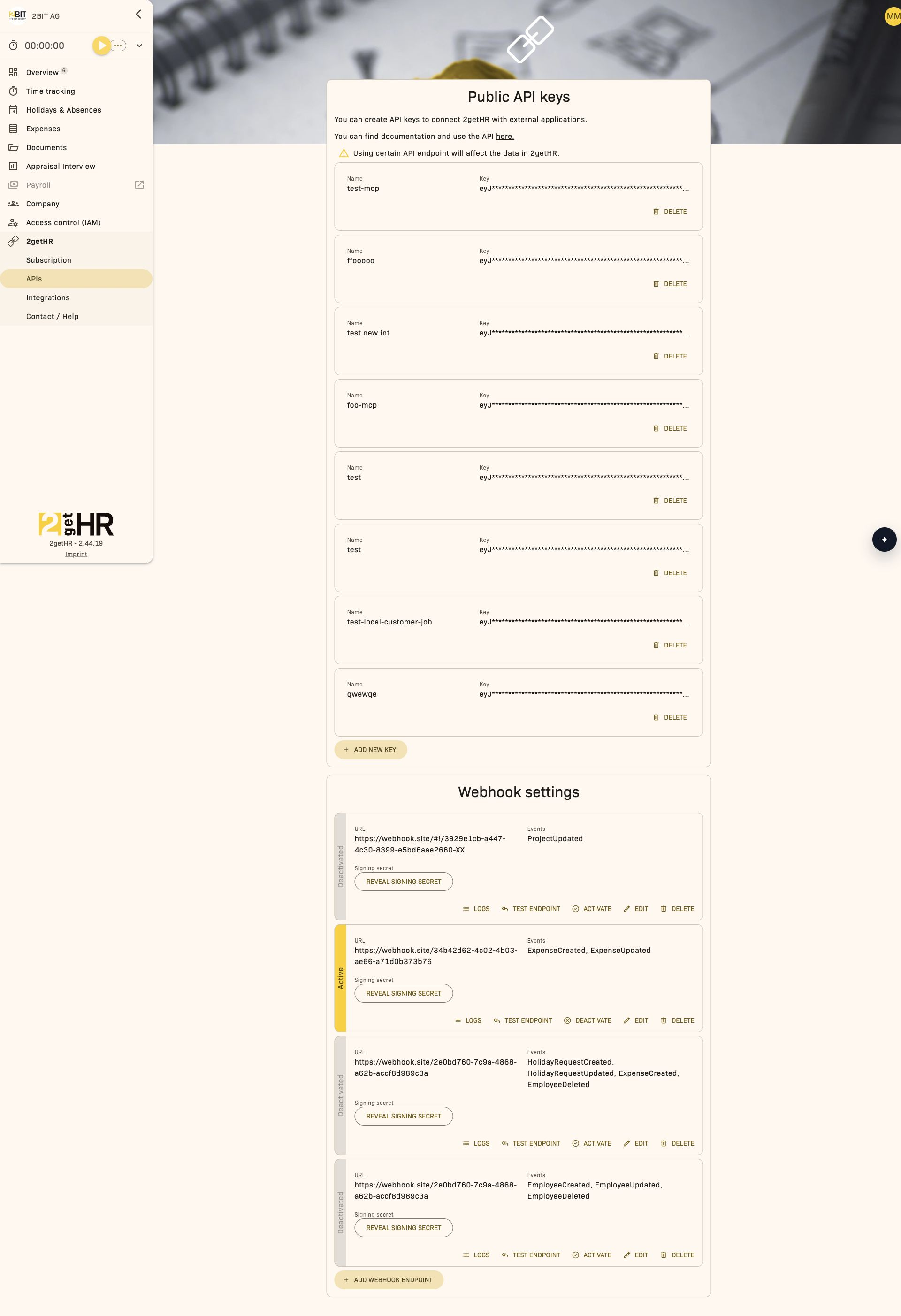
Public API keys
In this area, you create keys to connect 2getHR with external applications. Each entry shows Name and Key. Immediately copy a newly displayed key using Copy, as it will not be shown again later for security reasons. You can remove a key with Delete after confirmation.
The API documentation link provides access to the available API and its usage. Note that individual API endpoints can change data in 2getHR.
Webhook settings
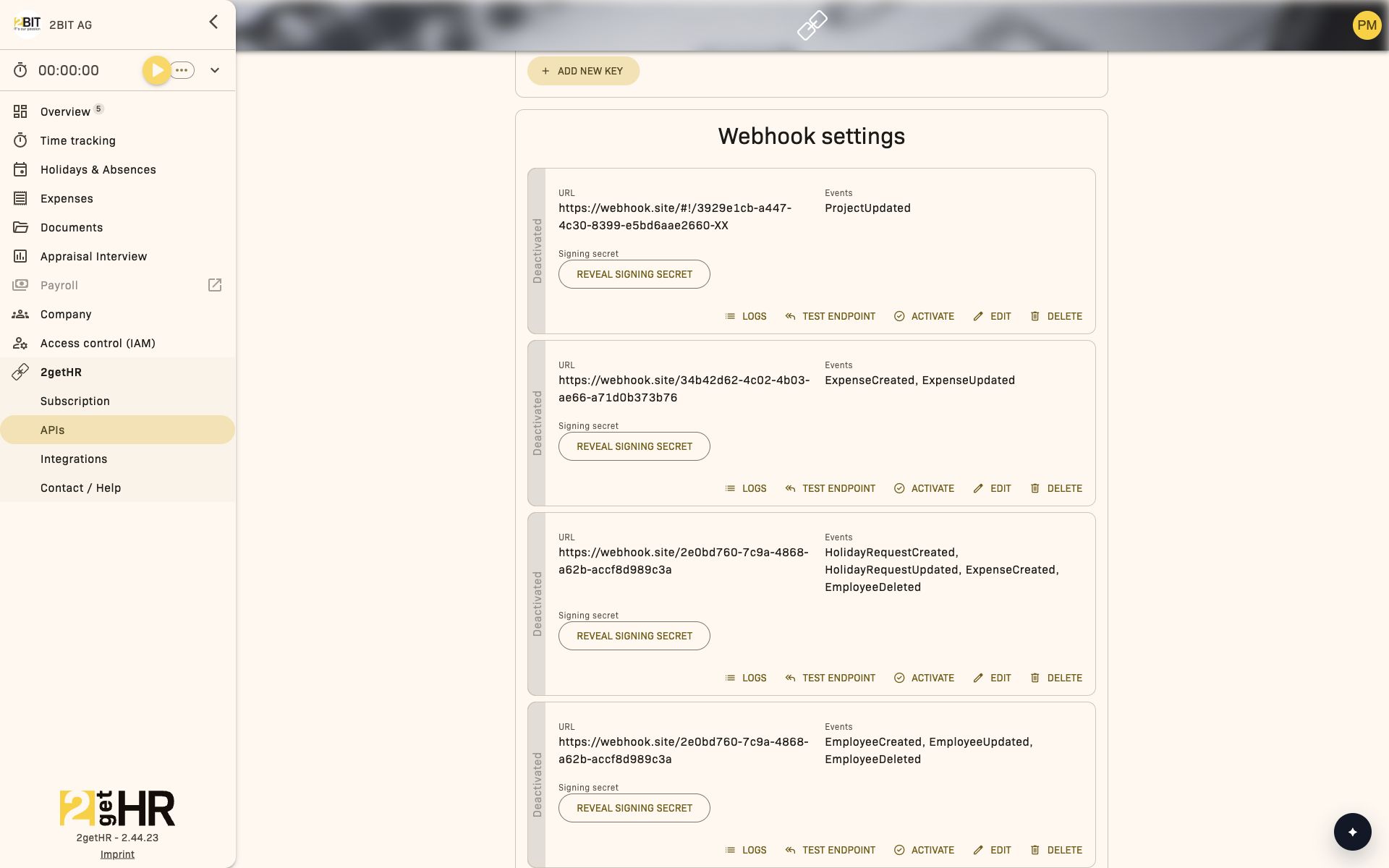
Webhook settings allow users to configure automatic event notifications that 2getHR sends to external systems for specific HR events. Main available actions:
- Add webhook endpoint and Edit to create or change webhook configurations.
- Delete with confirmation to prevent accidental removal.
- Activate/Deactivate to toggle operational status.
- Test endpoint to simulate an event notification and display the result.
- Reveal signing secret to retrieve the key that the receiving system needs to verify the sender.
Each endpoint row lists its destination URL, subscribed event types and current activation status.
Common tasks
Create a public API key
- Open 2getHR > APIs.
- Under Public API keys, click Add new key.
- Enter a name for the key in Name.
- Submit the form to create the key. A success message confirms creation.
Copy the displayed key immediately and store it securely. Once hidden, it cannot be displayed again.
Add or edit a webhook endpoint
- Open 2getHR > APIs > Webhook settings.
- Click either Add webhook endpoint or the Edit icon for an existing endpoint.
-
Enter the URL and select at least one event. If needed, enable the options to override the warning and deactivation timeouts and adjust their values.
-
Click Save to create or update the endpoint.
The system performs validation checks and displays a confirmation message on success.
Retrieve the signing secret for the receiver
- Open 2getHR > APIs > Webhook settings.
- Select Reveal signing secret for the required endpoint.
- Use the copy icon next to the displayed Signing secret and store it in the receiving system's protected configuration.
- Do not publish the displayed key in documents or screenshots.
2getHR sends this key as the value of the Signature HTTP header with the webhook call. The receiving system must compare this value with its stored key and reject requests that do not match. This is a shared secret, not an HMAC signature calculated from the message content. This information is needed to set up the receiving integration; the public API key cannot be used interchangeably for this purpose.
Test a webhook endpoint
- Select an existing endpoint.
- Click Test endpoint.
-
In the test dialog, select an event from the event types configured for this endpoint.
-
Submit the dialog. The system sends a test notification and displays the test response in the dialog.
Settings
The following settings affect webhook validation and default behavior:
- Warning after (hours): Defines when a warning status is triggered. Default: 72 hours. Affects endpoint monitoring and validation ranges.
- Deactivation after (hours): Defines the delay before automatic deactivation. Default: 240 hours. Controls the lifecycle and prevents processing of outdated endpoints.
Tips and troubleshooting
- Public API key no longer visible: Create a new key if needed. Keys that have already been hidden cannot be displayed again for security reasons.
- Webhook test fails: Confirm that the endpoint supports HTTPS and returns a 2xx response. The test dialog shows the full request data for troubleshooting.
- Invalid timeout combinations: If saving fails, check that the warning threshold is lower than the deactivation threshold and that both are within the configured limits.
- Unintended deactivation: Check the deactivation threshold settings to ensure automatic webhook deactivation is not triggered prematurely.
Related features:
- Webhook monitoring: Log and inspect all webhook call results initiated from this area.
- Company settings: Shares configuration and role permissions with APIs for streamlined administration.
Integrations
Overview
The Integrations feature allows administrators and back office users to connect the 2getHR platform to external systems that support identity and payroll synchronization. It provides centralized configuration for two key integrations:
- Azure Active Directory (Azure AD): Manages single sign-on authentication through the tenant's Microsoft identity service.
- bexio: Synchronizes employee, expense, time tracking, absence and payslip data between 2getHR and bexio Payroll.
This feature is accessible to roles with Admin or Backoffice permissions. To navigate to this area, select 2getHR > Integrations in the main sidebar.
Integration tabs and views
Azure Active Directory tab
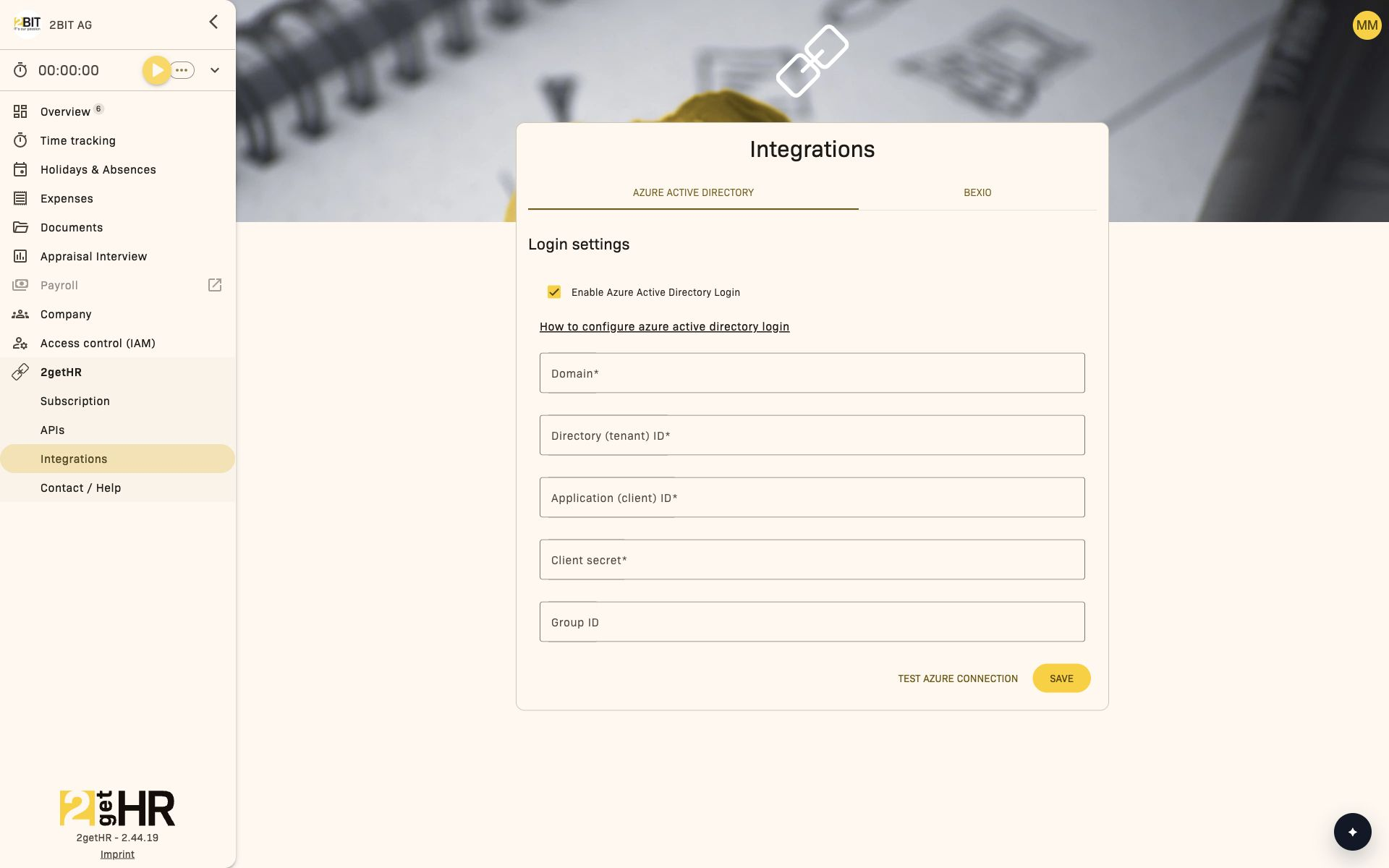
The Azure AD tab centralizes all configuration for connecting the company's Microsoft directory to 2getHR. Only administrators and back office users can access this tab.
Available actions:
- Opening the tab loads the current connection parameters.
- Test Azure connection: Checks authentication connectivity with Azure AD.
- SAVE: Saves new or changed configuration values.
After entering these values, Test Azure connection validates them immediately. A confirmation message appears on success. SAVE updates the tenant configuration. Invalid or missing values trigger field-specific validation messages.
bexio tab
The bexio tab provides configuration for synchronizing expense, time tracking, payslip and salary data with bexio. The tab is only visible if the user's company is eligible for bexio access.
Available actions include:
- Edit in Expense settings — Opens a dialog to define how receipts should be uploaded when transferring expenses.
- Edit in Time tracking settings — Selects the bexio timesheet status to assign to new time entries.
- Payslips import schedules — Configures when payslips are retrieved from bexio Payroll.
- Configure employee transfer and import — Toggles automatic synchronization between employee changes and bexio Payroll.
- Configure holiday and absence transfer — Sends absences and holidays to bexio Payroll.
Common tasks
Configure Azure AD integration
- Open 2getHR > Integrations and select the Azure Active Directory tab.
- Enable Enable Azure Active Directory Login to unlock the credential fields.
-
With Azure AD login enabled, fill in the required Domain, Directory (tenant) ID, Application (client) ID and Client secret fields. Group ID is optional.
-
Click Test Azure connection to verify the configuration.
- Click SAVE once verification succeeds.
Edit bexio expense upload behavior
- Open 2getHR > Integrations > bexio.
- Click Edit in Expense settings.
- Select Receipt upload state from the dropdown (Do not upload, Pending or Archived) to define the upload condition for expense receipts.
- Click Save.
Manage a bexio payslip import schedule
- In the bexio tab, click Add import schedule in Payslips import schedules.
-
Set the Day of month and Time. Then choose whether to import payslips for the current or previous month.
-
Save to apply. The system validates all values before saving the schedule.
Settings
- Enable Azure Active Directory Login: Enables tenant-wide Azure AD authentication integration.
- Receipt upload state: Determines how expense receipts are transferred to bexio.
- Timesheet status: Maps completed time entries in 2getHR to an appropriate bexio status.
- Push employee changes to bexio Payroll: Automatically sends updated staff data to bexio.
- Push added employee to bexio Payroll: Adds newly created users to bexio Payroll.
- Push Time Tracking to bexio: Automatically transfers employee time entries.
- Push projects to bexio: Includes project references in time entries.
- Push Expenses to bexio: Automatically sends expense reports.
- Push Holiday and Absences to bexio Payroll: Synchronizes absences and holidays for linked employees.
- Import payslips from bexio Payroll: Enables automatic recurring payslip imports according to defined schedules.
- Import staff from bexio Payroll: Allows employee records to be imported from bexio Payroll into 2getHR.
Tips and troubleshooting
- Azure AD connection fails: Check the tenant ID and client secret from the Azure portal, then use Test Azure connection again.
- bexio tab not visible: Make sure your tenant has an active bexio integration entitlement.
- Missing payslips: Confirm that import from bexio Payroll is enabled and the scheduled day/time has not yet passed.
- Credentials reset after disabling Azure AD: This is expected; enable AD login again and re-enter your credentials.
- Expense or time tracking data does not appear in bexio: Check that push settings for these data types are enabled.
Bexio User Synchronization
Overview
Retrieve data from bexio compares an employee's details in 2getHR with those of the linked bexio user. If they differ, you can import the first name, last name and email address together from bexio into the 2getHR account.
Open Company > Staff, select the employee and use Retrieve data from bexio to open the comparison view. This feature is available when Bexio access and Bexio login are enabled for your company.
Comparison view
The view shows first name, last name and email from 2getHR and bexio. When details differ, both values are shown; when they match, the shared value is displayed.
- Update 2getHR account: Imports first name, last name and email together from bexio into 2getHR.
- CANCEL: Returns to the previous page without changing the details.
Common tasks
Import an employee's details from bexio:
- Open Company > Staff, select the employee, then Retrieve data from bexio.
- Compare the first name, last name and email in the view.
- Click Update 2getHR account to import all three details from bexio.
Tips and troubleshooting
- The comparison view is unavailable: Check that the employee is linked to a bexio user and that Bexio access and Bexio login are enabled.
- Details differ: Update 2getHR account always imports first name, last name and email together from bexio. Correct the details in bexio first if necessary.
- Data cannot be loaded: Use CANCEL to return to the previous page and check the employee's bexio link.
Trustee clients
Overview
Use Trustee clients to manage linked client companies in the trustee context. The page focuses on the client lifecycle: creating a client company, checking the list and removing the link. The client list is sorted alphabetically by company name.
Access and use
Use this page only in the trustee administration context. It is not intended for regular employee processes.
Common tasks
Create a client company
- Open Trustee > Clients.
- Click +.
- Enter the company name, email address, first name and last name, select the language if needed, and accept the terms of use. The company phone number is optional.
- Complete registration and check the new entry in the list.
Remove a client company
- Open Trustee > Clients.
- Find the client company you want to remove.
- Click Remove and confirm.
Notes
This feature has no separate Settings tab. Its behavior is controlled by trustee permissions and the current context.
Tips and troubleshooting
- If + is unavailable, check your trustee role's permissions.
- If registration cannot be completed, check the required fields, email address format and acceptance of the terms of use. An email address that is already used or invalid must be corrected.
- Check carefully before confirming removal to avoid unlinking a company unintentionally.
Switching the active employee
The employee switching feature allows verified trustees with permission to manage trustee clients to work temporarily in a client's context.
To switch the employee context:
- In the navigation, open the selection field under Trustee > Client.
- Select the client you want.
- A brief loading page appears, followed by the dashboard in the selected client's context.
All data — absences, time tracking and HR records — switches to the selected client.
To return to your own account:
- Open Trustee > Client again.
- Select NONE.
Troubleshooting:
- Page is stuck: Wait 30 seconds. If the problem persists, reload the page.
- Access error after switching: Refresh the browser.
- Unexpected data on the dashboard: Select NONE in the Client field to reset the context.
Webhook events
Overview
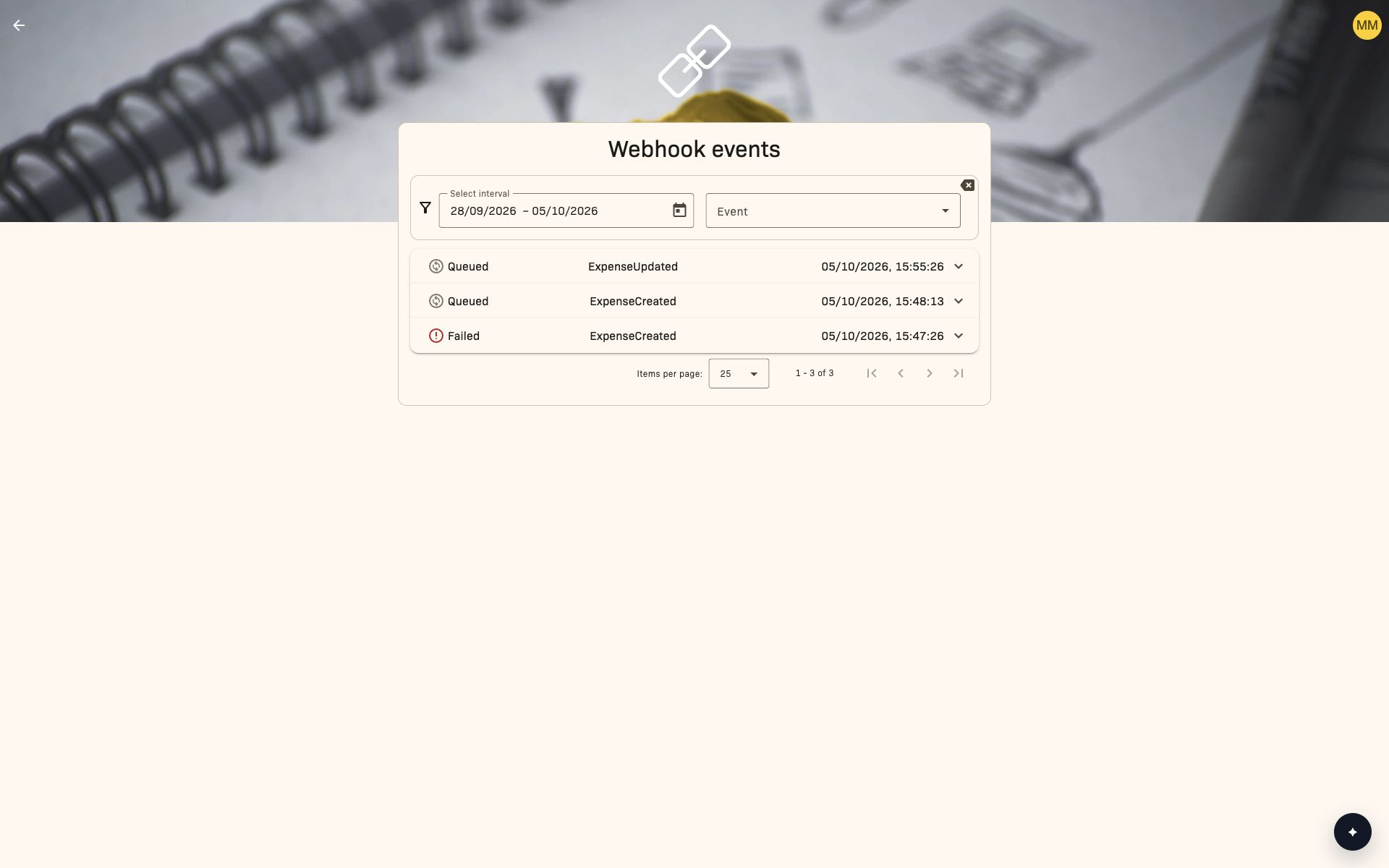
The Webhook events page shows administrators and Backoffice users all webhook deliveries to external endpoints. You can check each delivery's status, view details of delivery attempts, cancel events and retry failed events.
To reach the page, open 2getHR > APIs > Webhook settings, then Logs for an endpoint.
View and filter events
The expandable list shows each event's timestamp, event type and status (Success, Failed, Queued, Deactivated or Canceled). Open an event to view Event Id, Event content, Call results and, for pending or failed events, Next attempt.
Filtering:
- Select interval: Choose a start and end date to restrict events to a period. The list updates once both dates are specified.
- Event: Optionally filter by specific types. You can choose ALL or only the event types configured for the endpoint.
Retry failed events:
- Open a failed event and click Retry now.
- This starts processing the associated endpoint's queue, not just the selected event.
- Available events are processed in creation order until the first error. Successful and canceled events are skipped.
- Refresh the call results and check the statuses after processing. The selected event is not guaranteed to switch immediately to Queued.
If Retry now is disabled, a waiting period is in progress or the next attempt is already being processed. Refresh the call results or wait until the time shown. Retrying is not possible when the endpoint is deactivated.
Tips
- Check event statuses regularly to identify failed deliveries early.
- For persistent errors, check the endpoint URL and activation status under 2getHR > APIs > Webhook settings.
- Test endpoints using Test endpoint in the settings.