Holidays & Absences
My holidays & absences
Overview
Use My holidays & absences to request absences, track their status and check your annual balance.
This area requires access to the Holidays & Absences module. If access control (IAM) is enabled, your effective permissions determine whether the module is available to you. The role and record restrictions for each action still apply.
Access the page via Holidays & Absences > My holidays & absences in the main menu.
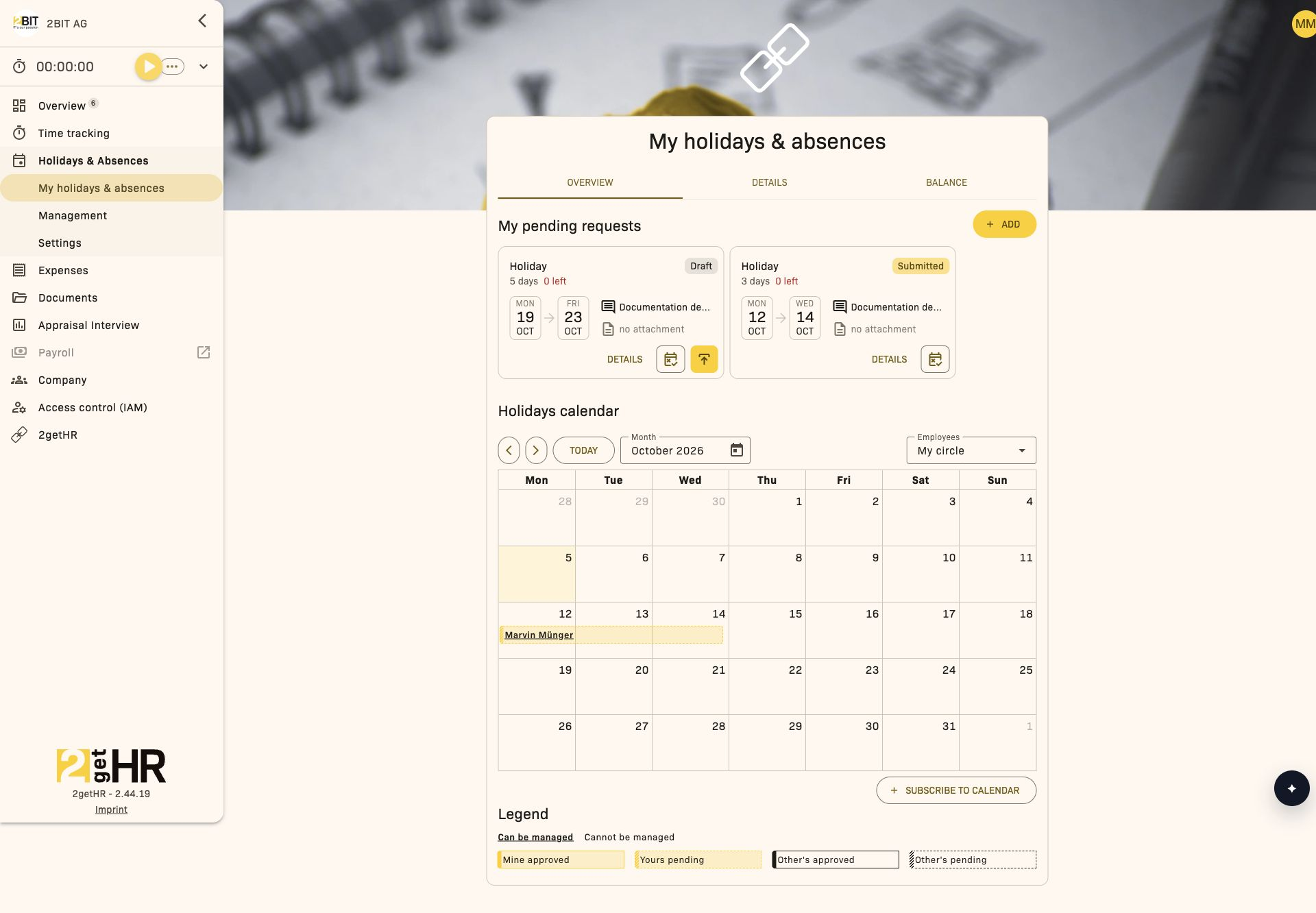
What the tabs are for
- Overview: Calendar view with public holidays and pending requests.
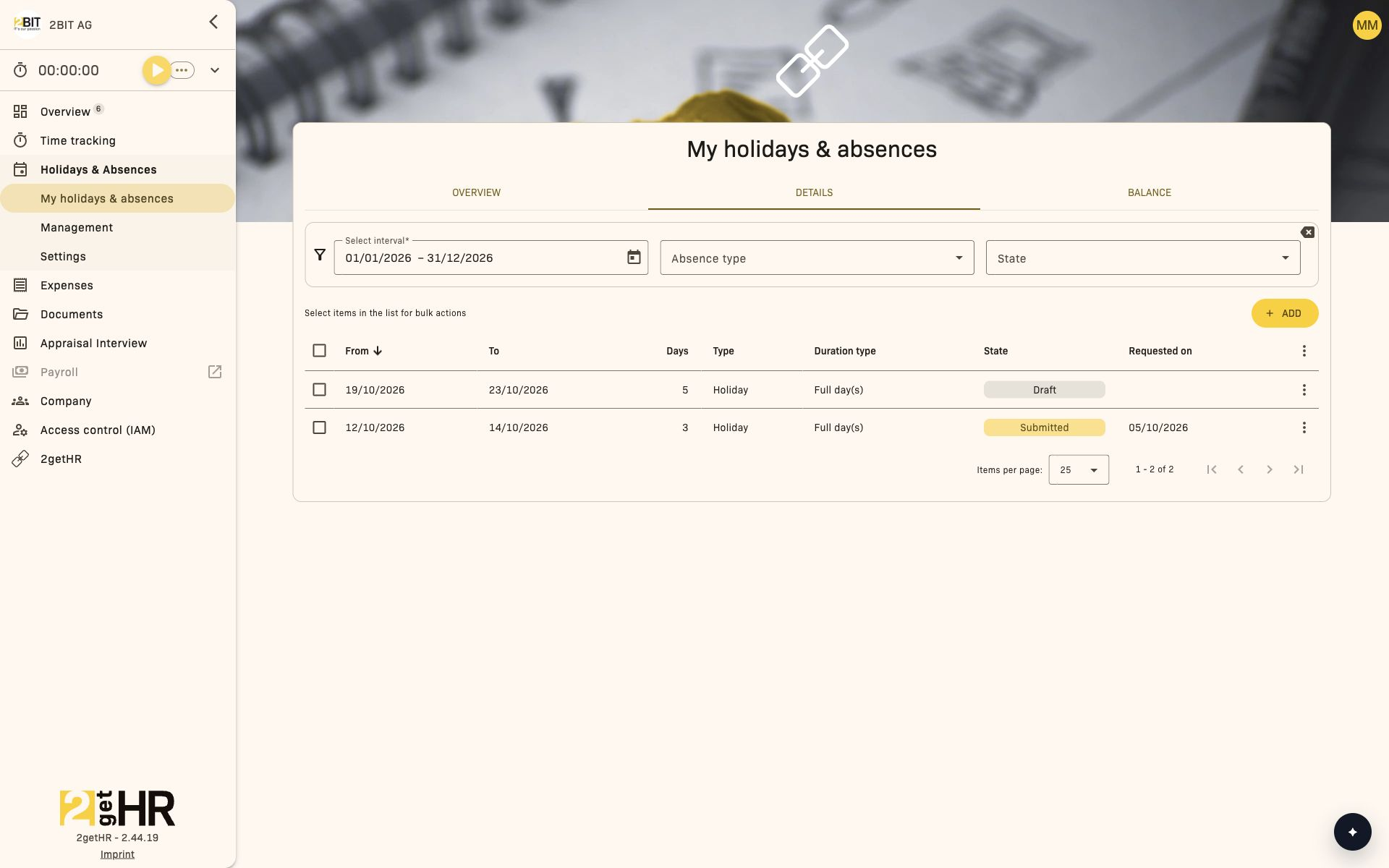
- Details: Full request list with filters and export.
- Balance: Annual view of requested and approved values.
- bexio (if visible): Transfer selected absences to bexio.
Common tasks
Create a holiday request
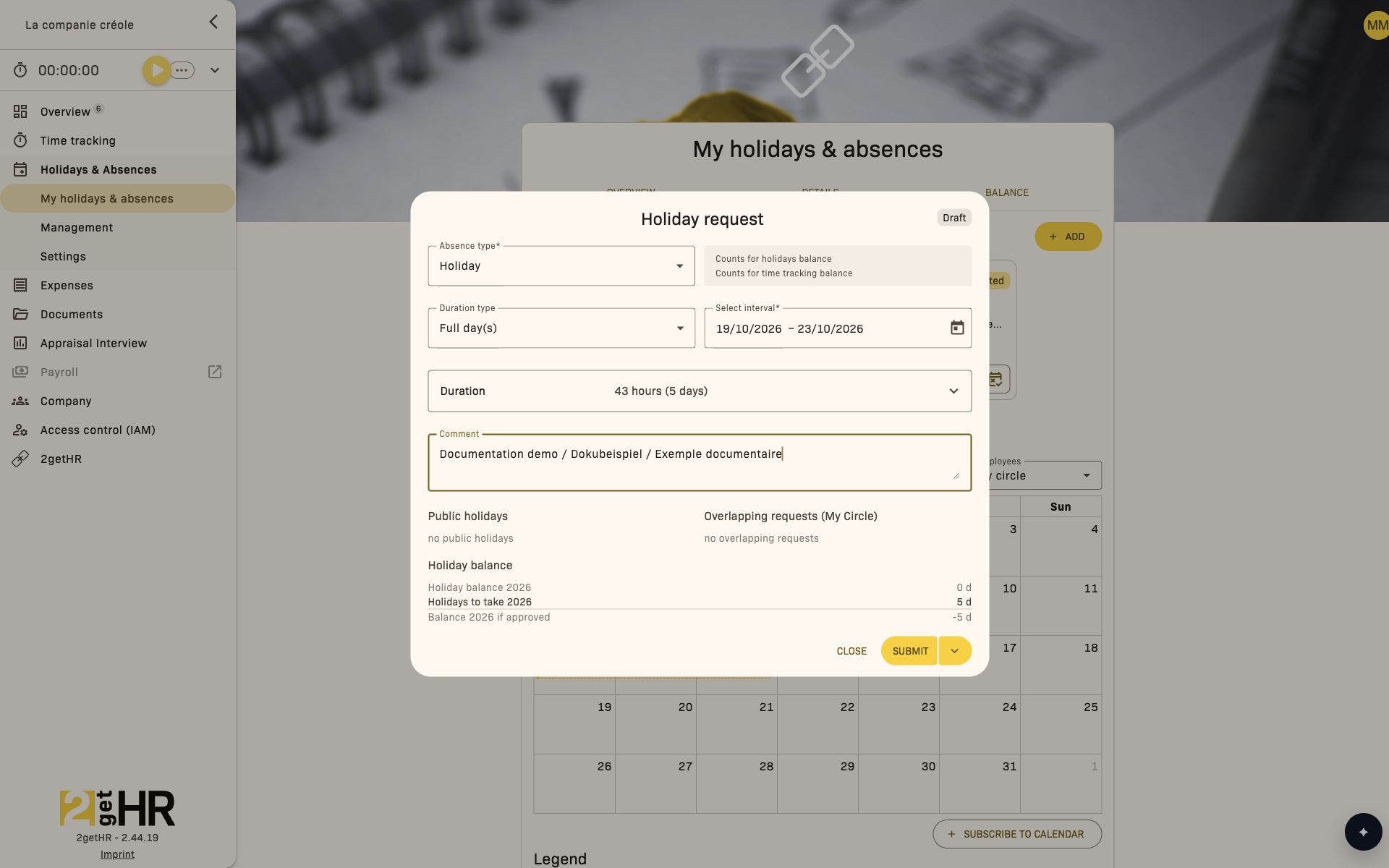
- Open Holidays & Absences > My holidays & absences > Overview or Details, then Add.
- Enter the period and absence type.
- Save as a draft or submit directly.
- Check the status in Details.
Edit a submitted request
- Open Holidays & Absences > My holidays & absences > Details.
- Select your own submitted request.
- Open Edit, adjust the information and click Submit.
Correct an approved request
- In Details, open your approved request.
- Select Correct, adjust the information and submit the changes.
- Check the Corrected status; the request is reviewed again in management.
The action is only available if the company allows changes to approved holiday requests. A request that has already been corrected can be corrected again under the same condition.
Delete your own request
Select Delete for your request and confirm the prompt. This is possible for Draft, Submitted and Corrected requests. For Approved requests, the company must allow changes to approved holiday requests. For Declined requests, the action is not available in the personal view.
Check your holiday balance
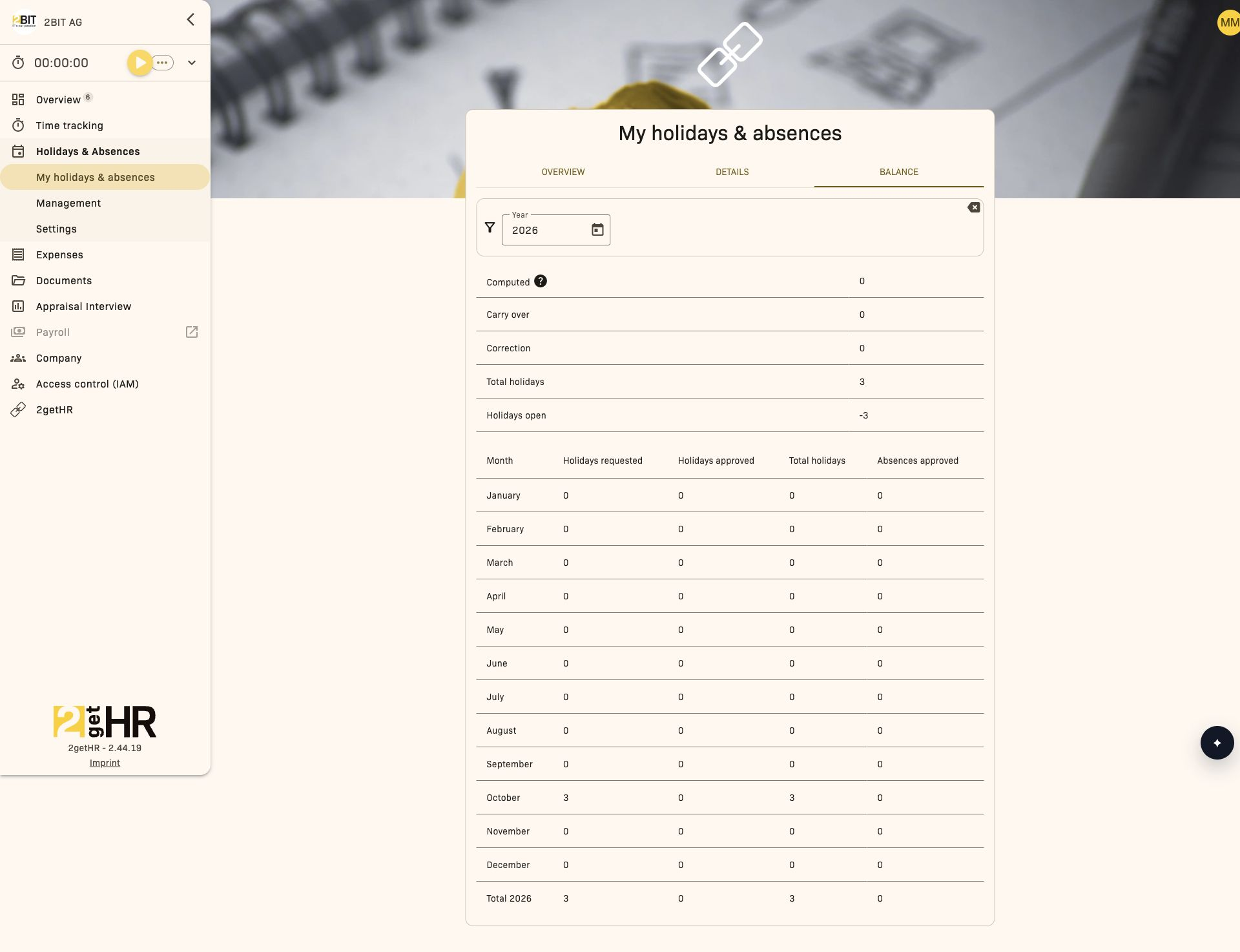
- Open Holidays & Absences > My holidays & absences > Balance.
- Select the required year.
- Compare requested and approved values before making new requests.
Subscribe to a calendar
- In Holidays calendar, select the required employee scope or organizational unit.
- Click SUBSCRIBE TO CALENDAR.
- Select Apple Calendar, Google Calendar, Outlook.com, Outlook (Desktop) or Outlook (Office 365). Alternatively, use Copy webcal URL and set it up as a calendar subscription.
The link uses the calendar scope selected when it was created. The external calendar displays the data; requests are still managed in 2getHR. Updates are performed by the calendar application. Share the link only with people authorized to access this calendar data.
Transfer to bexio (if available)
- Open Holidays & Absences > My holidays & absences > bexio.
- Filter the absences to transfer.
- Start the transfer and check its status.
Behavior after actions in the app
- Save as draft: The request stays in your list and is not processed in management.
- Submit: The request appears in management views for review.
- Approve: Approved values are included in the holiday balance.
- Decline: The reason for declining remains visible in the detailed entry.
- Correct: The request is adjusted and passes through the approval workflow again.
Tips and troubleshooting
- Cannot submit: A document may be required for the selected absence type.
- Unexpected value: Check the duration type and period.
- Request missing in management: Drafts only become visible after submission.
- bexio tab missing: Transfer to bexio may not be enabled.
Holidays & absences management
Overview
Use Holidays & absences management to process employee requests, maintain accurate balances and export holiday data.
This area requires access to the Holidays & Absences module. If access control (IAM) is enabled, your effective permissions determine whether the module is available to you. The role and record restrictions for each action still apply.
Access this area via Holidays & Absences > Management in the main menu.
What the tabs are for
- Overview: Quick view of pending requests and their calendar impact.
- Details: Full management table for approval, rejection and export.
- Balance: Annual values per employee, including adjustments.
- bexio (if visible): Transfer approved absences to Bexio.
Managers' area of responsibility
The head and deputy head of an organizational unit have access within that unit and its subordinate units. Without an organizational filter, the list remains restricted to this area of responsibility; it does not automatically show all employees in the company. Module access, role rules and the conditions for each action also apply.
Common tasks
Approve or decline requests
- Open Holidays & Absences > Management > Details.
- Filter by period, status or employee.
- Open the request and select Approve or Decline.
- Provide a clear reason when declining.
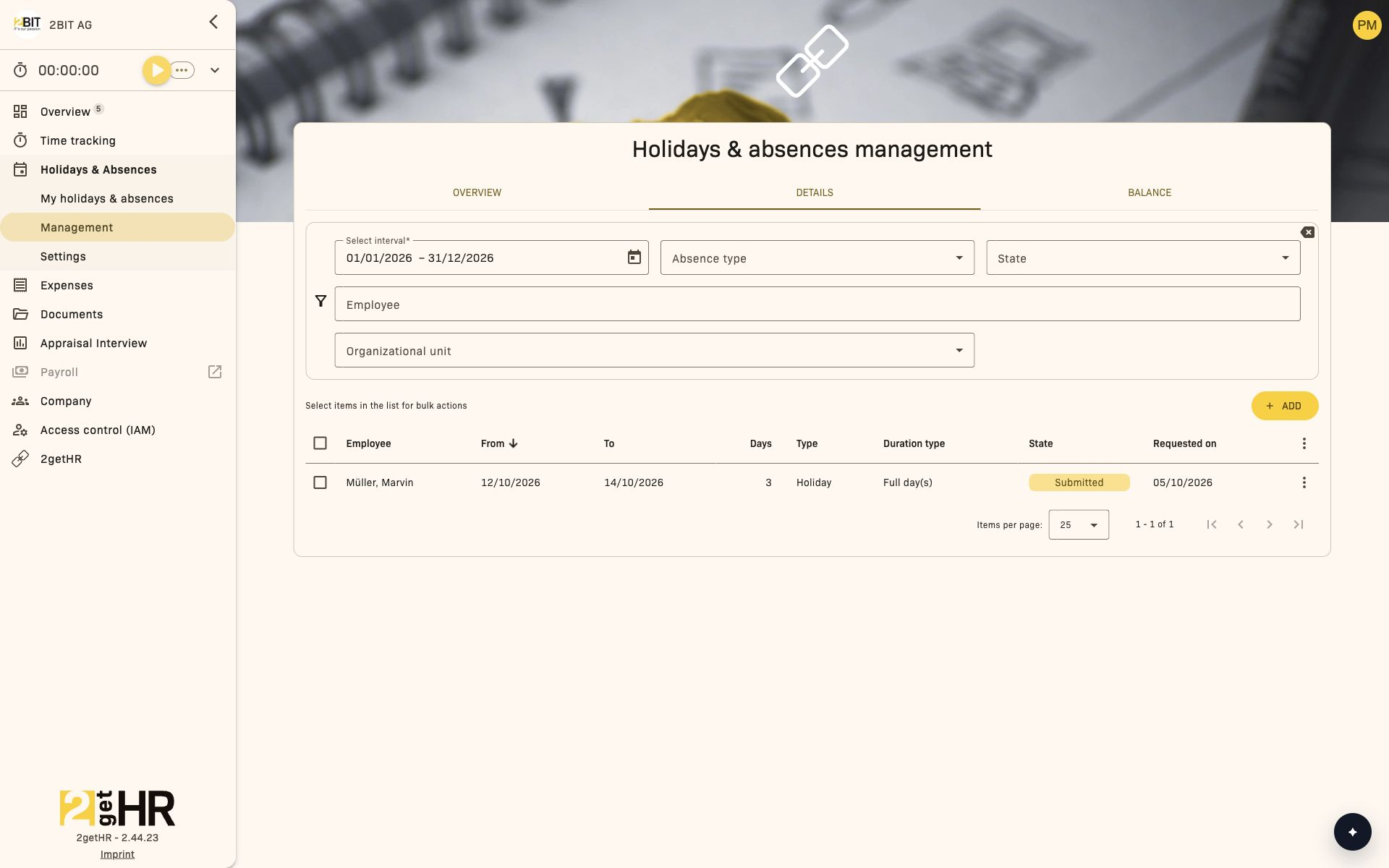
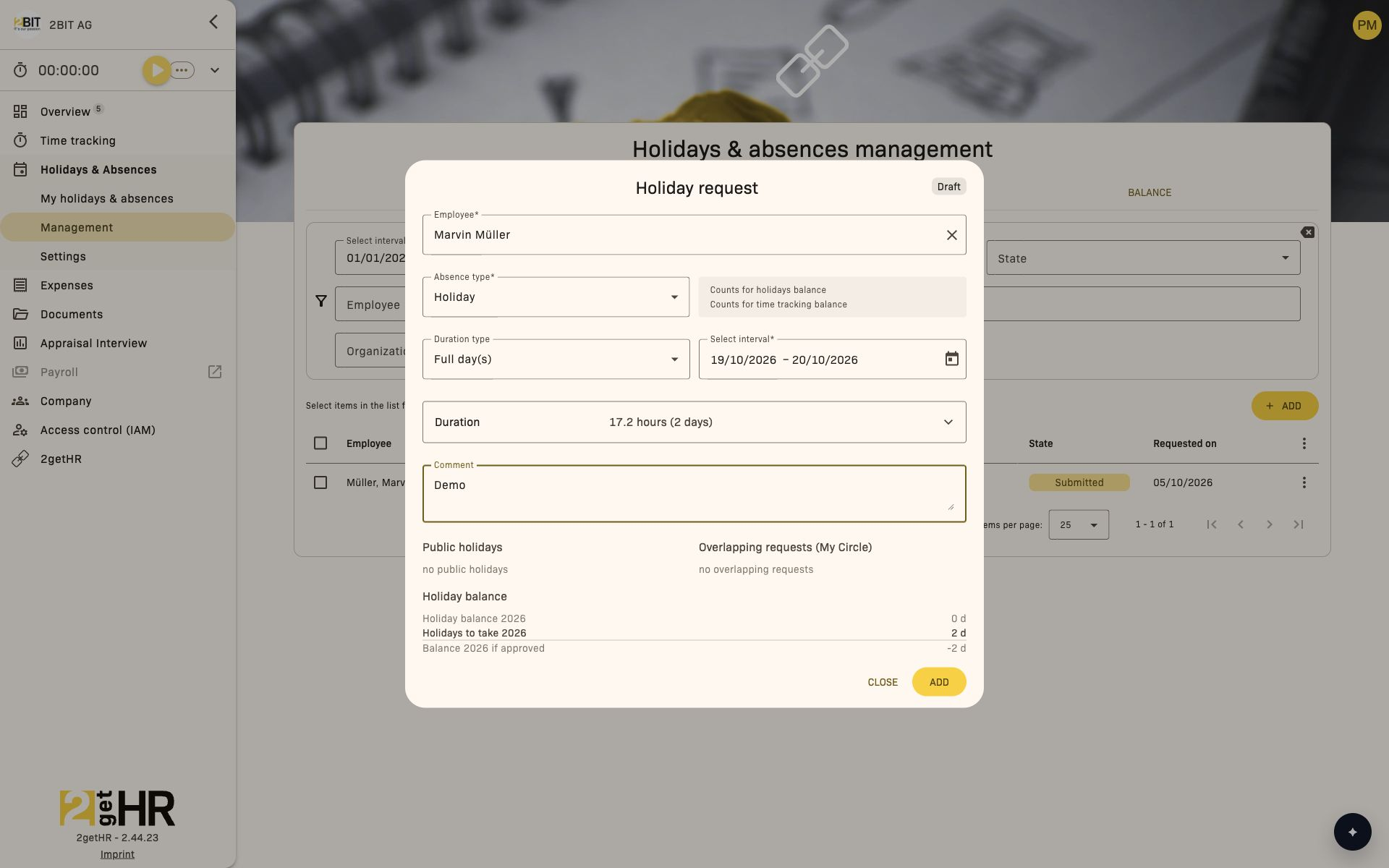
Enter a request on behalf of an employee
- Click Add in Overview or Details.
- Enter the absence for the employee.
- Save and check the entry in the list.
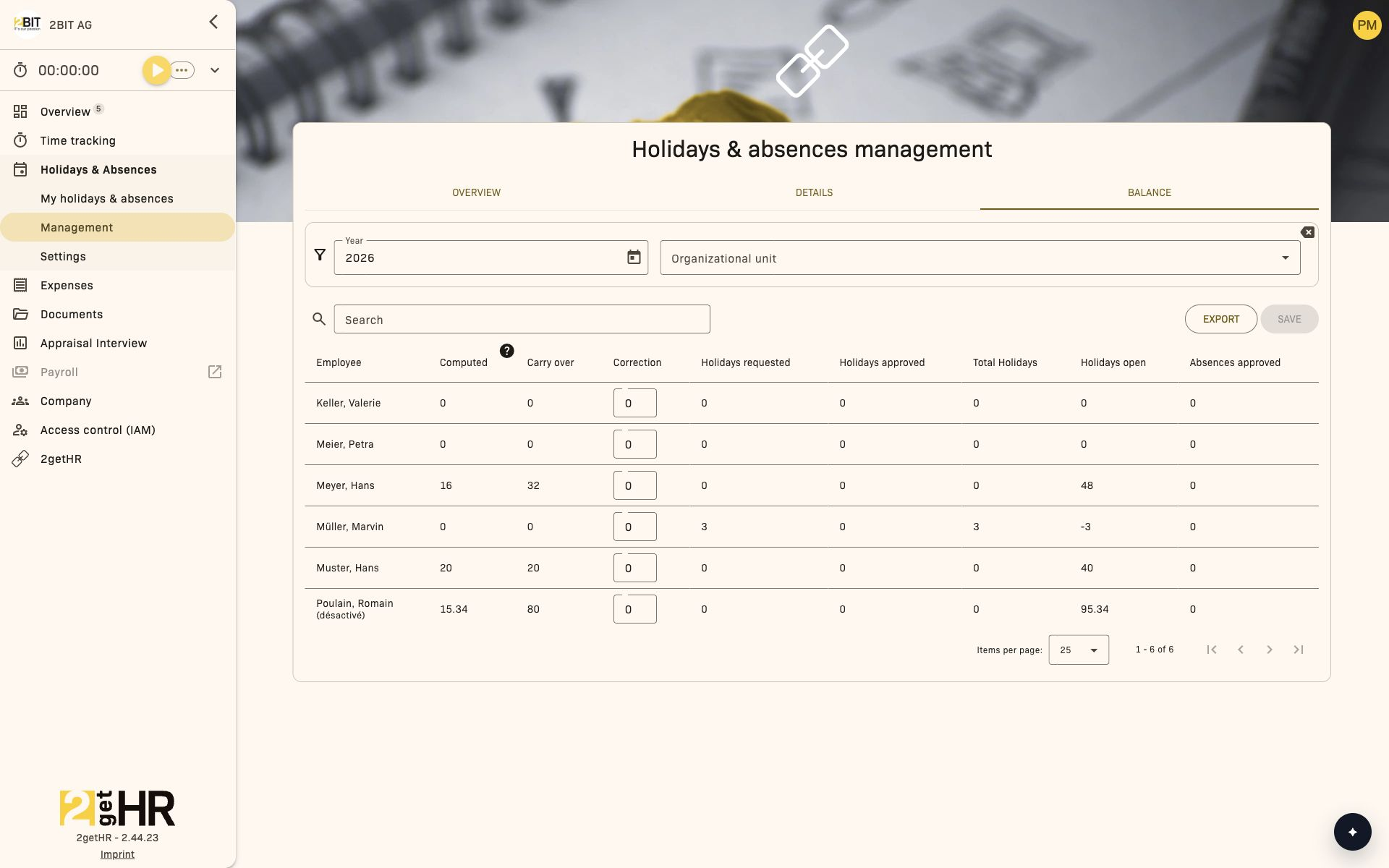
Adjust a holiday balance
- Open Holidays & Absences > Management > Balance.
- Select the year and team scope.
- Adjust the correction values.
- Save and check the updated total.
Subscribe to a calendar
- In Holidays calendar, select the required employee scope or organizational unit.
- Click SUBSCRIBE TO CALENDAR.
- Select Apple Calendar, Google Calendar, Outlook.com, Outlook (Desktop) or Outlook (Office 365). Alternatively, use Copy webcal URL and set it up as a calendar subscription.
The link uses the calendar scope selected when it was created. The external calendar displays the data; requests are still managed in 2getHR. Updates are performed by the calendar application. Share the link only with people authorized to access this calendar data.
Export data
- Open Holidays & Absences > Management > Details or Balance.
- Set the required filters.
- Export the displayed data.
Transfer to Bexio (if enabled)
- Open Holidays & Absences > Management > bexio.
- Filter the absences to transfer.
- Start the transfer and check the push status.
Operational behavior in this module
- Editing and approval are separate: Drafts remain on the employee side. Whether other requests can be edited depends on permissions and company settings. Administrators and back office staff can also change approved and declined requests within their permissions. Submitted and corrected requests can be approved or declined.
- Declining requires a reason: The reason remains visible in the details.
- Balance adjustments apply immediately: Correction values are included in totals and exports.
- Bexio actions are conditionally visible: Only when the integration is enabled.
Tips and troubleshooting
- Request not visible: Drafts are not visible in management.
- Bexio unavailable: Check whether absence transfer is enabled.
- Balance seems incorrect: Check the latest adjustments first.
Holidays & absences settings
Overview
Use Holidays & absences settings to define company-wide rules for absence requests.
This area requires access to the Holidays & Absences module. If access control (IAM) is enabled, your effective permissions determine whether the module is available to you. The role and record restrictions for each action still apply.
Access this area via Holidays & Absences > Settings.
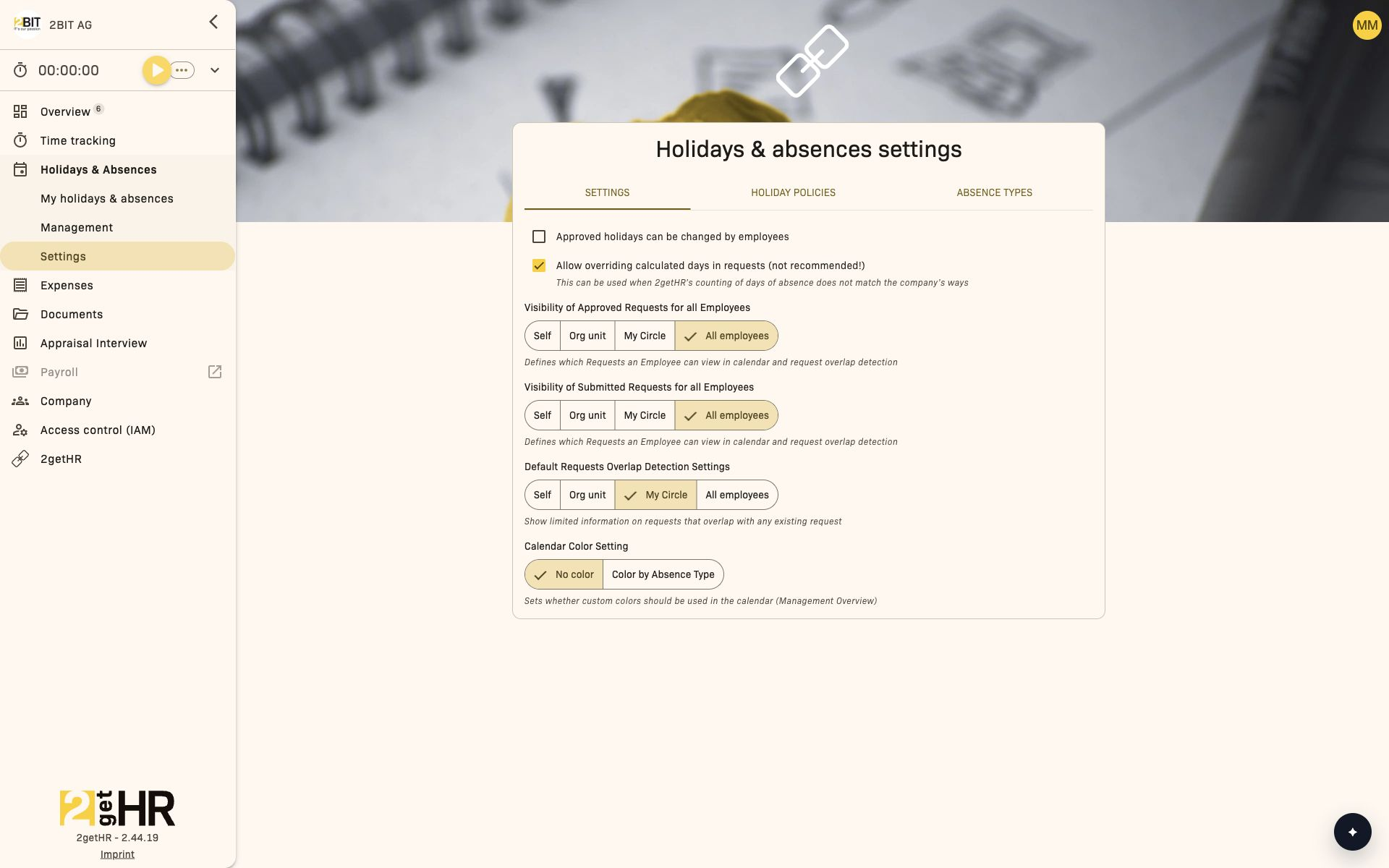
What you control here
- Settings: Visibility, overlaps and global request rules.
- Holiday policies: Annual entitlements and calculation logic.
- Absence types: Available types and their behavior.
- bexio (if visible): Mapping internal absence types to Bexio reasons; unmapped entries are not transferred to bexio payroll.
Common tasks
Configure request visibility
- Go to Holidays & Absences > Settings > Settings tab.
- Set Visibility of Approved Requests for all Employees to the required scope.
- Set Visibility of Submitted Requests for all Employees to the same or a narrower scope.
- The overlap-checking group is automatically restricted accordingly.
Allow changes to approved requests
Under Settings, Approved holidays can be changed by employees determines whether employees can correct or delete their own approved requests. Corrected requests are reviewed again in management.
Manually override calculated days
Allow overriding calculated days in requests (not recommended!) allows the calculated duration of individual days in a request to be adjusted manually. This option is intended for alternative counting methods. Check adjusted values, as they affect the request duration and the balances based on it.
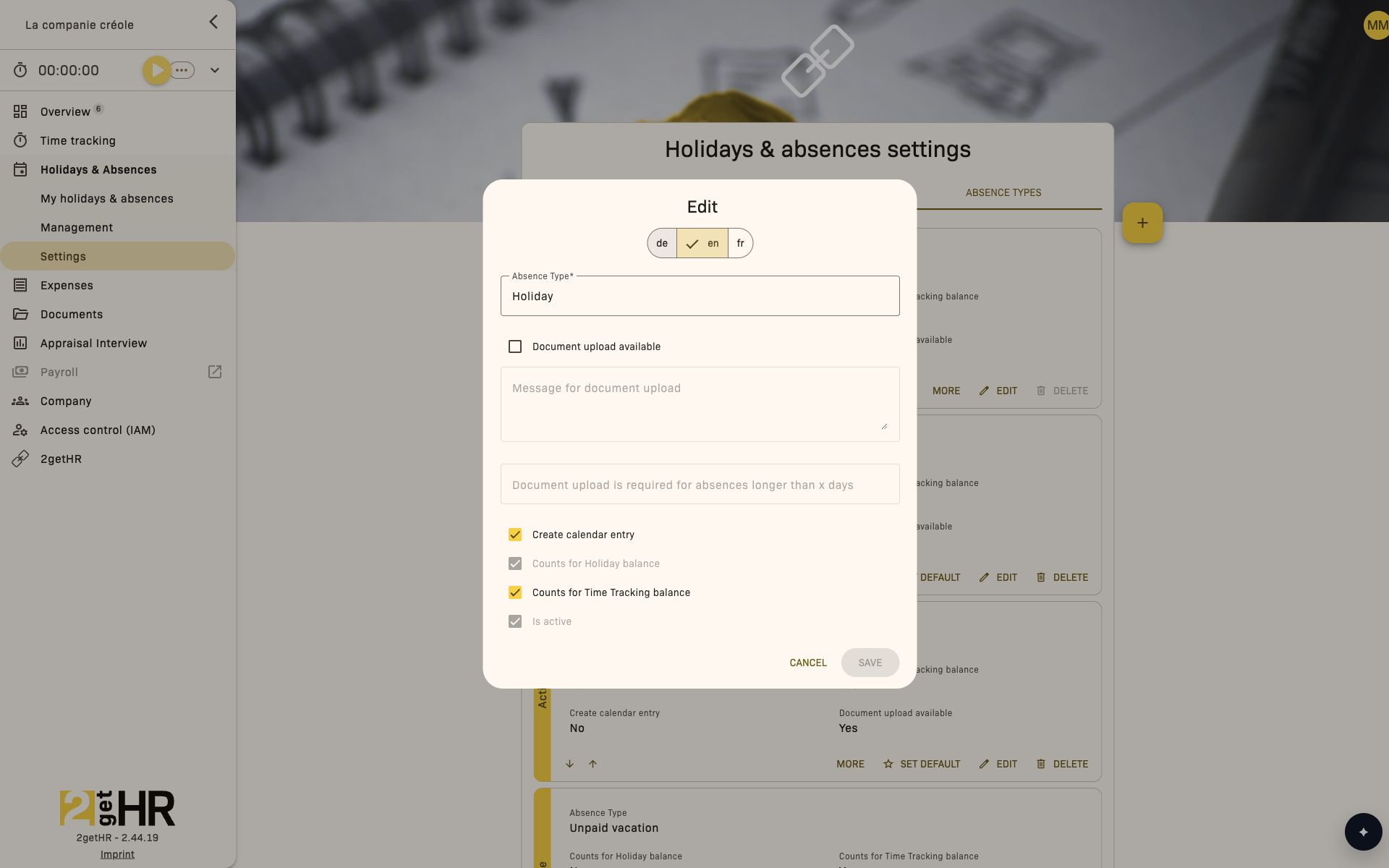
Maintain absence types
- Open Holidays & Absences > Settings > Absence types.
- Add a new type or edit an existing one.
- Define counting behavior and document requirements.
- Save and check availability in the request form.
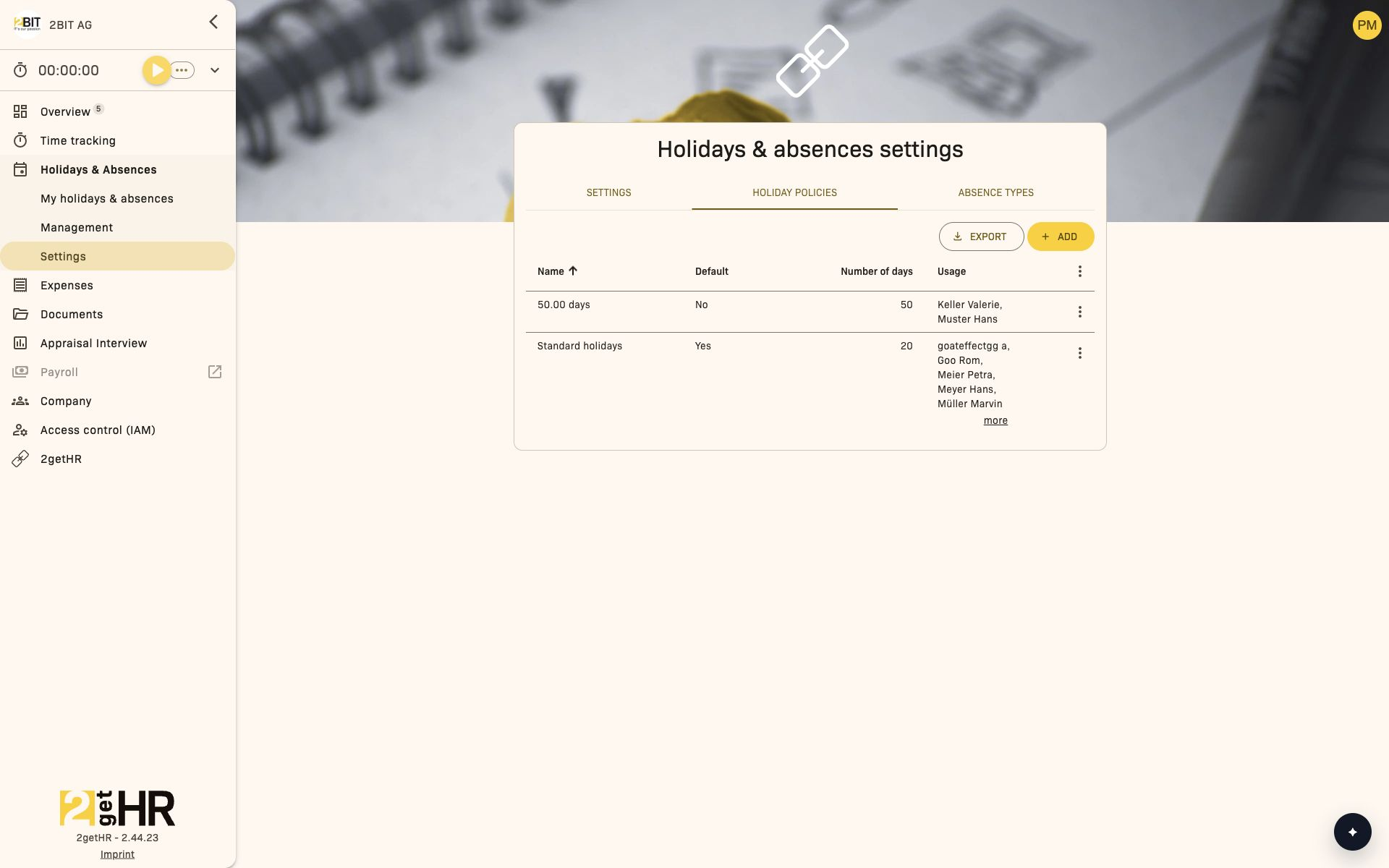
Update policies
- Open Holidays & Absences > Settings > Holiday policies.
- Adjust values or add new policies.
- Make sure the correct policies are assigned to the right employee groups.
Map absence types to Bexio (if enabled)
- Make sure the Bexio integration is active under 2getHR > Integrations > bexio.
- In holiday settings, go to the bexio tab.
- Under the required Bexio absence reason, select the matching internal absence type in 2getHR absence types. You can also move a type between groups.
- Remove a mapping to list the type as Unmapped; it will not be transferred to bexio payroll.
Why these settings matter in the app
- Visibility controls who sees submitted and approved requests.
- Absence type rules control behavior in the employee form (e.g. mandatory documents).
- Holiday policies affect calculations in balance views.
- Bexio mapping is required for reliable transfer to payroll.
Tips and troubleshooting
- If the Bexio tab does not appear, check under 2getHR > Integrations > bexio that both the Bexio integration and the option to push absences are enabled.
- Absence type colors only appear in the appropriate color mode.
- If saving is blocked, check the required text for document rules.
Public holidays
Overview
Use Public holidays to maintain official public holidays for each location and year.
This directly affects holiday calculations, expected working hours and staffing plans.
Open this area through Company > Public holidays.
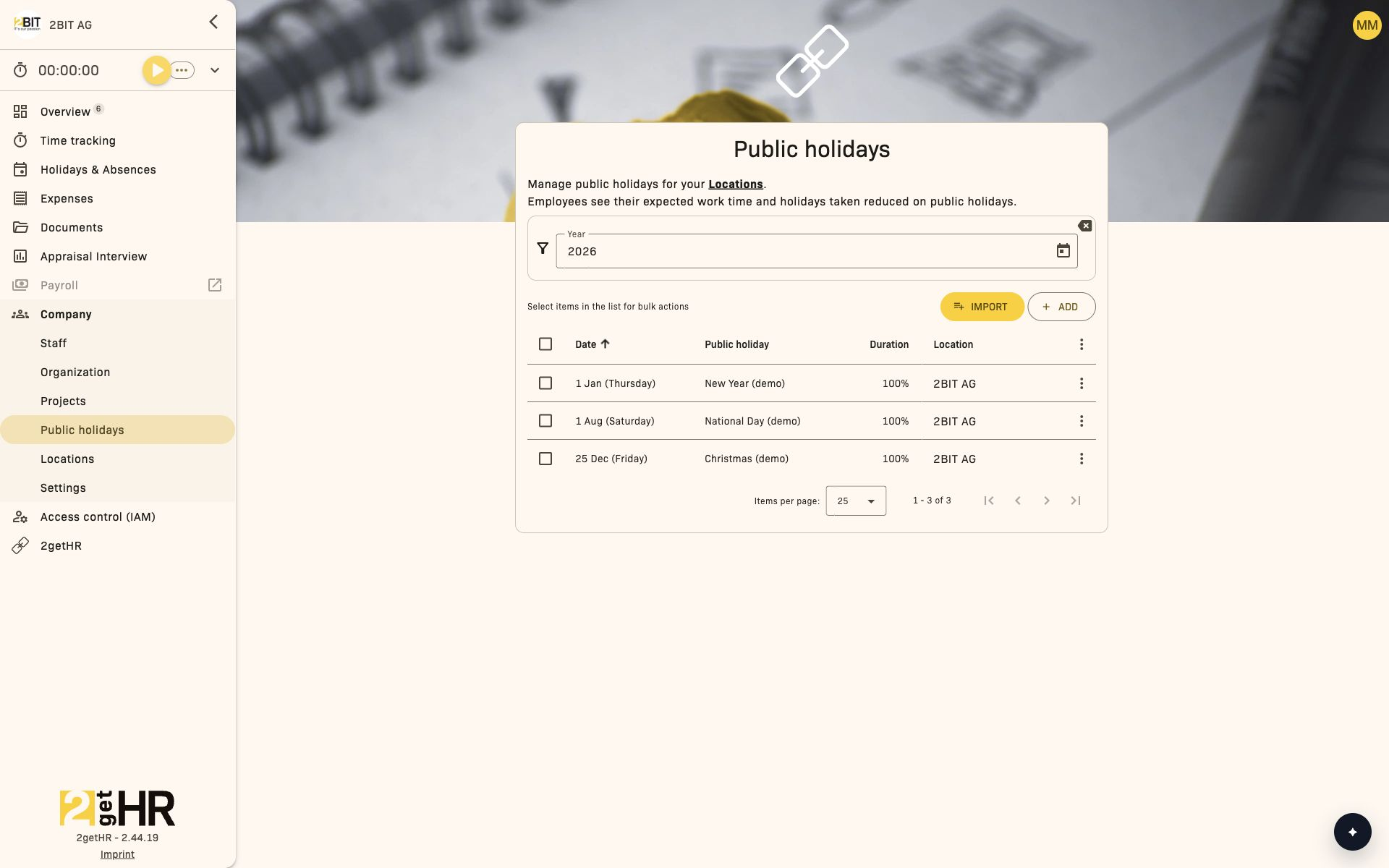
Management view
Main controls:
- Filters for Year and Location
- Add, edit, delete or export public holidays
- Import public holidays from templates
Import from templates
Use import when setting up a new year or location.
- On the main Public holidays page, click Import.
- Select Location and Template.
- Check the preview.
- Select the entries you want.
- Click Import to create the public holidays.
Existing public holidays are marked in the preview and cannot be selected.
Common tasks
Enter a single public holiday
- Click Add.
- Enter Date, Public holiday name, Duration (of 1 day) and Location.
- Save and check the entry in the list.
Check public holiday coverage for each location
- Filter by year and location.
- Sort by date.
- Export the list for payroll or team management if needed.
Why this matters in 2getHR
- Public holidays are included in calculations of expected hours and balances.
- Incorrect location assignments produce incorrect results for the affected teams.
- Importing templates significantly reduces manual yearly maintenance.
Tips and troubleshooting
- Duplicate notice: A public holiday already exists for that date and location.
- No templates visible: Check the year and catalog availability.
- Unexpected values in other modules: Check the duration and location assignment.