Getting Started
About 2getHR
2getHR is a cloud-based human resources management platform for small and medium-sized companies in Switzerland. It offers comprehensive tools for staff management, time tracking, holiday and absence management, expense entry, objective agreements, appraisal interviews, payroll integration and document management. The platform supports multilingual interfaces (English, German and French) and integrates with external systems such as bexio and Azure Active Directory.
System requirements
- A modern web browser (the latest version of Chrome, Firefox, Edge or Safari)
- A stable internet connection
- A screen resolution of 1280x720 or higher is recommended
Use 2getHR as an app on your smartphone
2getHR is available in the App Store and on Google Play, or can be installed directly on your smartphone as a Progressive Web App (PWA) as follows.
On Android (Chrome):
- Open 2getHR in Chrome.
- Tap the menu (three dots at the top right).
- Select Add to Home screen or Install app.
- Confirm installation. The app appears on your home screen.
On iPhone/iPad (Safari):
- Open 2getHR in Safari.
- Tap the Share icon (square with an upward arrow).
- Scroll down and select Add to Home Screen.
- Confirm with Add. The app appears on your home screen.
Limitations in iOS and Teams
The following management areas are unavailable in the native iOS app and in Teams: Staff, Locations, Organizational units, Security groups, Modules, Access control (IAM) > Settings and Subscription. For these actions, open the web application in a browser with the required permissions. This limitation of the native iOS app is not the same as using the application in a mobile browser or as a PWA.
Change language
You can change the interface language at any time:
- Open the user profile menu using the avatar button in the top navigation bar.
- Select the required language: Deutsch, English or Français.
- The interface is immediately displayed in the selected language.
Sign in
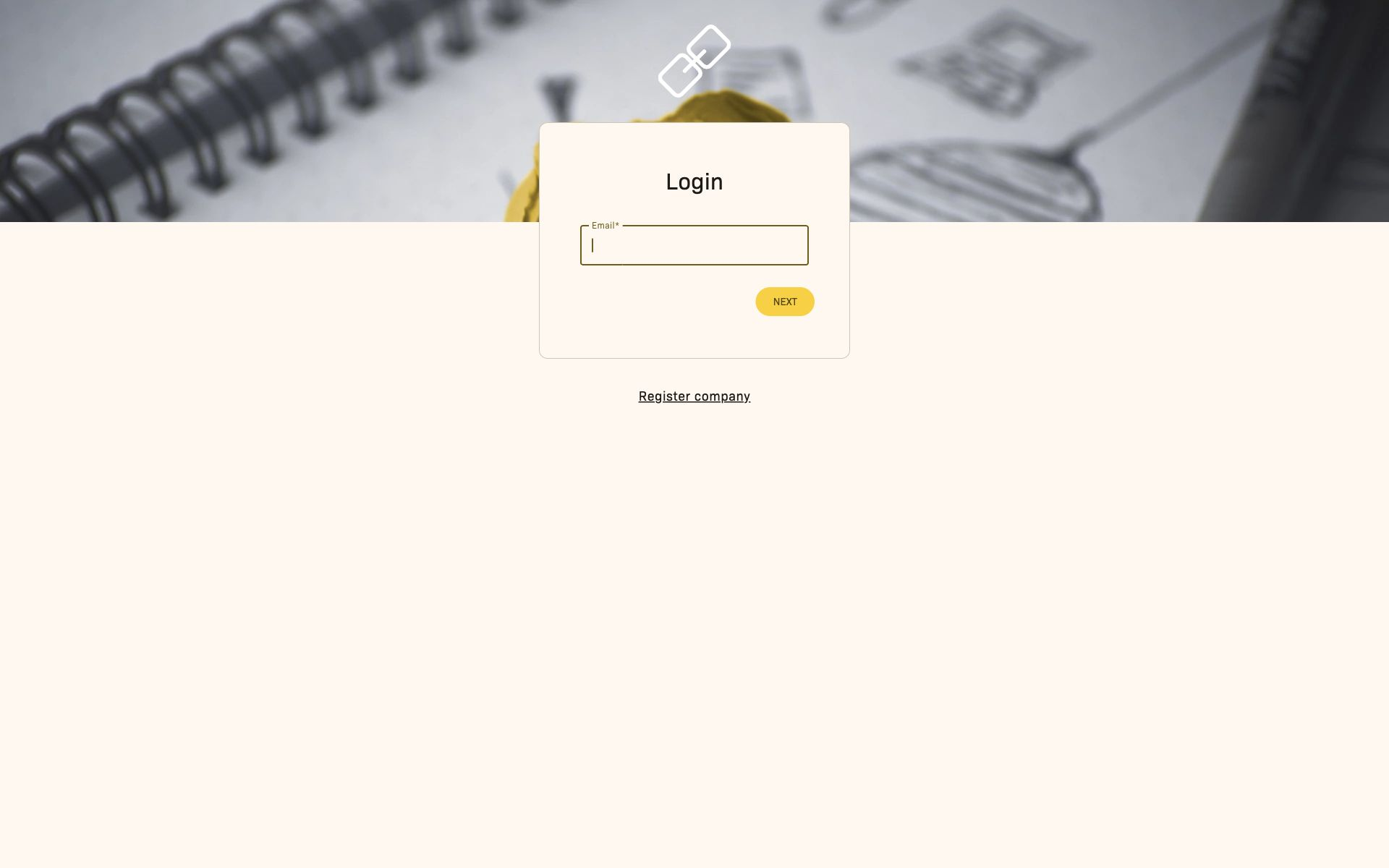
- Open your browser and navigate to 2getHR.
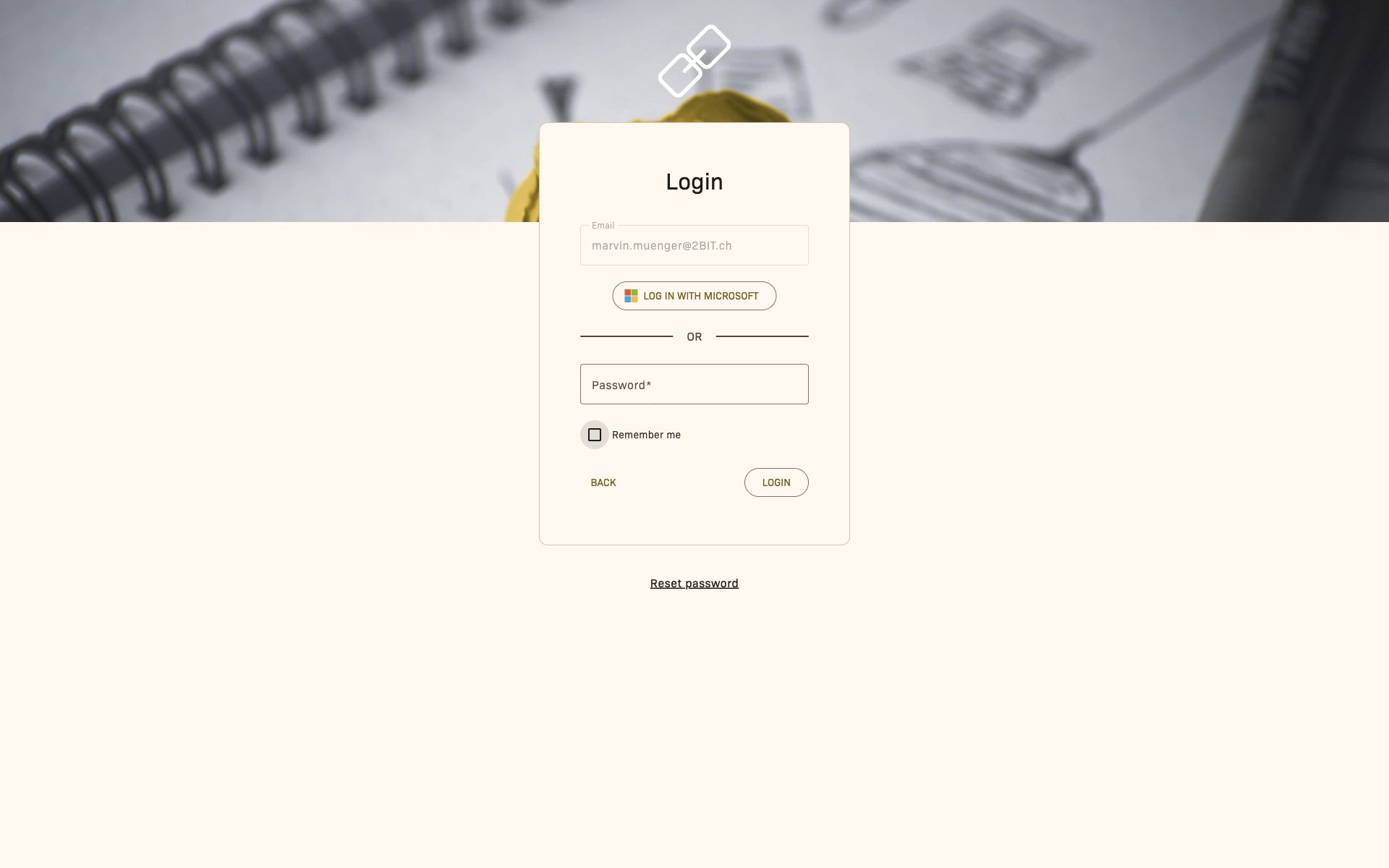
- Enter your registered Email and click Next.
- Enter your Password and click Login.
With employee access in the selected company, signing in opens the Dashboard with pending tasks and shortcuts. Administrative access alone, for example through a trustee company, opens staff management instead.
Interface overview
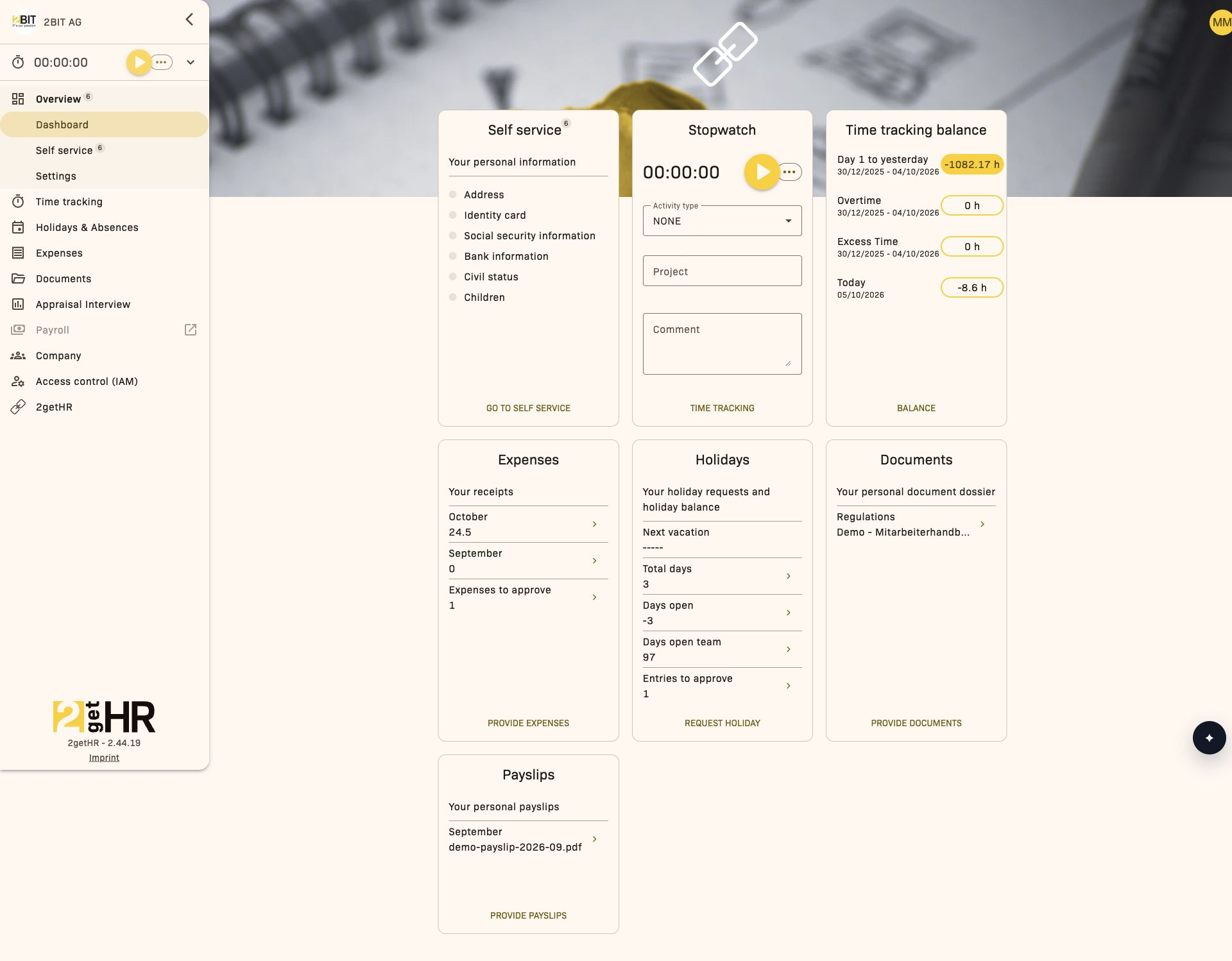
The 2getHR interface is organized around a side navigation menu on the left of the screen. The sidebar provides access to all major features and collapses on smaller screens. At the top of the page, you will find:
- Company logo and name in the header area
- User profile menu with access to personal settings and sign-out
- Language selection in the user profile menu for switching the interface between English, German and French
- Notification indicators for pending tasks or approvals
The main content area displays the currently selected feature with its views, filters and action buttons.
Roles and permissions
Access depends on the employee role, available modules and the rules for each action. If Access control (IAM) is enabled and included in the subscription, effective permissions also determine module access and the actions covered by it, such as project changes or recording time against projects. Role restrictions, areas of responsibility, owner rights and record locks still apply.
Roles form the basis for the following tasks:
- Owner: An additional company-level permission assigned to a person; each company has one owner. Certain actions, such as deleting the company, also require the administrator role.
- Administrator: Broad access to management and configuration within the available modules and permissions. The number of administrators is unlimited.
- Backoffice: Operational access similar to an administrator for daily HR tasks, but without access to other employees' documents and appraisal interviews.
- Head employee and Deputy head employee (Organization): Access to data for employees in the organization. Receive absence and expense requests for approval.
- Employees: Standard access to personal features such as their own time tracking, holidays, expenses, documents and self-service portal.
- External employees: Restricted access similar to employees; do not receive invitations when appraisal interviews are created for all employees.
Security and data protection
2getHR applies the highest security standards to protect your HR data:
- Hosting in Switzerland: All data is stored in certified Microsoft Azure data centers in Switzerland.
- Encryption: All data transfers are SSL/TLS encrypted. Sensitive data is also encrypted at rest.
- Security standards: The platform follows OWASP security best practices.
- Access control: Roles, areas of responsibility and, when IAM is enabled, effective permissions restrict access to modules, actions and data.
- Secure document storage: Payslips, contracts and personal documents are delivered through an encrypted portal.
For data protection questions, contact your administrator or 2getHR support at support@2BIT.ch.
Dashboard
Overview
The Dashboard provides a personal overview of activities, shortcuts and HR information. It requires employee access in the selected company. Administrative access alone, for example through a trustee company, opens staff management instead. The home page is therefore not the same for every signed-in account.
The dashboard brings together key widgets such as onboarding, time tracking (stopwatch and balance), expenses, holidays, documents and payslips. Each widget adapts dynamically to the user's access rights and the company configuration.
After signing in, you can access the dashboard via Overview > Dashboard.
Employee view
The employee Dashboard page displays interactive widgets summarizing key system modules.
The main view may contain the following elements:
- Self-service widget: Appears only if onboarding tasks are not yet complete.
- Stopwatch widget: Allows time tracking to be started and stopped with immediate visibility.
- Time tracking widget: Shows recorded hours, overtime and excess time.
- Expenses widget: Shows submitted expenses.
- Holidays widget: Summarizes upcoming holidays and remaining entitlement.
- Documents widget: Direct access to documents in the personal document repository.
- Payslips widget: Lists current payslips.
Typical employee actions:
- Open the onboarding widget: Takes you to the onboarding process.
- Start/stop the stopwatch: Starts or ends time tracking in real time.
- Open destination pages: Navigate directly to modules such as Expenses, Holidays, Documents or Payslips.
Stopwatch inline form
When the stopwatch widget is active, you can optionally fill in these fields:
- Activity type: Select from the available activity types.
- Project: Select the relevant active project or subproject.
- Comment: Add a note to the stopwatch entry.
The button with the play or stop icon updates the real-time status immediately.
Management view
Common tasks
Start a time entry with the stopwatch:
- Find the Stopwatch widget on your dashboard.
- Select an Activity type from the dropdown.
- Select a Project.
- Add a Comment.
- Click the play icon to start tracking.
- When finished, click the stop icon to save the entry.
Check pending approvals (for supervisors):
- Check the Expenses or Holidays widgets.
- Click the card labeled Expenses to approve or Entries to approve.
- The system takes you to the corresponding management page.
Access payslips and documents:
- Find the Documents or Payslips widgets.
- Click My dossier or My payslips to open your files.
Tips and troubleshooting
- Widget missing: You probably lack the corresponding permission or the module is disabled.
- Stopwatch does not start: Make sure you have access to time tracking and no overlapping timer is active.
- Data not updating: Reload the page or sign out and back in.
2getHR Assistant
Overview and availability
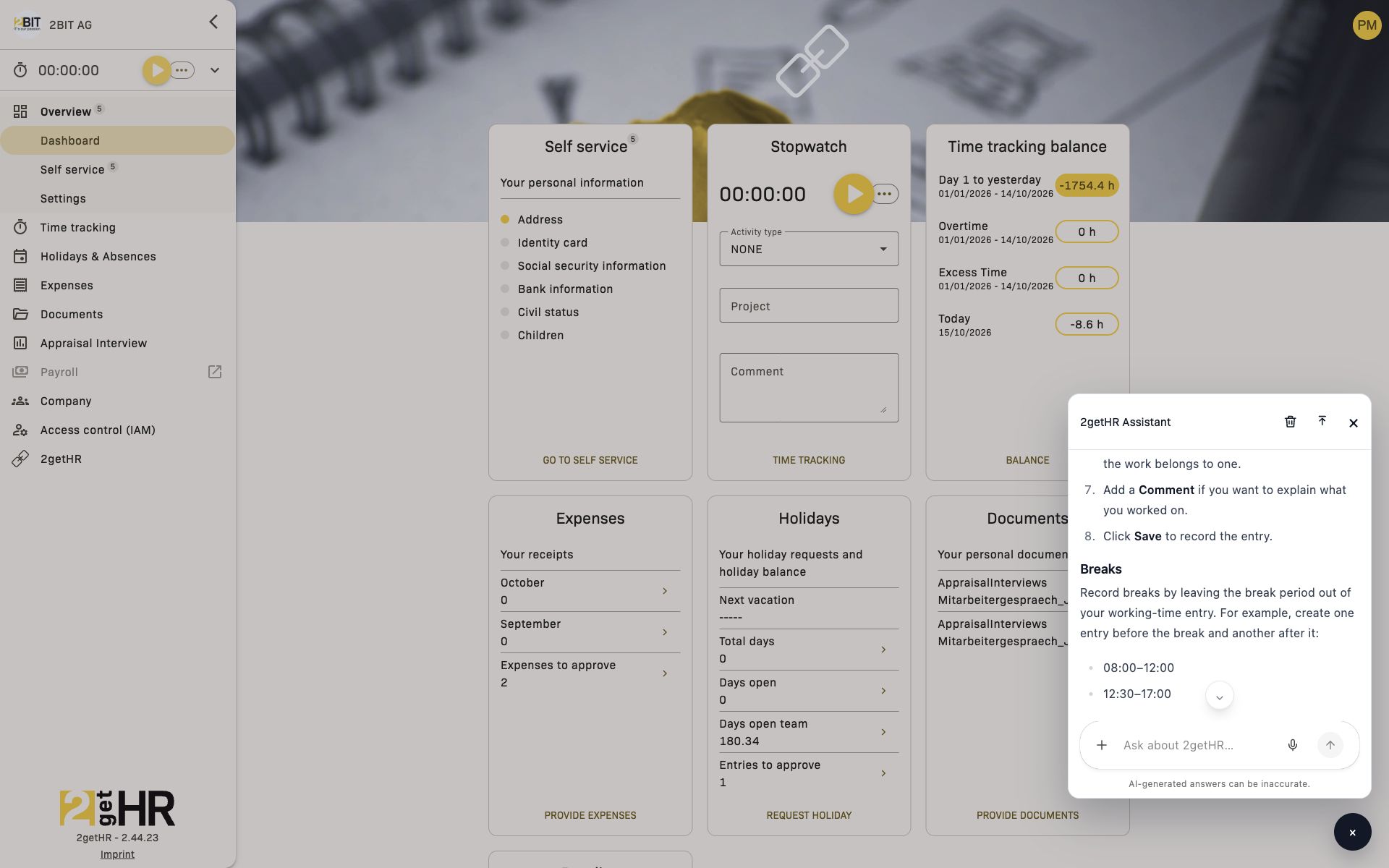
Open 2getHR Assistant using the star button at the bottom right. You can ask questions about using the application and, if advanced AI features are available to you, retrieve information from 2getHR or have it carry out supported actions.
The button appears only when you are signed in, AI chat is enabled in this environment, and your package and access permissions allow its use. Basic chat assistance and advanced AI features are available separately. Your role and permissions for the relevant data also apply in chat.
| Use | Requirement and example |
|---|---|
| Help using the application | Basic chat assistance, for example Add time manually, Find payslips or Understand filters. |
| Retrieve your own data and carry out supported actions | Advanced AI features and access to the relevant area, for example Check time balance, Check holiday balance, Request vacation or View recent expenses. |
The suggestions adapt to the available features. Instructions on entering an expense are different from the assistant actually creating an expense.
Ask a question
- Open 2getHR Assistant using the star button.
- Choose a suggestion or type your question in the input field. Specify the period and intended action where necessary, for example: “How do I add time manually?”
- Send the message using the arrow button beside the input field.
- Check the answer and open the indicated view if needed. If an action involves data, check its result afterwards in the relevant area of 2getHR.
AI answers may be incomplete or incorrect. In particular, check the date, person concerned, amounts and status of an action before proceeding.
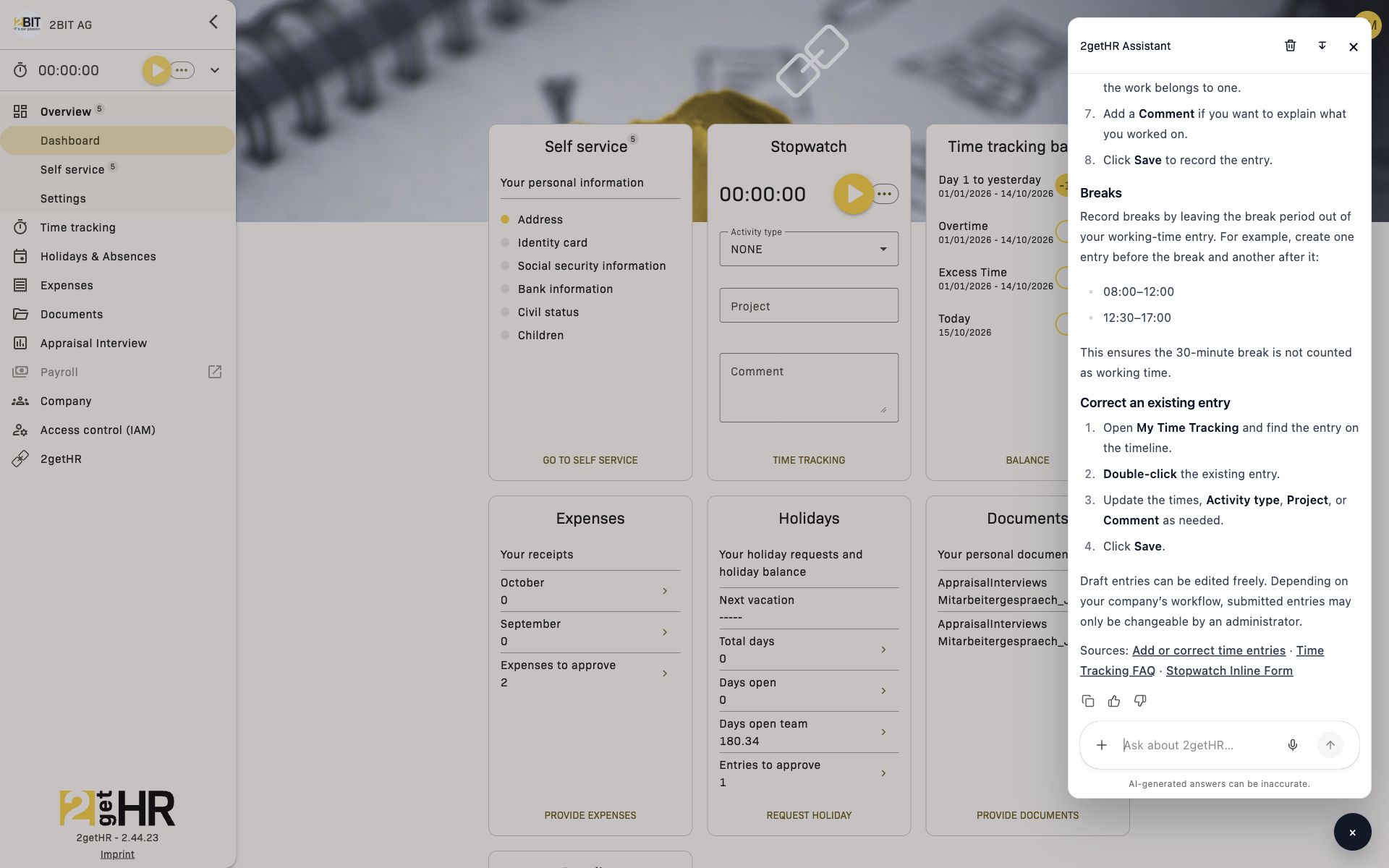
Attach a document
- Use + beside the input field to open Add photos or files.
- Choose a PDF or DOCX file no larger than 10 MiB. Despite the upload action's general wording, these are the document formats supported here.
- Wait until the upload has finished and the attachment appears in chat.
- Add a specific question about the document and send the message.
The file is uploaded as soon as you select it. Use only documents that are needed for the task and that you are permitted to process in 2getHR.
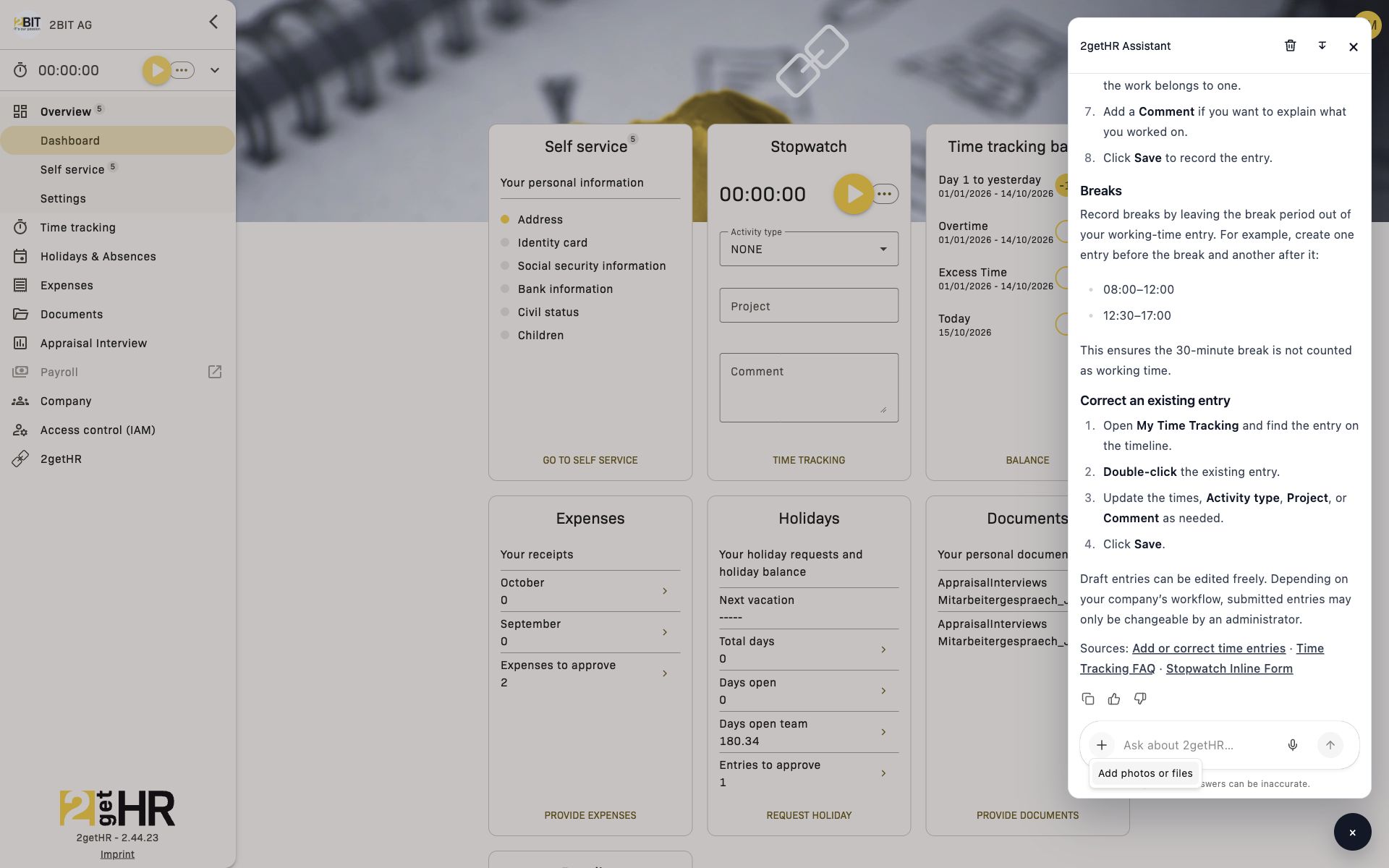
The embedded chat uses labels such as Add photos or files. These instructions use the labels actually displayed.
Manage the window and conversation
- Use the arrow icon in the header to expand the chat window or restore the compact view, if the button is displayed on your device.
- × closes the window. This does not delete the conversation; you can continue it when you reopen the window.
- Chat history is saved and restored when the page is reloaded. Loading chat history… appears while this is happening. If saving or loading fails, chat displays a message; recent messages may then be lost when you reload.
- Clear conversation removes the existing history and starts a new conversation. Use this action only when you no longer need the history. It does not delete a record created in 2getHR by an earlier action.
Check actions and confirmations
With advanced features, the assistant can work with data in 2getHR. State clearly whether you only want information displayed or want data changed. Afterwards, check the result in the corresponding area; the chat response alone does not verify the record.
When the assistant prepares a supported deletion, Delete this item? appears with the item concerned. Check the details and deliberately choose Delete or Cancel. This confirmation concerns deletion of the item and is separate from Clear conversation. Other actions do not necessarily use the same confirmation.
Troubleshooting
- Star button missing: Check the package, access permissions and availability of AI chat with your administrator.
- Only usage help is available: Data queries and actions also require advanced AI features and the relevant module and data permissions.
- Attachment rejected: Check that the file is a PDF or DOCX and does not exceed 10 MiB.
- Chat history cannot be loaded or saved: Follow the displayed message; do not repeat a data change until you have checked its result in the relevant area.
- The monthly AI chat limit has been reached.: Further chat requests are limited for the current period. Check the available options with your administrator.
User registration
Overview
Navigation: Registration.
The User registration feature manages the entire onboarding process for new 2getHR users — from account creation, email confirmation and company registration to optional bexio integration.
This workflow is intended only for anonymous users. Users who are already signed in are redirected automatically.
The feature uses a multistep registration wizard with the following steps:
- Welcome page and account creation
- Account details and acceptance of the Terms of Service
- Email confirmation with code validation
- Company registration form
- Optional bexio integration setup
- Employee invitations
Registration wizard view
The registration wizard is the central interface for registering new users.
Steps:
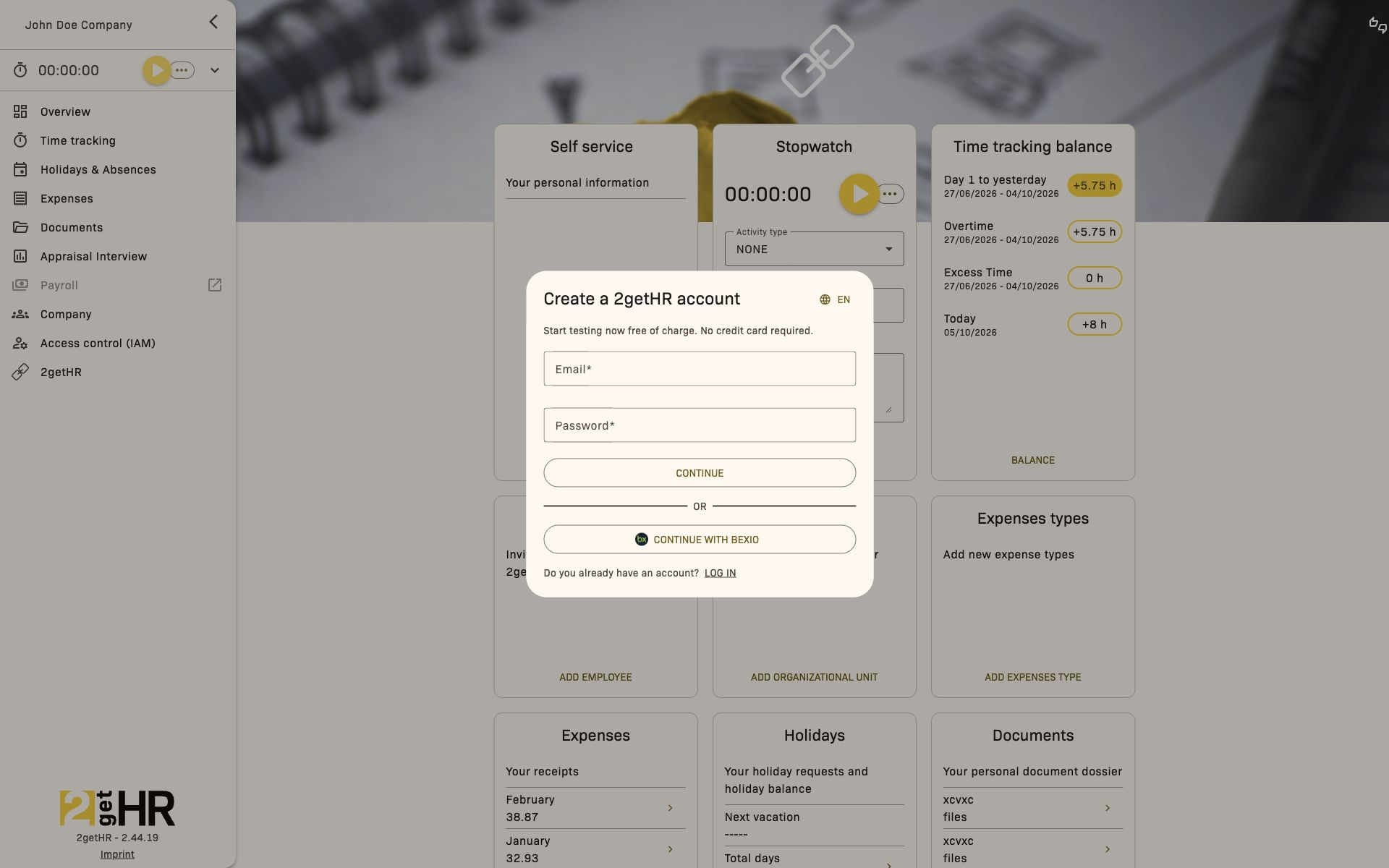
- Create a 2getHR account — Collects email and password.
- Create 2getHR account — Collects first name, last name, phone or mobile number and acceptance of the Terms of Service.
- Email verification — Verifies the registered email address using a code.
- Company — Collects company details.
Available actions:
- Continue: Submits the information for a step.
- Send new code: Sends a new confirmation code.
- Start trial: Completes company creation.
- Continue with bexio: Optionally starts registration through bexio.
Post-registration dialog
Once a company record has been created, a post-registration dialog starts for administrators.
Steps:
- Welcome to 2getHR - Enable bexio Integration — Only for bexio users; authorization can be skipped if needed.
- Steps for bexio Office, payroll, expenses, time tracking and import schedules — These only appear if the corresponding bexio feature is enabled.
- Welcome to 2getHR - Invite other employees — Adds new employees by email.
Actions:
- Continue
- Previous
- Skip this step
- Send invites
Register as a trustee
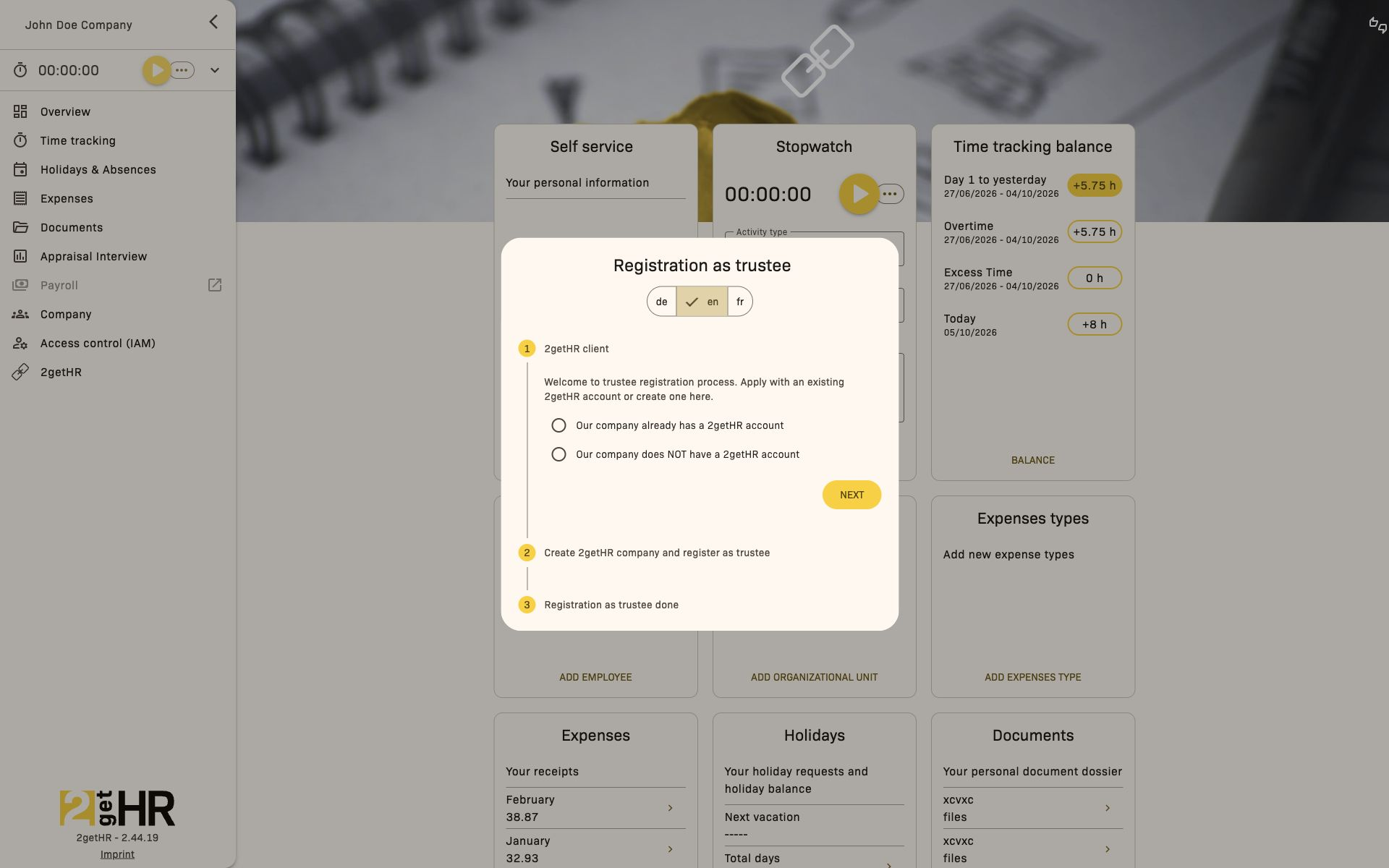
Registration as trustee is intended for trustees who want to register a new or existing company as a trustee company.
- Under 2getHR client, specify whether the company already has a 2getHR account.
- For a new company, enter the company name, email, password with confirmation, first name and last name, accept the Terms of Service and complete the CAPTCHA check.
- For an existing company, sign in with an administrator account and select Register as trustee.
- After submitting, wait for the account review. Trustee features are only enabled once it is complete.
Common tasks
Create a new 2getHR account
- Open the 2getHR registration page.
- Enter your email and password.
- Click Continue.
Complete account details
- Fill in your first name and last name and, if needed, add a phone or mobile number.
- Accept the Terms of Service.
- Click Continue.
Confirm your email
- Check your inbox for the confirmation code.
- Enter the Code.
- If necessary, click Send new code.
Invite employees
- Open the Welcome to 2getHR - Invite other employees step.
- Enter at least one email address. Four email fields are available in total.
- Click Send invites.
Settings
- Registration language: Dropdown with available languages.
Tips and troubleshooting
- No confirmation email received? Check your spam folder or click Send new code.
- Invalid confirmation code: Use the code from the latest email.
- Account cannot be created: Check the email format and whether the address is already registered. The password must contain at least six characters.
- Company creation failed: Make sure the company name and country are filled in.
- bexio integration not displayed: Setup is only available to bexio users; further steps depend on the enabled bexio features.
- Employees cannot be invited: Check email addresses for validity and duplicates. Already registered addresses cannot be used.
- Trustee registration unavailable for an existing company: Sign in with an administrator account to request verification.
Email confirmation
Registration: enter a code
During registration, Email verification appears. This step requires a code from the confirmation email; access to a profile is not yet needed.
- Check the inbox for the email address shown in the registration step, including the spam folder.
- Enter the value you received in Code and select Continue.
- If the message is missing or the code was rejected, use Send new code directly in this registration step. Then use the most recently received code.
- After successful confirmation, continue with the remaining registration steps. Email confirmation alone does not complete registration.
Confirmation through an email link
If the message you received contains a confirmation link, open the full original link. In this process, the confirmation details are taken from the link; you do not need to enter a code in an additional form. A registration link takes you back to continue registration. A separate email verification displays Email has been verified on success.
If the link is invalid or expired, follow the retry procedure for the original process: for registration that is still in progress, use Send new code. The profile page does not have a general button to resend every type of confirmation link. For another verification process without a retry option, contact the responsible administrator or support.
Change an existing email address
- Request the change under Employee settings > Change email. Enter New email and Password, then click Save.
- Open the confirmation email in the new address's inbox and follow the link.
- Wait for confirmation. Only then is the change complete.
- If the link is expired or invalid, sign in with your existing credentials and start a new request under Change email.
Troubleshooting
- Use the email address shown in the relevant process. For an address change, the message goes to the new address.
- Copy links in full without altering them. If there are several messages, use the most recently requested confirmation.
- For registration problems, request another code within the registration step, not in Employee settings.
- Complete confirmation promptly and check the success or error message before proceeding.
Registration as trustee
Registration as trustee is a guided process for external partners, such as fiduciary firms, that want to manage several client companies through 2getHR.
Register as a new trustee
Navigation: Registration as trustee.
- Open the trustee registration link.
- Select Our company does NOT have a 2getHR account and click Next.
- Complete the registration form with company and personal details.
- Click Register as trustee to create your trustee account.
Verification for an existing company account
- Open the trustee registration link.
- Select Our company already has a 2getHR account and click Next.
- Sign in with your existing credentials.
- Click Register as trustee.
A user with the Administrator role can request verification of an existing company as a trustee.
Troubleshooting
- Permission warning: Contact your administrator so that your account receives the correct role.
- Registration failed: Check that all required fields are completed and that the email address is not already in use.
- Wrong account: Use Switch user to sign in with the correct account.
Contact / Help
Overview
The Contact / Help area provides employees and administrators with tools for support, legal compliance and transparency. Access it via 2getHR > Contact / Help. This feature provides access to:
- Terms of Service
- Contact form
- Release notes dialog
- FAQ and Wiki link
Contact / Help page
Four interactive action cards. Each contains a title, description and opening button.
- Open on the Terms of Service card
- Open on the Contact us card
- Open under Release notes
- Goto help section on the FAQ and Wiki card (external, localized)
Common tasks
View Terms of Service: Navigate to 2getHR > Contact / Help and click Open. Send a contact request:
- Select Contact us and click Open.
- Fill in the subject and message. If needed, select Attach files and Send a copy to myself.
- Click Send. Check the latest updates: Click the Release notes card. Open FAQ and Wiki: Click the FAQ and Wiki card to open an external link.
Settings
No specific settings. Everything is predefined.
Tips
- Dialogs do not open: Check pop-up blockers.
- Wrong language for FAQ and Wiki: Check the language setting.
- Contact request not sent: Check the connection and required fields.
Invalid subscription
If your company's subscription requires an active subscription, an information page appears automatically. Access to the platform is restricted until the subscription is active again.
What you can do:
- As a regular user: Contact your administrator and ask them to renew the subscription.
- As an Administrator or Backoffice user: Click Go to subscription to open the payment details directly. You can update the payment method or reactivate the plan there.
Troubleshooting:
- If the page still appears after payment, sign out and sign in again.
- If Go to subscription is not visible, check that you are signed in with an account that has the Administrator or Backoffice role. This button is not available in the iOS app or in Microsoft Teams.