Payslips
Overview
The Payslips feature in 2getHR allows employees and company administrators to access, distribute and manage salary documents securely and in a structured way. Employees can view and download their personal payslips, while administrators can upload, assign or import payslips for the entire company. The feature provides full transparency across periods, employees and source systems, including bexio integration if enabled.
For your own payslips, open Documents > My payslips; for company management, open Documents > Payslips management. Employees see their personal payslip list, while administrators have access to company-wide management, import and upload options.
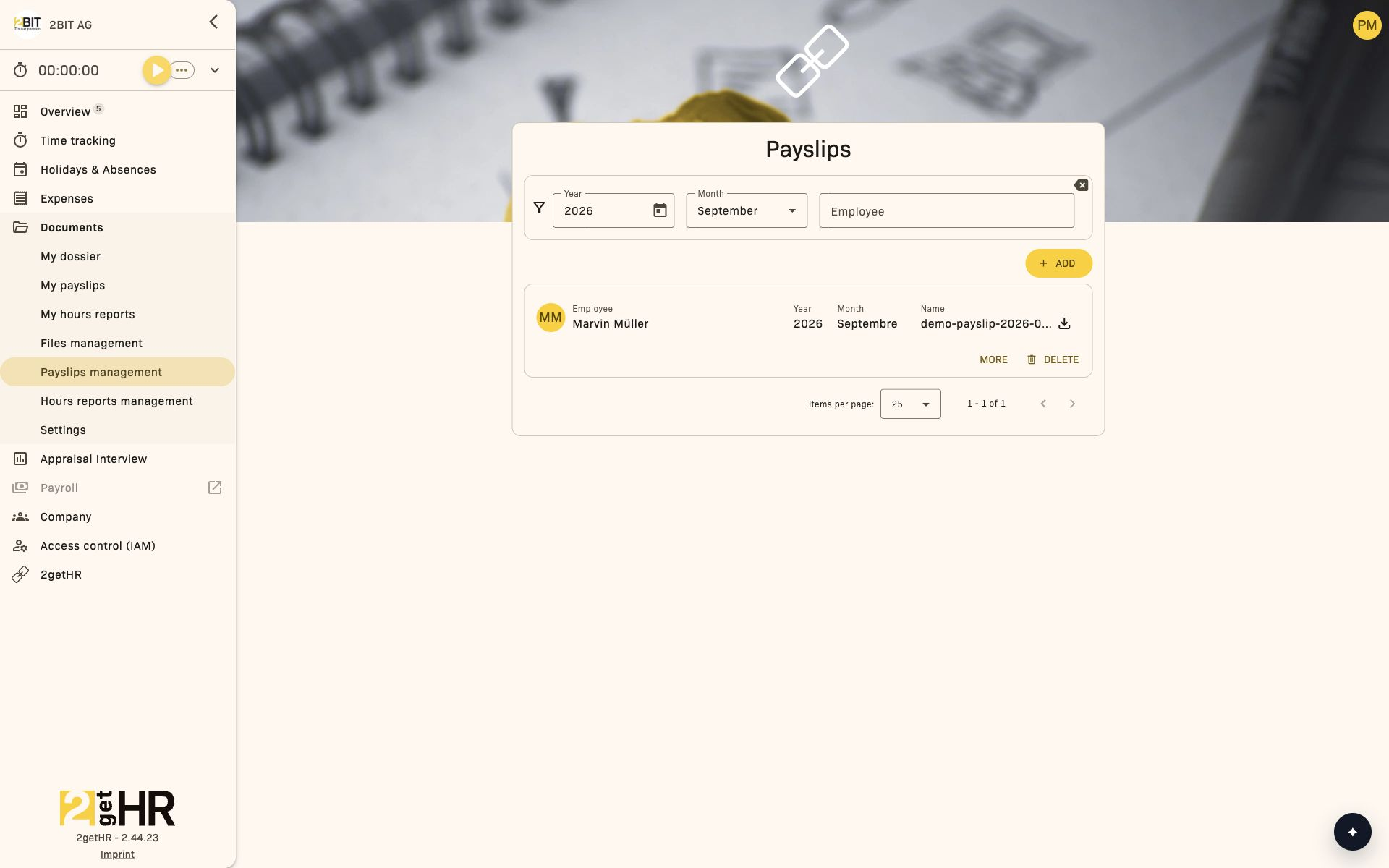
The main page displays filter controls, period selection and the list of all available payslips, filtered by year or employee for administrators.
Both views require access to the Payslips module. If access control (IAM) is enabled, your effective permissions determine whether the module is available to you. The web management view remains restricted to administrators; IAM permission does not replace this role requirement.
Management view (company payslips)
Accessible to: Admin
The management interface uses a tab layout with two main areas:
- Overview tab — The central paginated card list for managing all uploaded payslips. Administrators can add, import or delete payslips here.
- bexio tab — Visible only if import from bexio Payroll is enabled. This tab shows the status of bexio import events and allows them to be rerun if needed.
Overview tab
Displays all payslips for the selected year and month as cards. Each card contains:
- Employee: The person's full name or ID.
- Year: Payslip year.
- Month: Payslip month; Annual identifies an annual statement.
- Name: Uploaded document name and download link.
- Comment: Optional batch notes.
- Delete payslip: Removes an individual payslip after confirmation.
Filters:
- Year: Restrict the list to a specific year.
- Month: Show payslips for one month, ALL or Annual.
- Employee: Filter payslips by employee.
Actions:
- Add payslips: Opens the page for uploading and assigning new PDF payslips.
- Import payslips: Opens the bexio Payroll import page if import is enabled.
- Delete payslip: Removes a selected payslip from the company list after confirmation.
Payslip upload and assignment
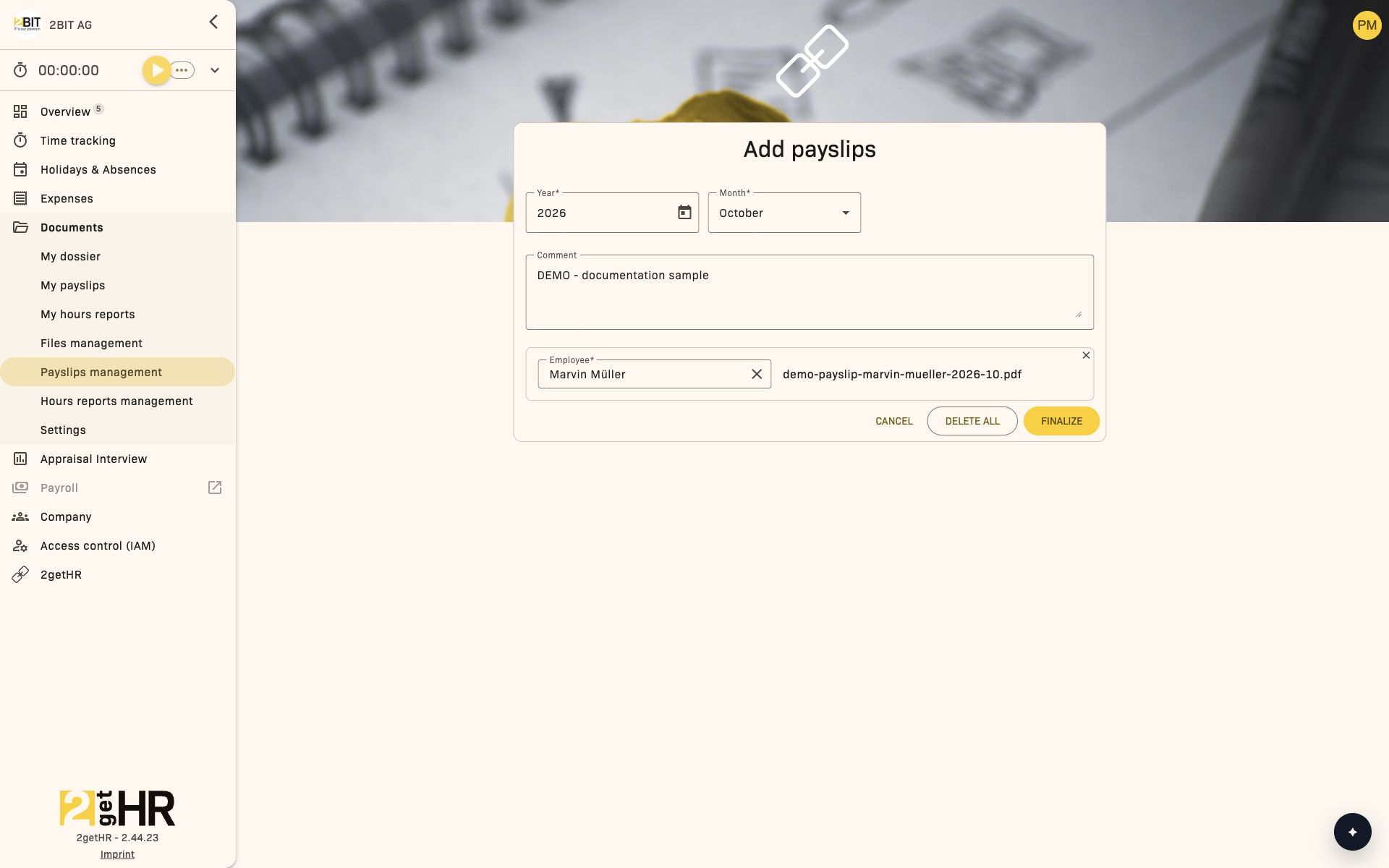
Opened with Add payslips, this page allows bulk upload of payslip files and assignment to employees.
Select Year, Month and optionally a Comment, upload PDFs and assign each file to an employee. Only PDF files can be uploaded. The system warns if the same person is assigned more than once or already has a payslip for the selected period.
Uploaded files remain drafts until Finalize. Drafts from an earlier upload session can be finalized, deleted individually or deleted entirely before creating new files. Do not leave or refresh the page during upload.
After successful Finalize, payslips are distributed to the assigned employees.
bexio tab
If import from bexio is enabled, this tab shows import events from bexio Payroll. Filter by year, month and employee, check import status and creation/processing times, and open logs as needed. Selected events eligible for retry can be rerun.
Employee view (My payslips)
Accessible to: Employees (own records)
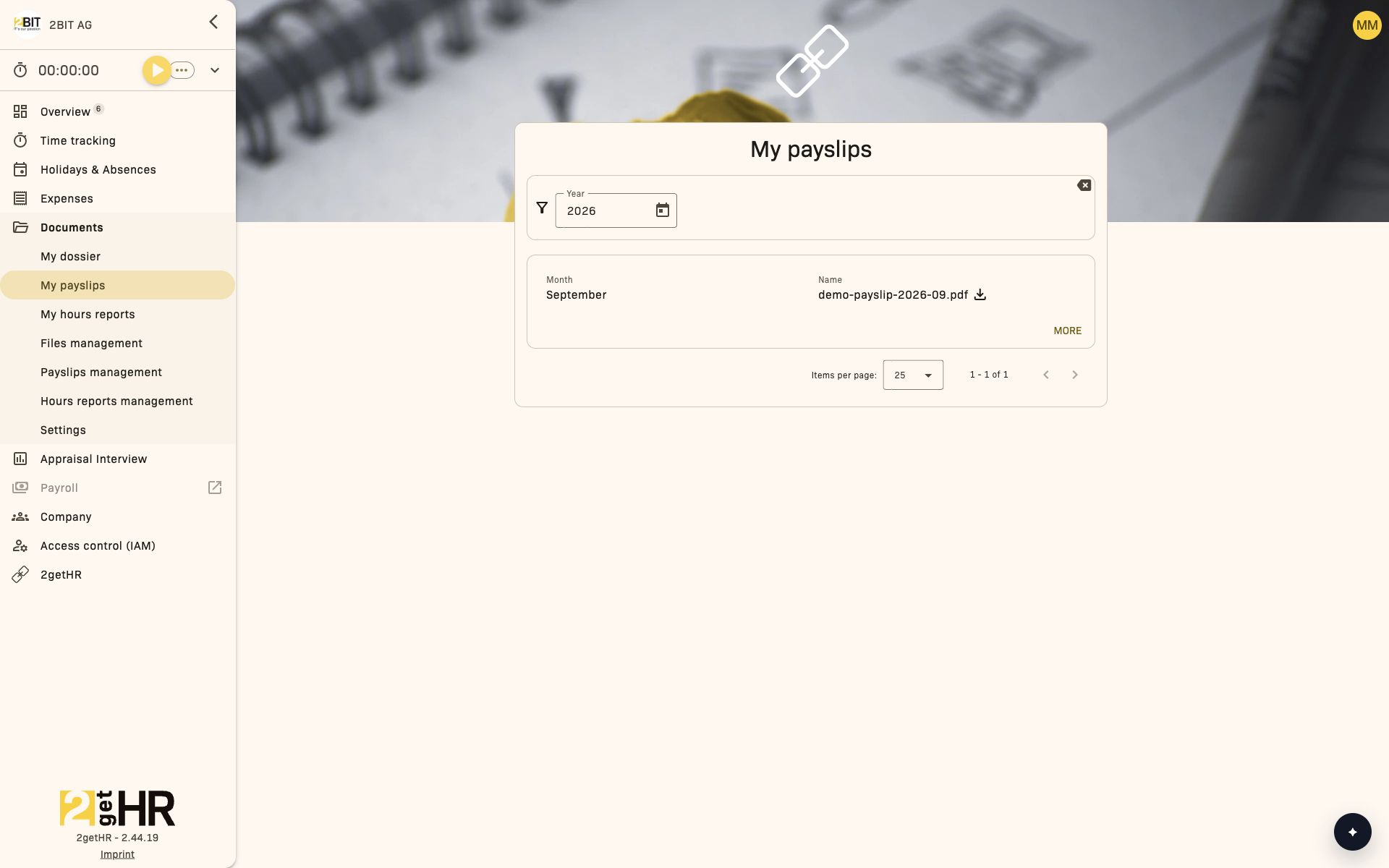
This page shows all payslips assigned to the signed-in employee in a clear, paginated card layout. Each payslip card shows the relevant month, year, name and comment, if present.
Filter options:
- Year: Restrict the list to a specific financial or calendar year.
Available actions per entry:
- Expand: Show additional details such as comments.
- Download: Download the selected document securely. Further clicks are blocked during an active download to prevent duplicates.
Payslips are automatically sorted by month in descending order, with the newest entries first. Annual statements (month = 0) appear prominently at the beginning of the year group.
Common tasks
View my payslips (employees)
- Open Documents > My payslips.
- The default view shows your payslips for the current year.
- Use the Year filter at the top to display payslips from another year.
- Click the document name or the Download icon next to the payslip to obtain the PDF copy.
Upload payslips (admin)
- Open Documents > Payslips management.
- In the Overview tab, click Add payslips.
- Fill in Year, Month and optionally Comment.
- Click Choose a PDF file and upload each PDF.
- Assign each file to an Employee using the dropdown.
- Click Finalize to distribute the payslips.
Import from bexio (admin)
- Open Documents > Payslips management and click Import payslips.
- Select the year and month.
- Select the required bexio entries; entries with an existing payslip cannot be selected.
- Confirm the import. Once complete, payslips appear in the Overview tab.
Tips and troubleshooting
- Missing payslips: Check that the correct year is selected in the filter. Employees cannot view other people's payslips.
- File upload fails: Make sure the document is a valid PDF and each uploaded file is assigned to an employee.
- Duplicate warnings: The system warns if a person is assigned multiple times in the same month or already has a payslip for that period. Check assignments before finalizing.
- Slow download: Large PDFs may take several seconds. Further clicks are blocked until the file has been fully transferred.
- Integration not visible: If you cannot see the bexio tab or Import payslips action, check that import from bexio Payroll is enabled in company settings.
Connections with other features
This feature is directly linked to the bexio integration module. For companies using bexio Payroll, importing simplifies monthly salary document distribution. The bexio tab shows import event status and allows retries if needed.