Projects
Overview
Projects in 2getHR provides full project lifecycle management for administrators and Backoffice users. It allows projects and subprojects to be created, tracked, edited and optionally imported from external sources. Projects typically represent customer orders, internal initiatives or organizational undertakings that require structured time budgets and hierarchical coordination. Subprojects serve as detailed work packages within parent projects.
You need access to the Time tracking module for this area. When Access control (IAM) is enabled, effective permissions determine whether the module is available to you. The role and record restrictions of each action still apply.
Management pages are available to users with the Administrator, Backoffice or Head employee roles. When Access control (IAM) is enabled, creating, updating, deleting and booking time are also checked against effective project permissions. A project permission alone does not open a management page restricted by role. Employees mainly use projects when recording their time.
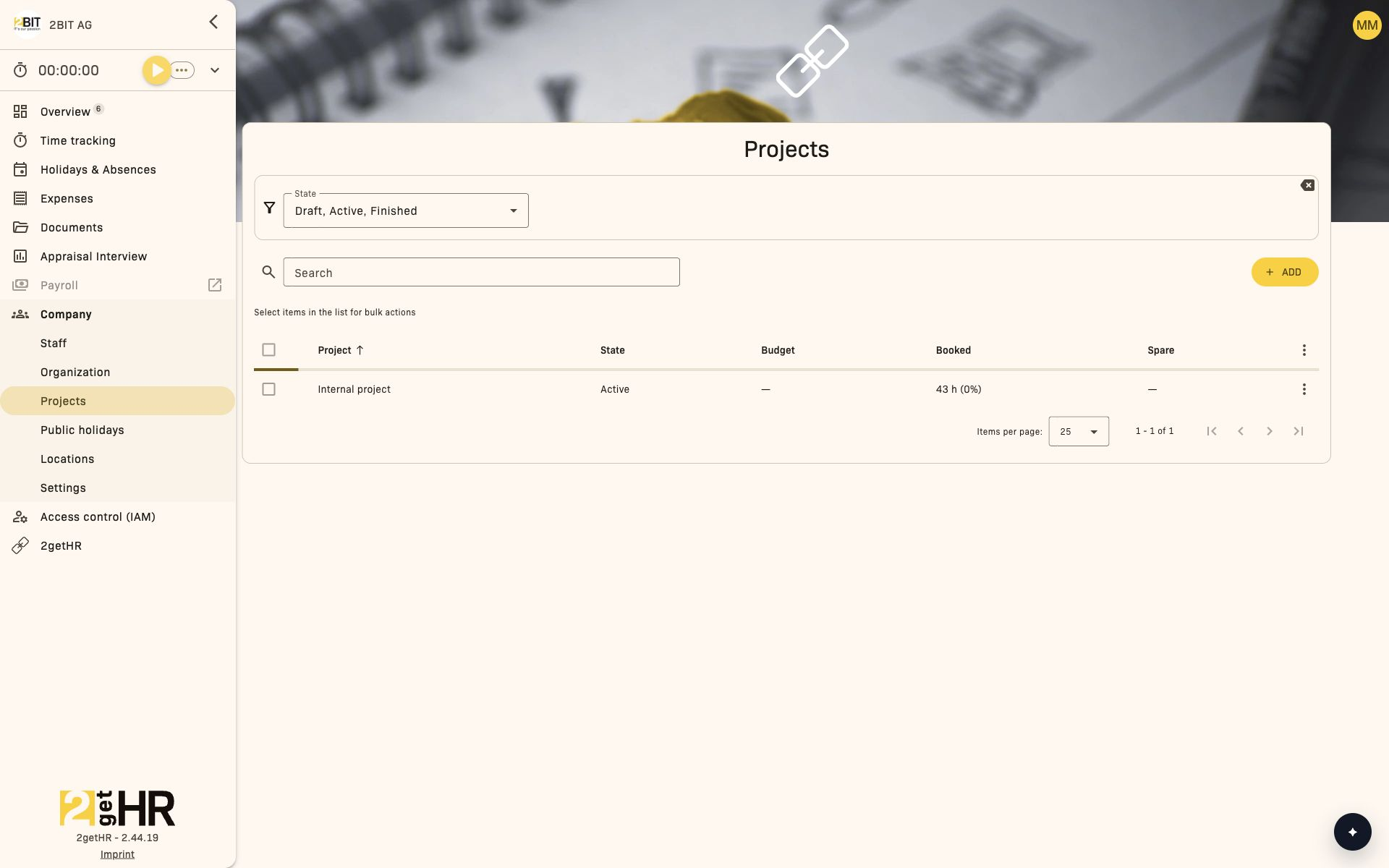
Open Company > Projects in the main navigation to access this feature. The project list opens in Overview and shows active and archived projects, including filters and table personalization options.
Project views
Projects overview
Overview is the management view containing all projects and subprojects. Each top-level project can be expanded to show nested subprojects. Columns include:
- Project: The localized project name.
- State: The current workflow state, such as Active, Archived or Draft.
- Budget: The total time budget assigned to the project.
- Booked: Total hours booked through time tracking.
- Spare: Remaining available hours, calculated as budget minus booked time.
- Billable / Non-billable: Summary of recorded time categories.
- Billable %: The proportion of billable hours in total booked hours.
- Description: A multilingual field showing the project's purpose.
Available filters:
- State: Select one or more states in a multi-select dropdown to narrow down results.
- Search field: Quick keyword search by project name or description.
Overview page actions:
- Add: Opens the creation form.
- Edit: Opens the editing dialog for the selected project.
- Delete for a project or subproject: Removes it after confirmation.
- Column options: Opens column visibility and personalization options.
- Import: Opens the import interface if enabled through the Bexio integration.
- Permissions: Opens access management for a project when access control is visible.
Project editing view
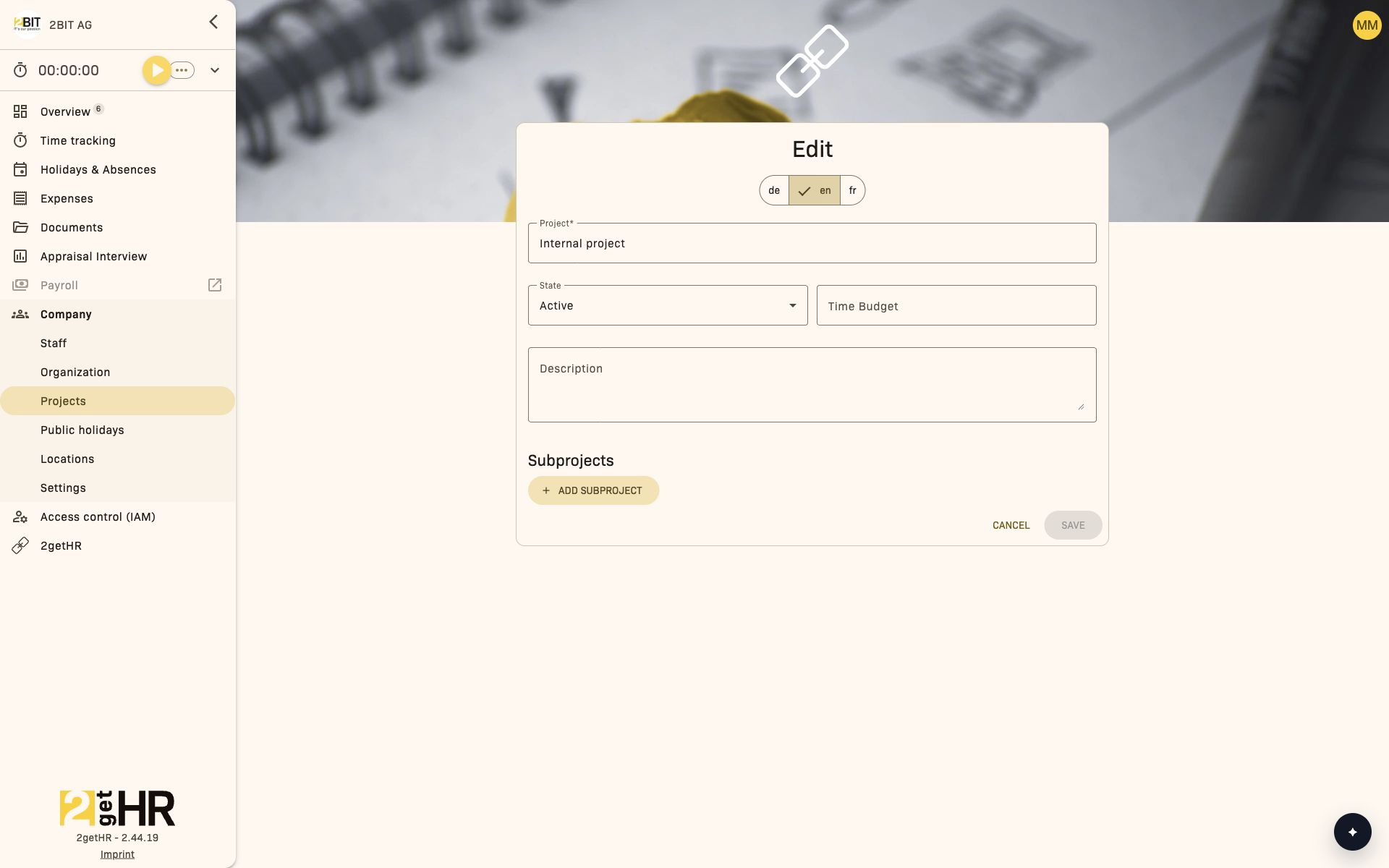
The editing form handles both creation and changes. It consists of a multilingual data form and an area for managing nested subprojects.
Main form fields:
- Project: Localized project name. It must be unique and cannot be empty.
- State: Sets the project state, such as Active, Draft or Archived. State changes may affect subprojects.
- Time Budget: Total time budget; it cannot be less than the sum of subproject budgets.
- Description: Multilingual description providing additional context.
- Subprojects: Interactive nested list of subprojects. Each subproject shows its own name, state, budget and delete icon.
Editing form actions:
- Save: Confirms and submits the data. On success, you return to the overview with feedback.
- Cancel: Returns to the overview without changes.
- Add subproject: Creates a new subproject entry in the list.
- The delete icon removes the selected subproject.
- Change State: Adjusts the state of the project or nested items.
Project import view
Project import opens on a separate page through Import projects in the project overview. Availability depends on permissions, the bexio integration and whether project import is enabled.
This page lists external projects that can be retrieved from Bexio. Displayed columns:
- Project: Name of the external project or subproject.
- Description: Description of the external project.
- Bexio number, Bexio state and Bexio type: Information from bexio.
- Bexio start date and Bexio end date: Period from bexio.
- Source: External project source.
Projects and subprojects can be selected using checkboxes. Subprojects load when you expand a project; there is no separate column for their count.
Filters help narrow down the import list:
- Search term: Text input for matching project names.
- Projects source: Selects the external source and loads its available projects.
Main actions:
- Select Projects source: Starts loading the available projects from the chosen source.
- Expand project: Loads the associated subprojects.
- Add: Imports the selected projects and subprojects into 2getHR.
bexio mapping
The bexio tab is available to administrators and Backoffice when project-related time transfer to bexio is enabled and the required module access is available. Here, you map existing 2getHR projects to bexio projects.
Find the project and move it from the unassigned group to the corresponding bexio project group. Move it back to remove the mapping. This mapping supports time transfers and is independent of importing new projects.
Project permissions
When access control is visible, permissions can be managed for individual projects. Select Permissions in a project's row menu. Separate permissions are not available for subprojects.
You can grant, edit or delete permissions for users, groups or organizational units. For each project, you control Update, Delete and Book time. Create is managed jointly for all projects.
Permissions can be edited together for multiple selected projects. Choose the action and user, group or organizational unit, and check the preview before applying changes. Depending on the starting situation, permissions are created, updated, removed, skipped or left unchanged.
Common tasks
Create a new project
- In Overview, click Add.
-
Enter the name in Project and check State, which defaults to active. Add Time Budget and Description if needed. A time budget, if specified, must be greater than zero.
-
Use Add subproject if needed.
- Click Save to create the project.
Edit an existing project
- Find the project row in Overview.
- Click Edit.
- Update project data or subprojects.
- Confirm with Save; a success message appears.
Import external projects
- Open Company > Projects > Overview and select Import projects.
- Make sure you have access to bexio and project import is enabled in the integration settings.
- Select Projects source and wait for the data to load.
- Expand projects as needed and select the required projects and subprojects.
- Click Add to run the import.
Customize table columns
- In Overview, click Column options.
- Toggle column visibility.
- Settings remain saved in your user profile.
Settings
- Project table columns: Controls visible columns in the overview table. Fields such as Project and State remain fixed, while Budget, Booked, Spare, Billable, Non-billable, Billable % and Description can be shown or hidden. Changes are saved automatically per user.
Tips and troubleshooting
- Import projects unavailable: Check account permissions, the bexio connection and whether project import is enabled. Import opens on a separate page.
- Budget validation fails: Make sure the project's total budget is at least the combined sum of its subproject budgets.
- Column changes are not saved: Reload the page; settings persist automatically but require an authenticated session.
- Conflicting state changes: When changing state, confirm the dialog about incompatible subproject states; canceling keeps the old states.
- Permissions not visible: Check that access control is visible for your account and that you are authorized to manage projects.