Time Tracking
My time tracking
Overview
Use My time tracking to record working time, view your balance and identify discrepancies before closing a period.
You need access to the Time tracking module for this area. When Access control (IAM) is enabled, effective permissions determine whether the module is available to you. The role and record restrictions of each action still apply.
Open the page through Time tracking > My time tracking in the main menu.
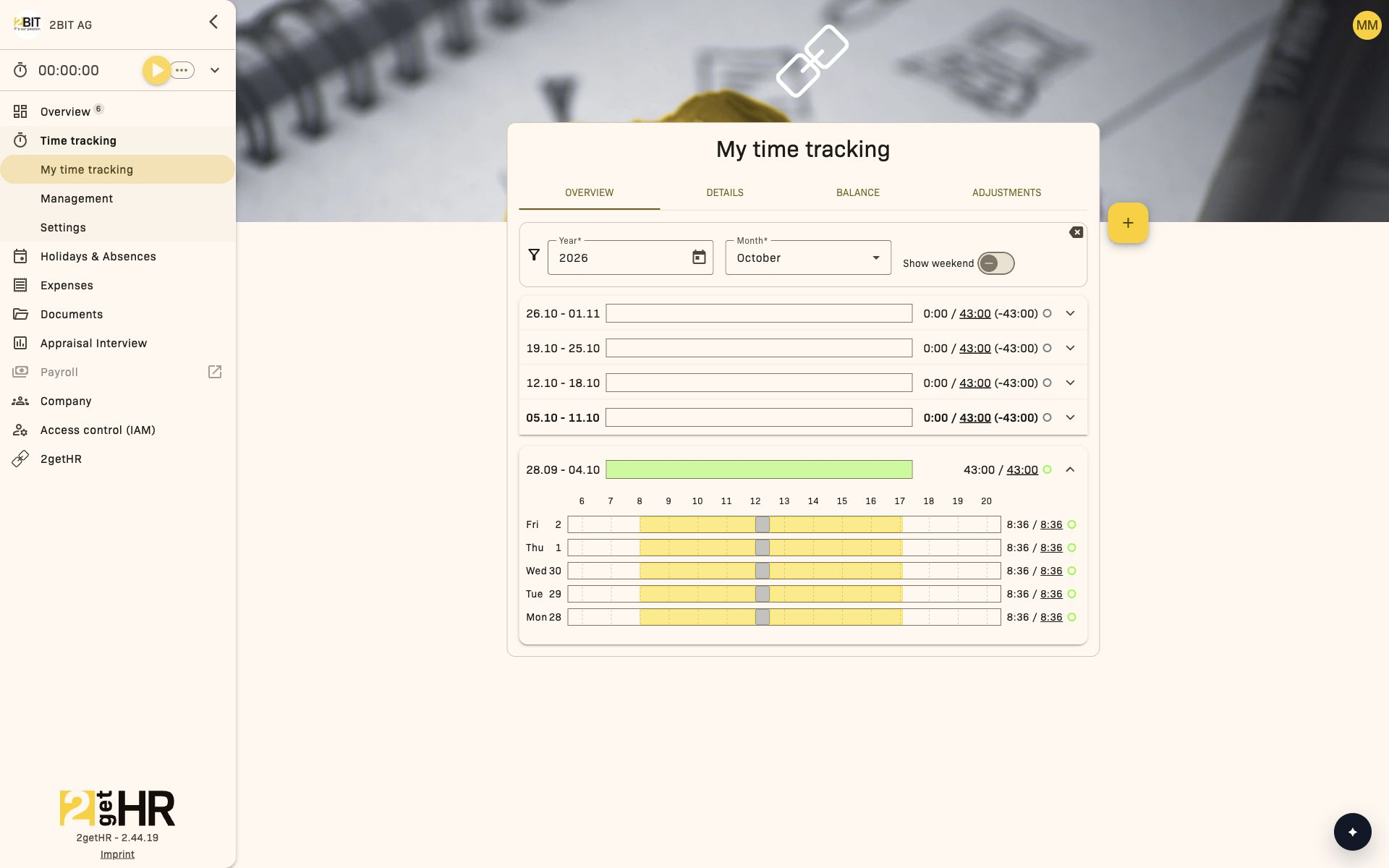
Overview and Details are for recording and correcting entries.\ Balance shows calculation results.\ Adjustments shows manual offsets entered by management.\ bexio appears only when transfer is enabled.
How 2getHR calculates the balance
For the balance, 2getHR compares recorded time and approved absences with the expected time based on employment level, work schedule and public holidays. If Do not track time is enabled in the assigned weekly work duration policy, no expected hours are calculated for working days. Manual corrections are included as offsets.
The weekly view shows overtime and excess time separately, including compensated and cumulative values.
For hourly paid employment, logged time remains visible, but the logic for expected time differs from standard employment.
Record or correct time
- Using the stopwatch: Start the stopwatch to record working time live. Stop the timer to create the entry automatically.
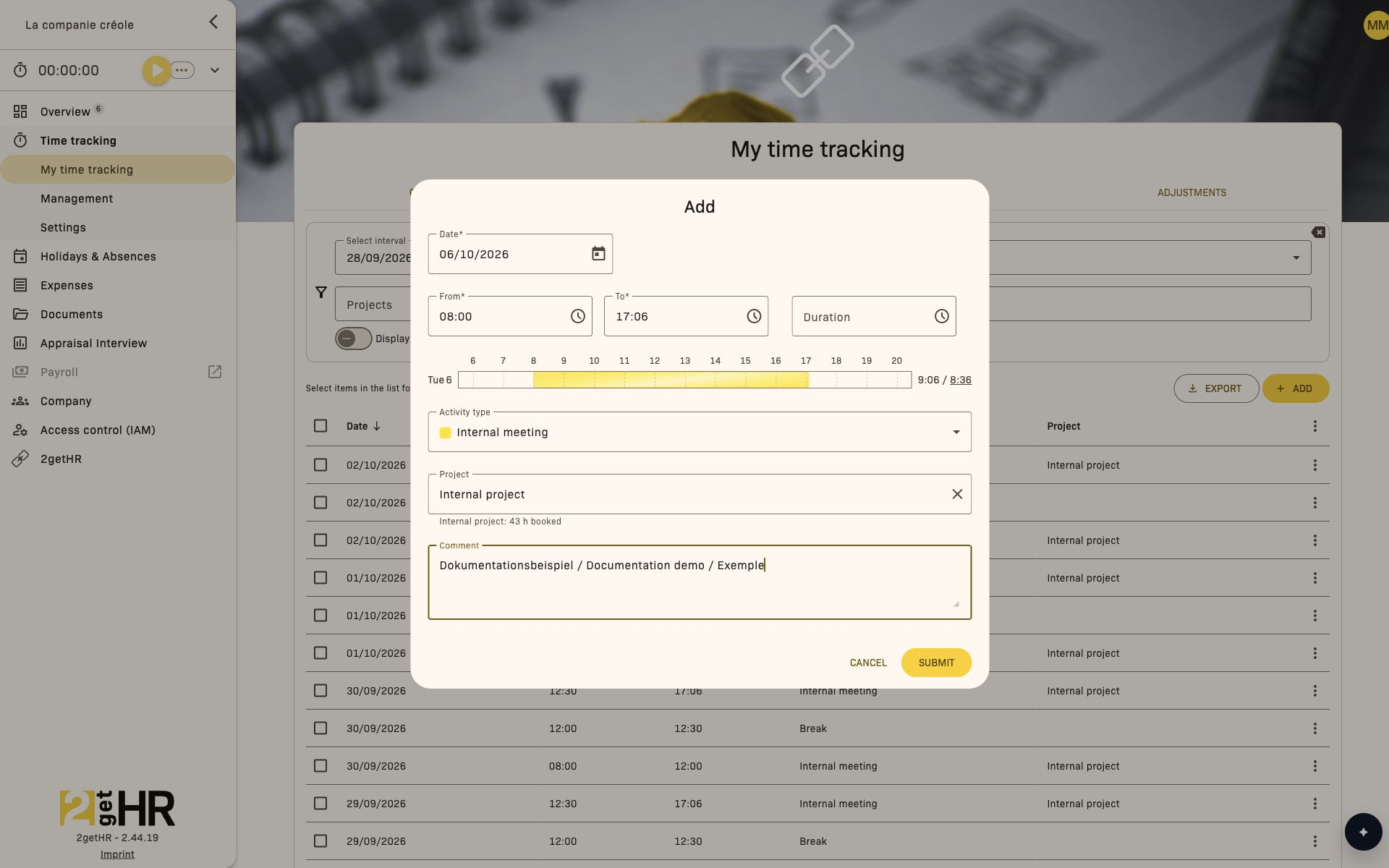
- Using the plus sign (+): Click + to create a new time entry manually.
- Directly on the timeline: Click the required position on the timeline and drag with the mouse to select a period and create it as a time entry.
- Double-click an existing entry to adjust or correct it.
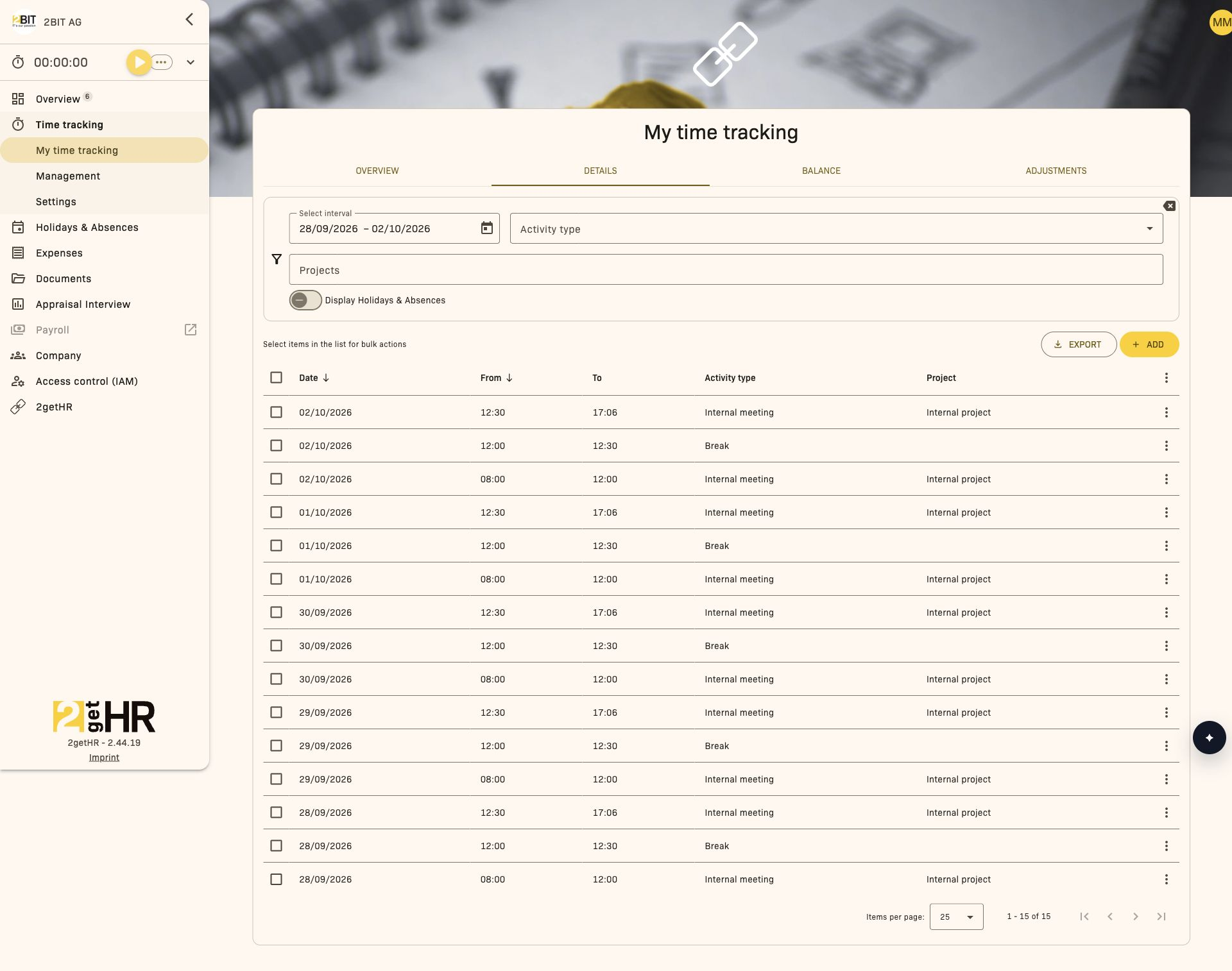
- Open Time tracking > My time tracking > Details to filter by project, activity type or period.
Check the detail view
Open Details to review individual time entries and breaks with their dates, projects and activity types.
Record breaks
- Create or open a time entry.
- In Breaks, click Add break and enter Break start, Break end and Break activity.
- Repeat for further breaks if needed.
Breaks must fall within working time and must not overlap.
Check the balance before closing
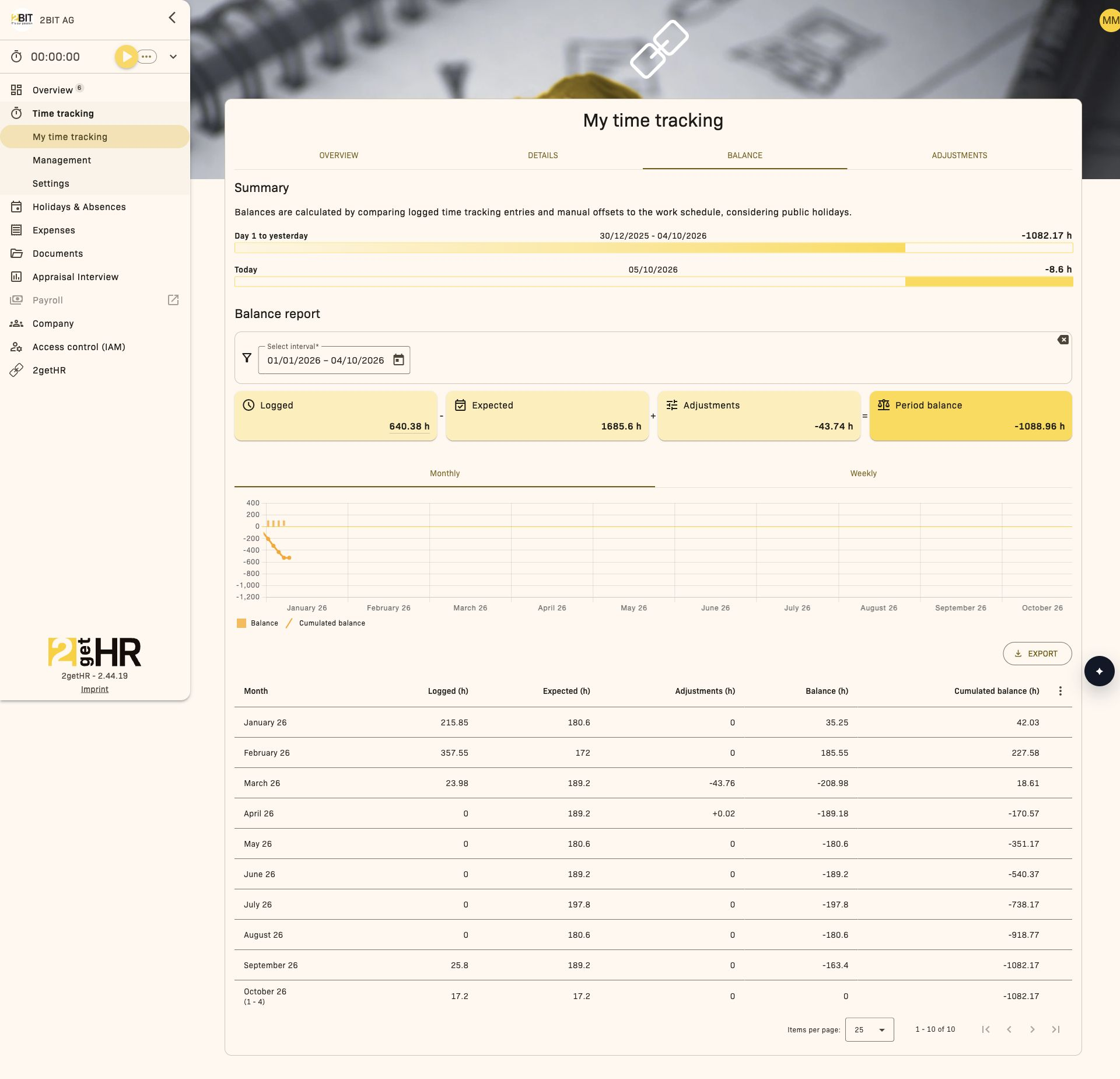
- Open Time tracking > My time tracking > Balance and check the monthly and weekly views.
- Compare expected time, working time, absences, offsets, overtime and excess time.
- Open Time tracking > My time tracking > Adjustments if values are unexpected.
Export
Use EXPORT in Details, Balance and Adjustments to export an Excel or PDF file.
Bexio transfer
If bexio is available, start the transfer there and check the latest push events.
Troubleshooting
- Cannot save: Check the order and overlaps within the time interval.
- Cannot edit: Check approval, period lock, system lock and project status. For approved entries, an authorized person must withdraw approval before editing. When Access control (IAM) is enabled, you may also lack permission to record time against the project.
- Balance looks implausible: Check adjustments and compare with holidays and absences.
- Bexio tab missing: The integration or permission may not be enabled.
Time tracking management
Overview
Use Time tracking management for the company-wide process: review, approve and correct entries, lock periods and prepare exports.
You need access to the Time tracking module for this area. When Access control (IAM) is enabled, effective permissions determine whether the module is available to you. The role and record restrictions of each action still apply.
Open the area through Time tracking > Management.
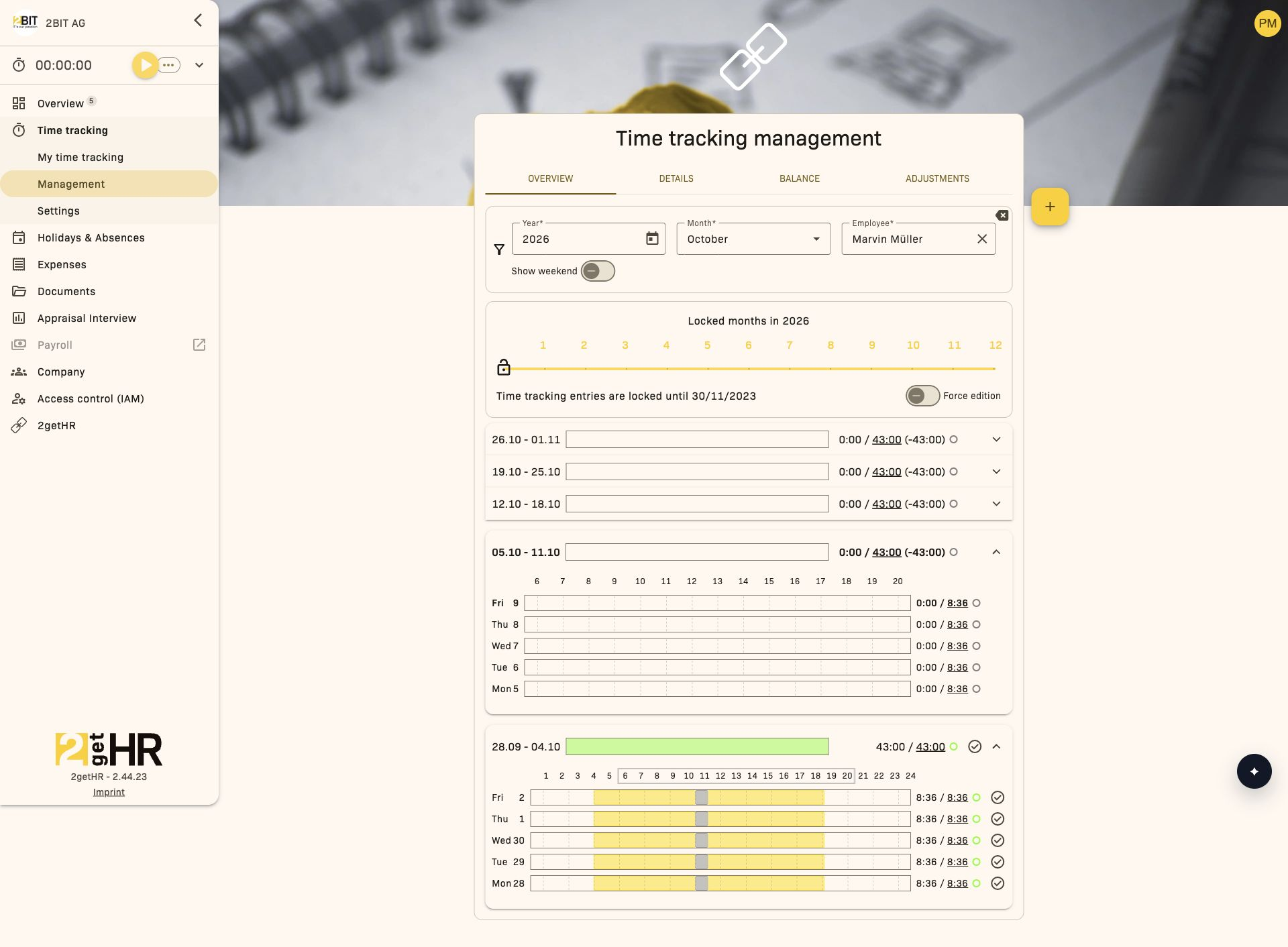
Overview is for a quick monthly review.\ Details is for precise records, filters, bulk actions and approvals.\ Balance is for expected time, actual time, offsets, overtime and excess time at employee level.\ Adjustments is for manual balance adjustments as of a specific date.\ bexio appears only when the integration is enabled and you have the appropriate permission.
Managers' area of responsibility
The head and deputy head of an organizational unit have access within that unit and its subordinate units. Without an organizational filter, the list remains limited to this area of responsibility; it does not automatically show all company employees. Module access, role rules and the conditions of each action also apply.
Common tasks
Review and approve entries
- Start in Overview for the month.
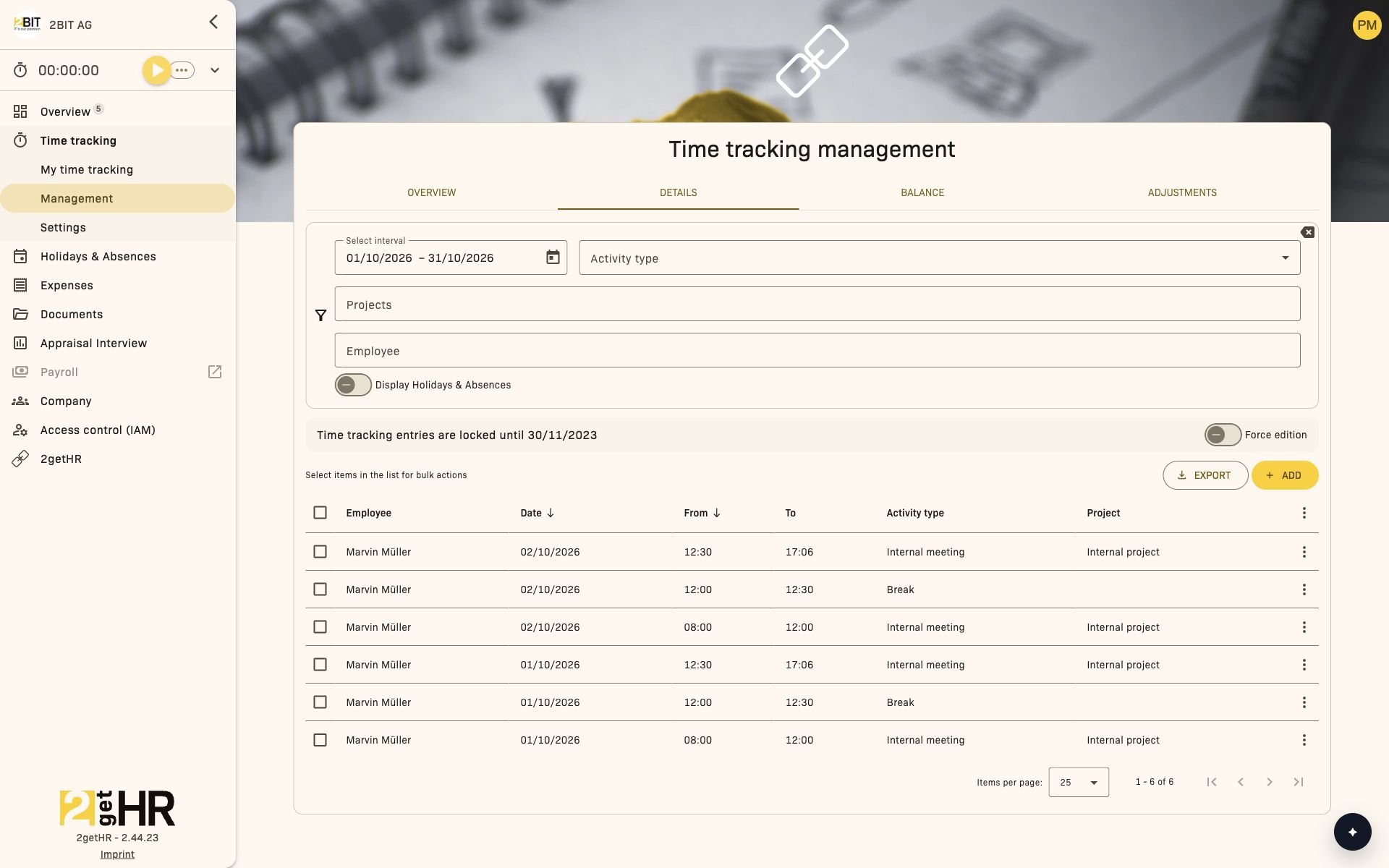
- Open Time tracking > Management > Details for precise records.
- Filter by employee or period.
- Approve the selected entries.
Approval actions are available only when the labour rules enable approval and the selected entries are eligible for approval.
Lock or reopen periods
Administrators and Backoffice users can change the period lock for the whole company. Employee and organizational filters do not limit its scope.
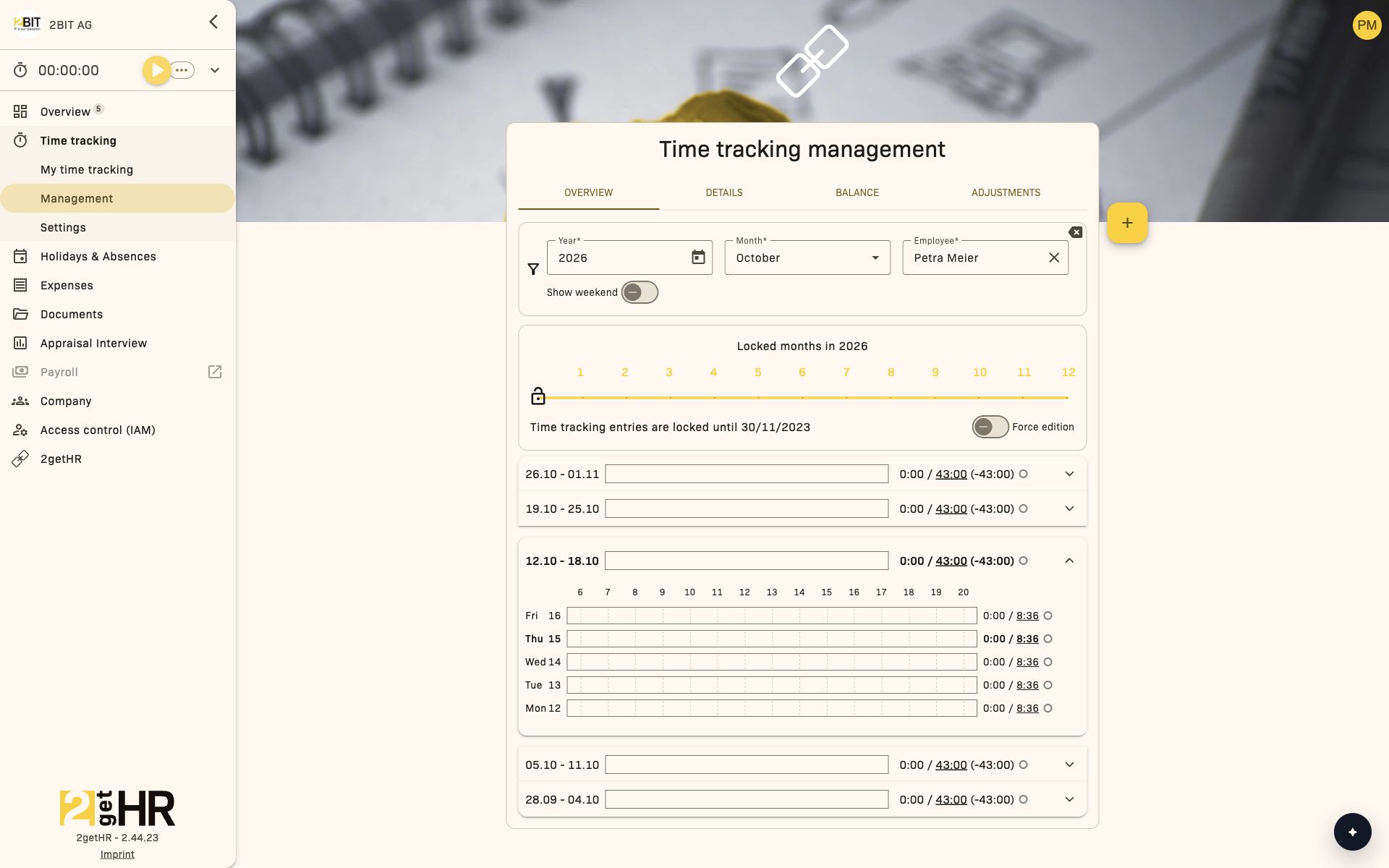
- Open Time tracking > Management > Overview and select the required Year.
- Under Locked months in …, use the slider to set the last locked month. You can also click the month number. For example, 3 locks all time entries up to and including the end of March in the selected year.
- The change is saved automatically. Check Time tracking entries are locked until … and verify the boundary after reopening the page.
- To reopen a period, choose an earlier month. The leftmost position opens all months of the selected year; the lock then ends on 31 December of the previous year. Earlier years remain locked up to that date.
On a smartphone, use Locked month in …; NONE opens the months of the selected year. Time tracking and expense locks are managed separately.
Correct entries in open and locked periods
In open periods, you can edit entries that have not yet been approved within your area of responsibility. Approval must first be withdrawn for approved entries.
In locked periods, administrators and Backoffice users can use Force edition if the action is available. This bypasses the period lock for the correction; the company-wide lock boundary remains in place. Approvals and system locks are not removed. Project status and, when IAM is enabled, project permissions can further restrict editing.
Enter adjustments
- Open Time tracking > Management > Adjustments.
- Enter the employee, effective date and correction value.
- Provide a clear reason, such as an opening balance or payout.
- Save and check the balance.
Export
Use export in Details, Balance and Adjustments to obtain an Excel or PDF file.
Bexio transfer
If bexio is available, filter the target entries, start the transfer and check the push events.
Troubleshooting
- Cannot edit: The period may be locked or the entry may have a system lock.
- Approval unavailable: The role or labour rule does not permit the action.
- Approval disabled:
Approve time tracking entriesmay be disabled in the labour rules. - Balance looks wrong: First check adjustments and the weekly or monthly context.
Time tracking settings
Overview
Use Time tracking settings to define how expected time, validation, approval processes and balance calculations work throughout the company.
You need access to the Time tracking module for this area. When Access control (IAM) is enabled, effective permissions determine whether the module is available to you. The role and record restrictions of each action still apply.
This page is not just technical: changes directly affect what employees can record, what management can approve and how overtime and excess time are calculated.
Where to maintain each type of rule
Settings contains company-wide time tracking options.\ Labour rules/work hours contains Apply/Ignore switches for rule checks and approval.\ Weekly Work Duration Policies defines base weekly hours for employment periods.
Activity types defines categories, breaks and, where applicable, billable status.
Effect of each area
Settings
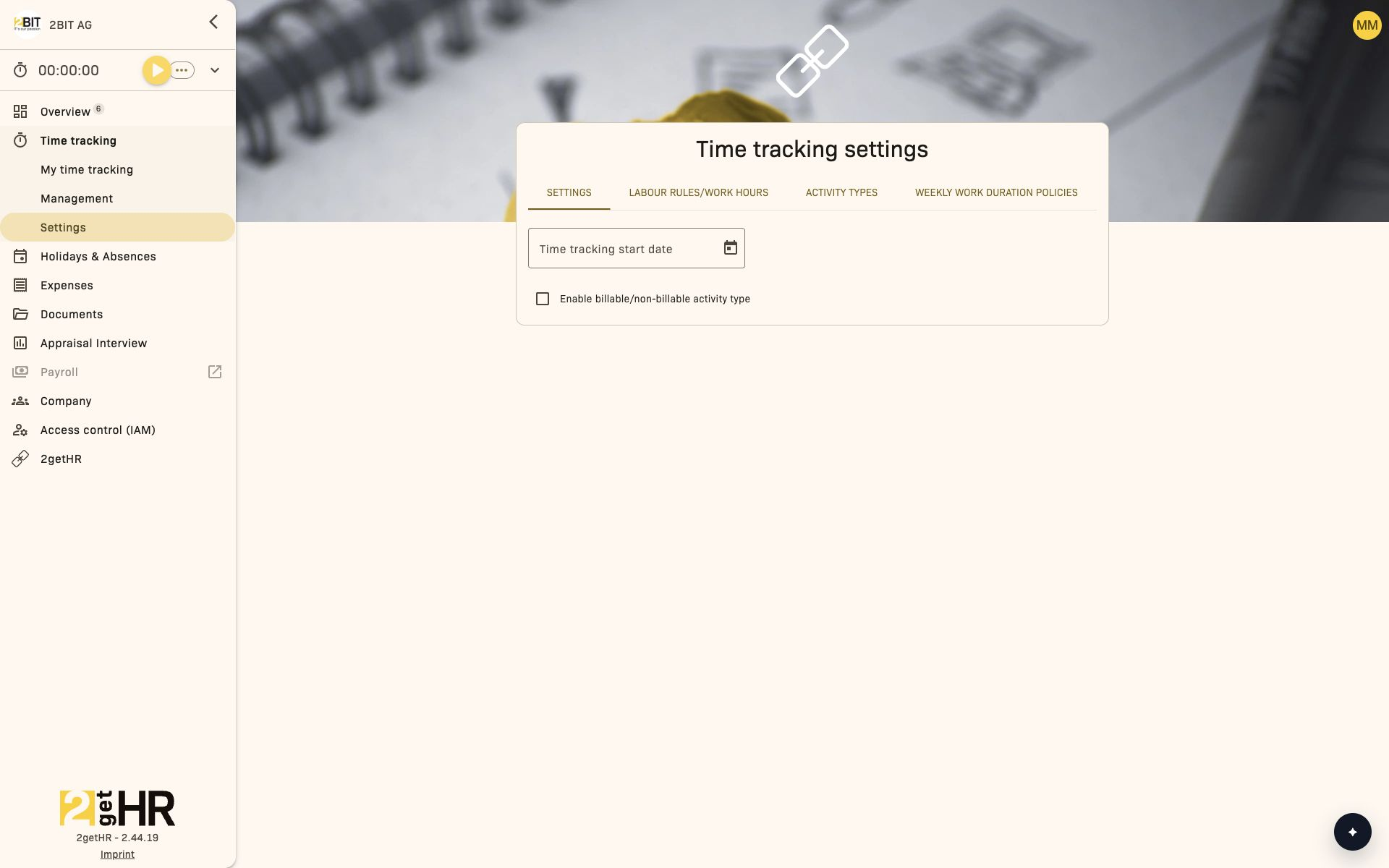
Time tracking start date defines the lower boundary for time tracking and its period context. Before this date, expected working time is zero; balance views do not calculate periods starting before it.\
Enable billable/non-billable activity type affects how entries are categorized and analyzed.
Labour rules/work hours
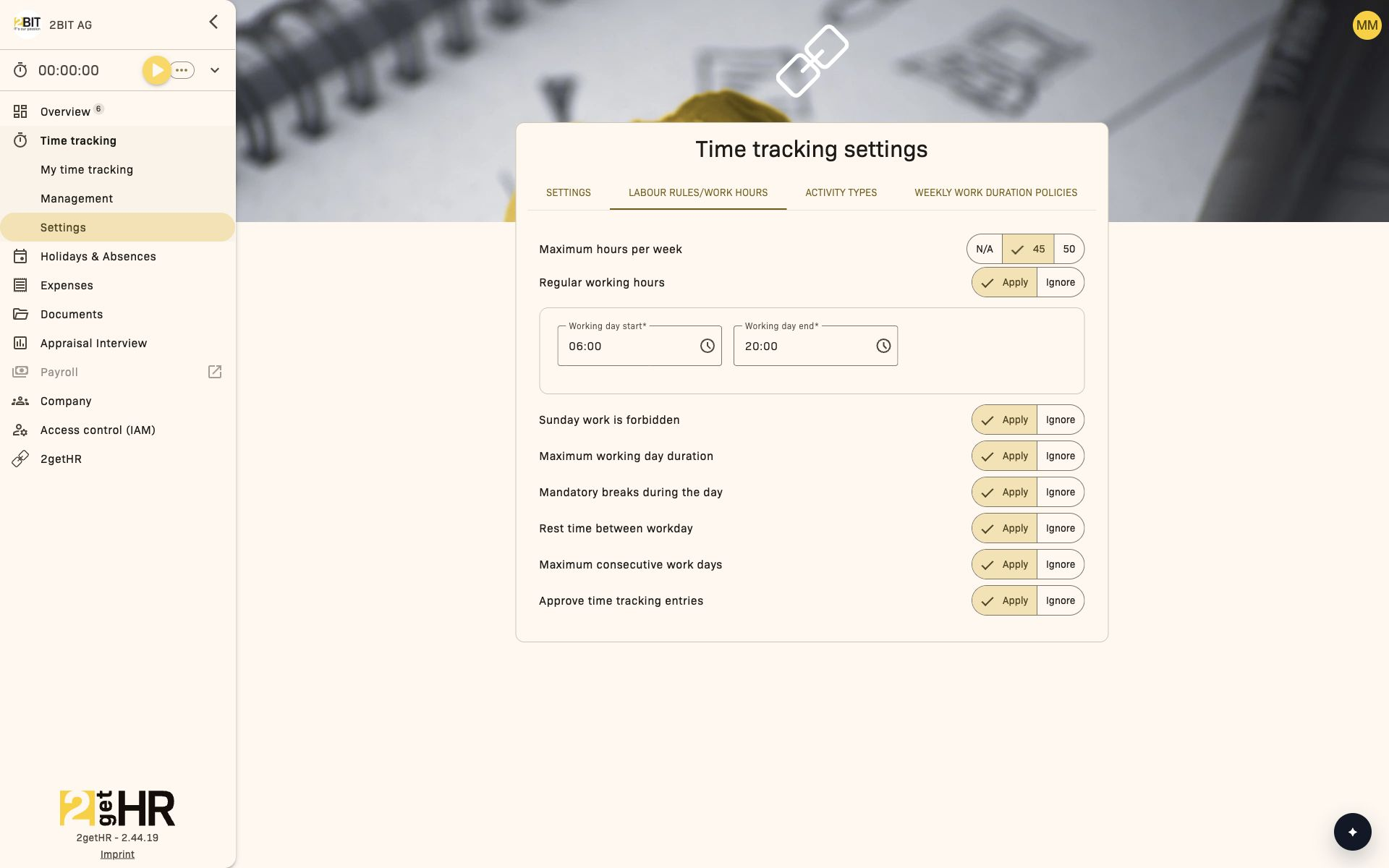
Each rule is set to Apply or Ignore.
Maximum hours per week controls weekly limit checks, including overtime and excess time information in rule violations.\
Regular working hours enables the working hours window (Working day start / Working day end) and checks entries against it.\
Sunday work is forbidden, Maximum working day duration, Mandatory breaks during the day, Rest time between workday and Maximum consecutive work days enable their respective checks.\
Approve time tracking entries controls whether approval actions are available in management.
Weekly Work Duration Policies
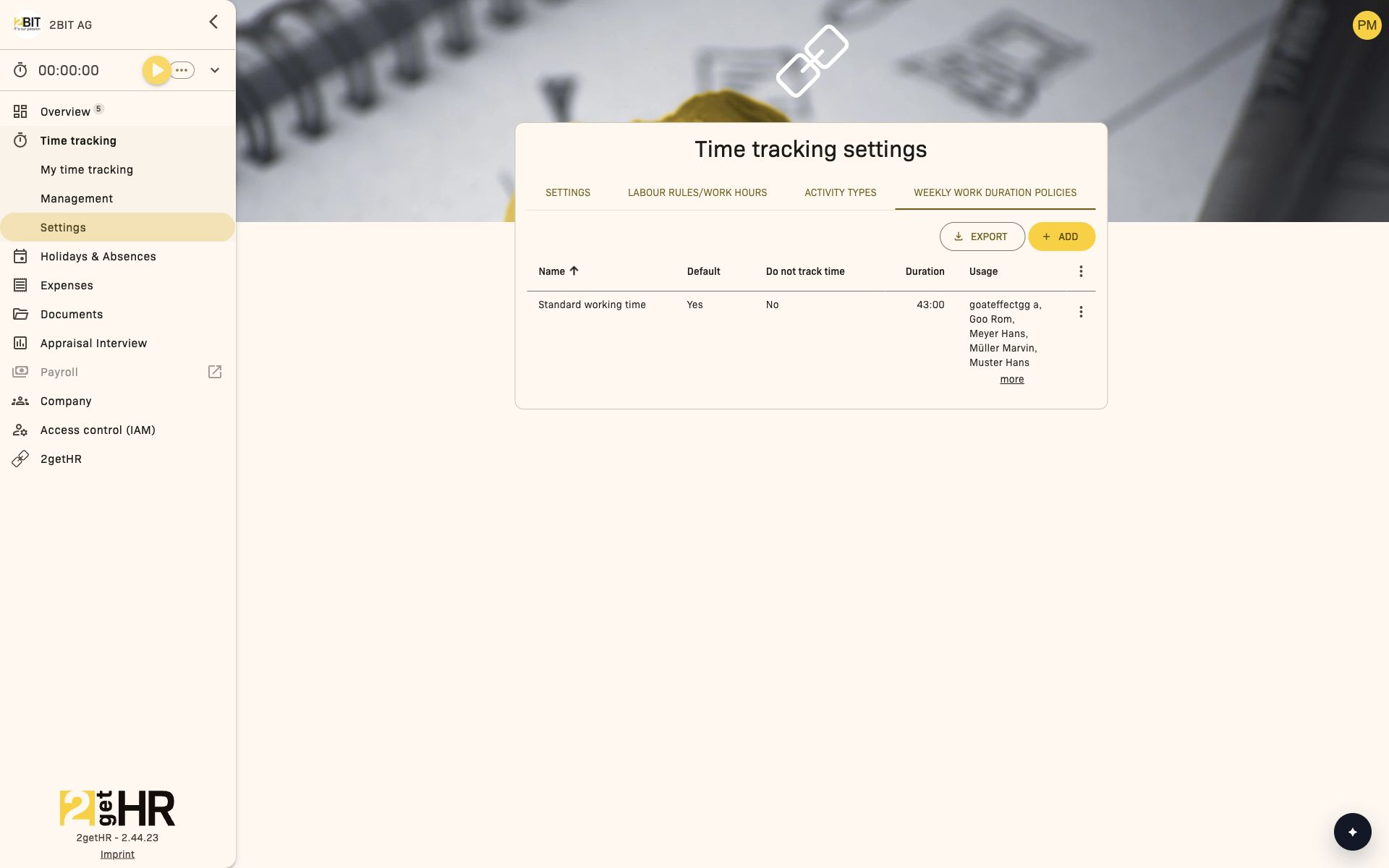
A weekly work duration policy defines the base weekly hours for 100% employment level.\ For other employment levels, expected weekly hours in employment periods are scaled accordingly, provided the policy calculates expected time. Do not track time disables expected time calculation: expected daily working time is then zero, which affects the balance calculation. This setting does more than merely hide time tracking.
One policy is the default. The assigned employees column shows who is affected.\ Editing an existing policy displays a recalculation warning because balances are recalculated for the affected employees in the relevant periods.
Activity types
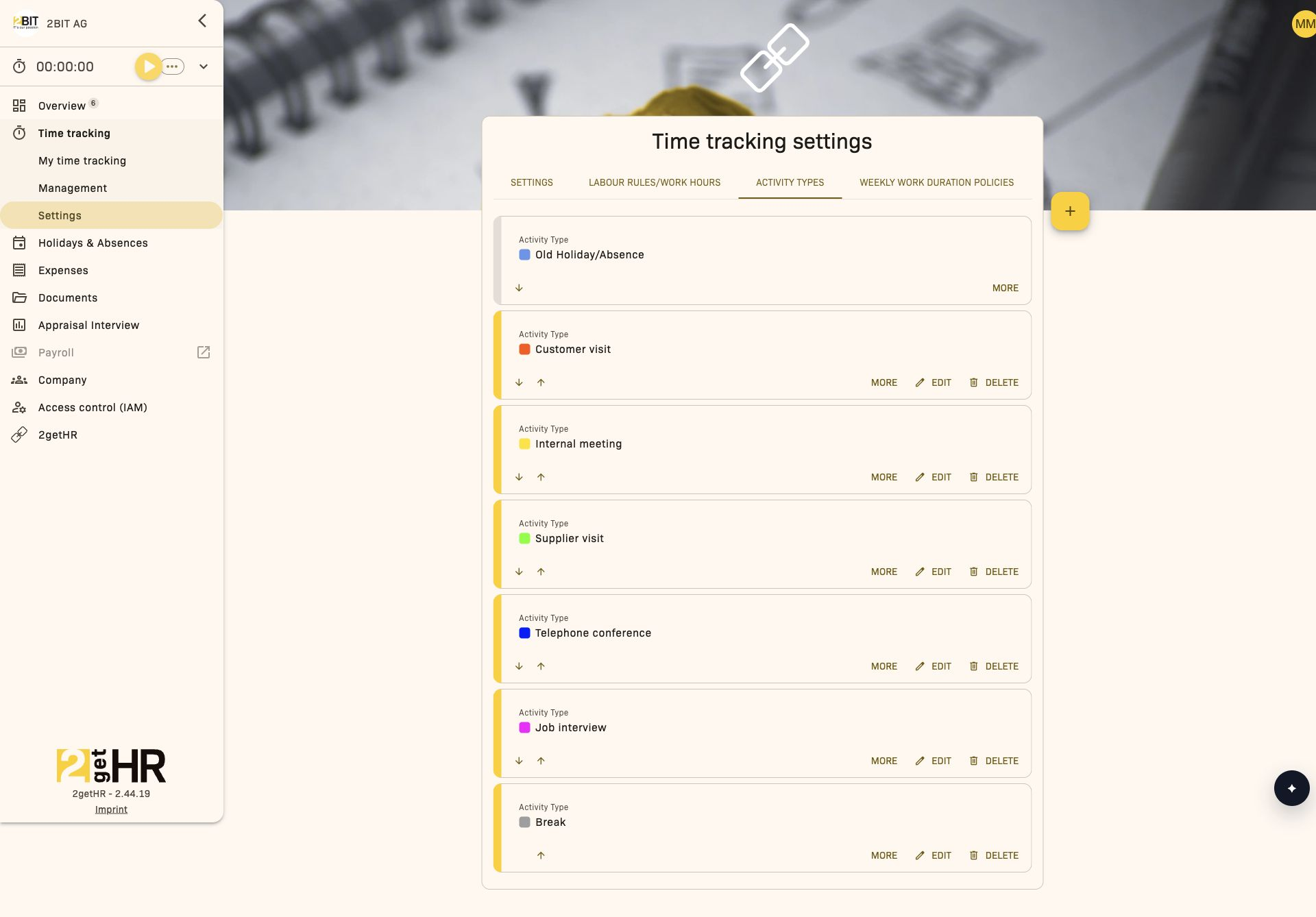
Activity types have a name, color and Active status. Break marks a type as a break. Default break duration is applied when employees choose that break. If billable and non-billable activity types are enabled, you can also set Billable.
Breaks do not count towards recorded working time and are not included as working hours in the balance. Billable assigns working time to the billable or non-billable analysis; both categories count towards working time.
Why this changes overtime and excess time
Weekly and cumulative overtime and excess time arise from working time, absences and offsets compared with expected time from employment data and weekly work duration policies.\ Changes to policies, employment assignments or labour rule limits therefore also change the balance results.
When to review this page
Review the settings when weekly expected hours, compliance rules or approval processes change, or when employees move to different weekly work duration policies.
Set up master data
Set the start date
- Open Time tracking > Settings.
- Update Time tracking start date.
- The change is saved automatically. Then check the period logic in the affected views.
Configure labour rules
- Open Time tracking > Settings > Labour rules/work hours.
- Set rules to Apply or Ignore.
- Check the effect in employee and management workflows.
Maintain weekly work duration policies
- Open Time tracking > Settings and switch to Weekly Work Duration Policies.
- Create new policies using Add; edit existing ones through the actions menu of the relevant row. Check Duration and Do not track time before saving.
- Before changing anything, check the assigned employees column, using MORE/LESS if necessary, to see who currently uses the policy.
- If the policy should be used for future new assignments, set it as the default in the actions menu and confirm the dialog.
- Then check Time tracking management > Balance for the affected employees to confirm that expected time and balances have been recalculated as intended.
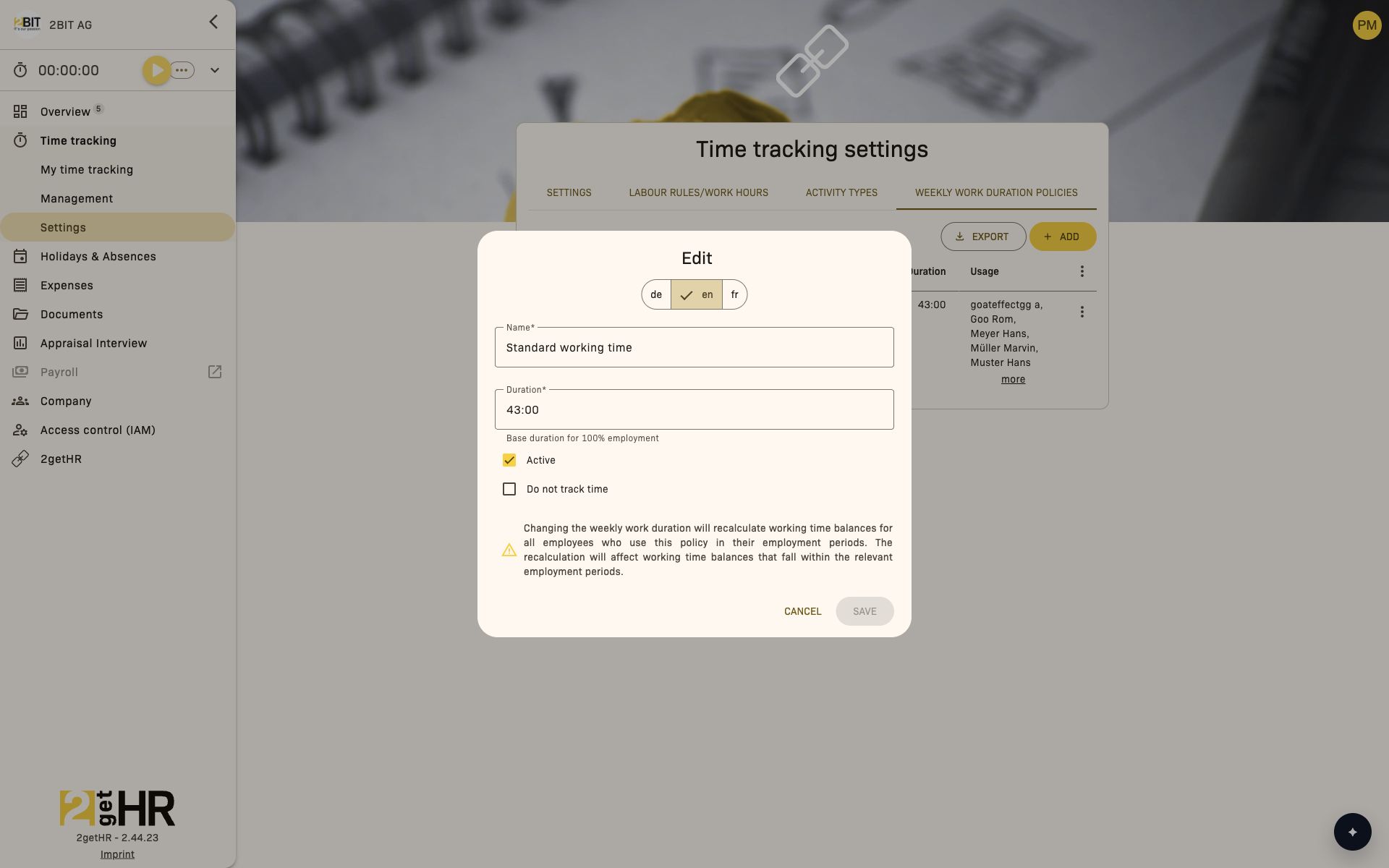
In Edit, Duration means working time at 100 percent employment. Note the warning in the dialog: changes recalculate the time balances of all employees who use this policy in their employment periods, including existing employment periods.
Maintain activity types
- Open Time tracking > Settings > Activity types.
- Click + or edit an existing type.
- Set the name, color and active status. For a break type, enable Break and check Default break duration.
- Set Billable if the option is available.
- Save and check the selection in the time entry form.
Maintain bexio mappings, if enabled
- Open Time tracking > Settings > bexio.
- Map 2getHR activity types to bexio business activities for time tracking synchronization.
- Save and test with a transfer.
Troubleshooting
- Change not immediately visible: Reload the page.
- Rule does not save: Check dependencies, such as the start and end of the working hours window.
- bexio missing: The integration is not enabled.
- Approval missing in management: Check the approval setting and role permissions.
Hours reports
Overview
Use Hours reports for daily work records that employees prepare as drafts and management books as final entries.
You need access to the Hours reports module for this area. When Access control (IAM) is enabled, effective permissions determine whether the module is available to you. The personal view is available to regular employees. The management view additionally requires the Administrator or Backoffice role, or responsibility as the head of an organizational unit.
My hours reports is the employee view.\
Hours reports is the management view.
Employee view (My hours reports)
Employees create and edit drafts, then submit them for review.
Status flow:
Draft -> Submitted -> Booked
Submit all is the bulk action for closing a period.
Management view (Hours reports)
Management reviews and books submitted reports, including bulk booking within the current filters.
Permission to book reports
Access to the management view alone is not enough to book reports. Permission to book hours reports is also required. In the default configuration, administrators and Backoffice users have this permission; responsibility as the head of an organizational unit alone does not grant it.
The report must be submitted and not yet booked. The person booking it also needs access to the employee concerned. For heads and deputy heads, this covers their own organizational unit and its subordinate units; an empty filter does not expand that scope.
Common tasks
Enter and submit a daily report
- Open Documents > My hours reports.
- Enter the report for the working day.
- Save it as a draft if it is still in progress.
- Submit it once the entry is final.
Submit all drafts at period end
- Open Documents > My hours reports.
- Filter the target period.
- Use Submit all.
- Check that the status changes to Submitted.
Book submitted reports as final entries (management)
- Open Documents > Hours reports management.
- Filter by period, team or employee.
- Review submitted entries.
- Book individually or with Book all entries.
Troubleshooting
- Drafts become visible in management only after submission.
Book all entriesapplies to the current filters, so check them first.- For upload problems, reduce the file size or use a standard format.
- If
Book all entriesis missing, check your management permissions.