Expenses
My expenses
Overview
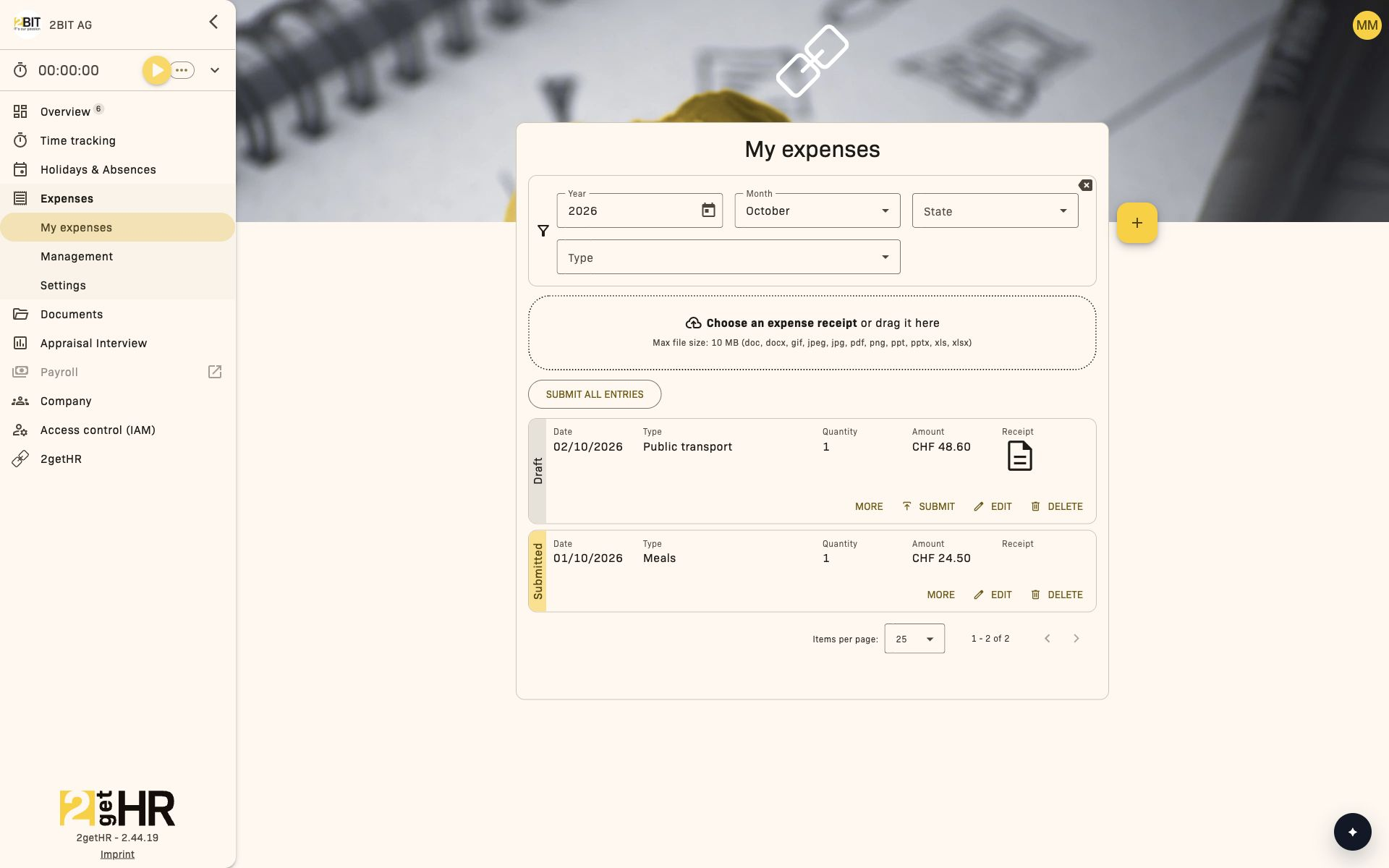
Use My expenses to submit business expenses, attach receipts and track approval status.
This area requires access to the Expenses module. If access control (IAM) is enabled, your effective permissions determine whether the module is available to you. The role and record restrictions for each action still apply.
Access the area via Expenses > My expenses in the main menu.
What you can do here
- Enter a new expense.
- Save as a draft or submit directly.
- Edit drafts and submitted entries.
- Track status (e.g. Draft, Submitted, Approved, Booked, Declined).
- Transfer selected expenses in the bexio tab, if visible.
Common tasks
Enter and submit an expense
- Open Expenses > My expenses > Overview.
- Click Add expense entry.
- Enter the expense and upload receipts.
- Click Submit.
- Check that the status changes to Submitted.
Extract information from a receipt
If receipt recognition is available, uploading a receipt can automatically fill in the amount, date, currency, expense type and VAT. Check the extracted values and complete any missing information before submitting. Automatic extraction depends on receipt content and expense type; it is not applied to expense types with a predefined amount.
Check the policy review result
If an automatic policy check is available, a progress indicator shows processing in progress. Once complete, a check mark indicates compliance, a cross indicates non-compliance and a question mark indicates an unclear result. Open the details to see guidance on individual rules and follow-up questions for you. Review and complete your information as needed. The check result does not replace approval in management.
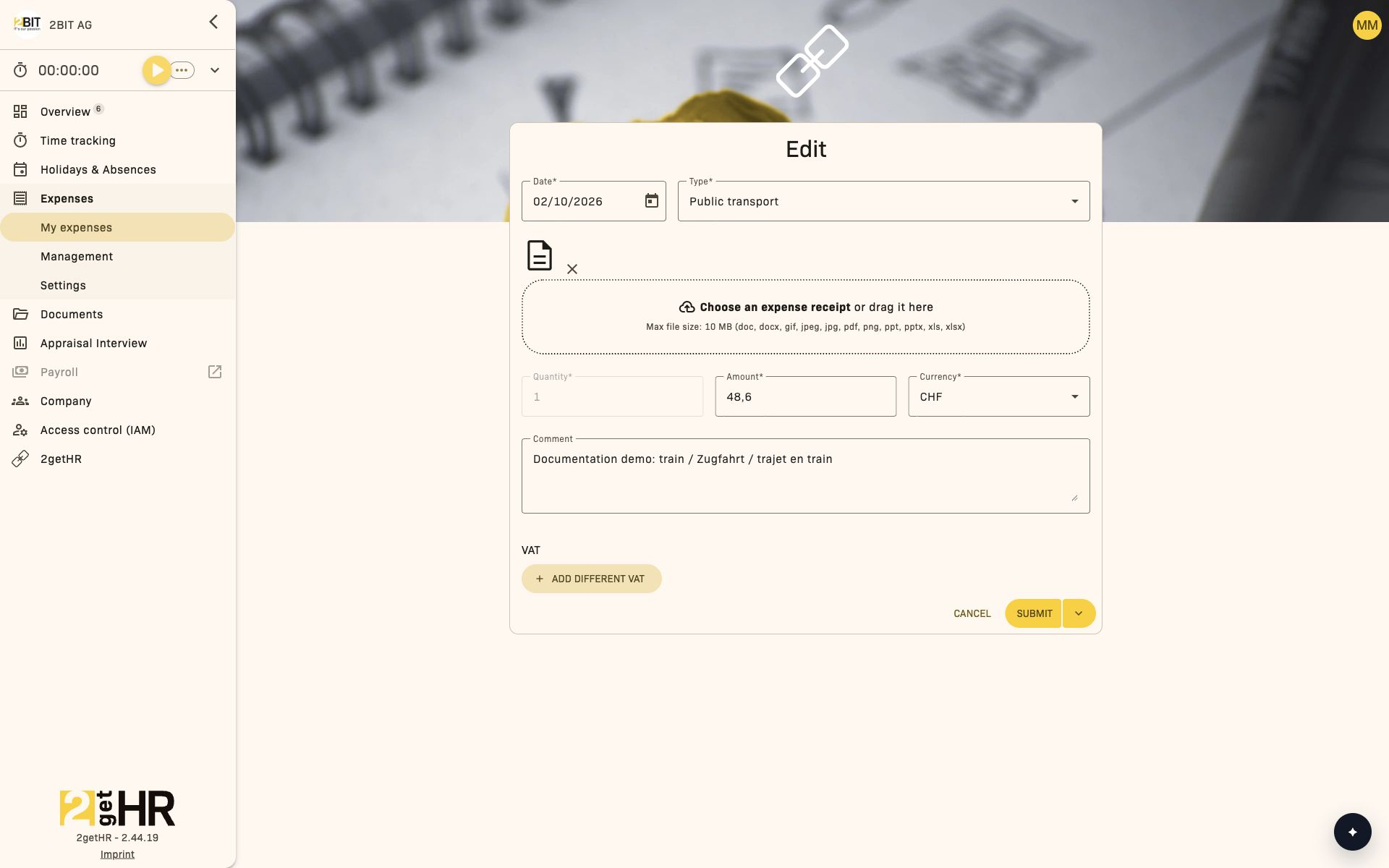
Edit and submit a draft
- In Overview, find the expense with status Draft.
- Click Edit.
- Adjust the entry and add missing receipts.
- Click Submit.
Split an expense across several months (if available)
- Open a suitable expense type.
- Enable splitting and specify at least two months.
- Submit the expense and check the created entries. Saving as a draft is unavailable when splitting is enabled.
Transfer to bexio (if available)
- Open Expenses > My expenses > bexio.
- Select the expenses to transfer.
- Click Push selected Expenses and check the status.
Settings
Administrators and back office staff with the required module access control configuration under Expenses > Settings.
If a period is locked, employees can no longer enter or change expenses in that period.
Behavior after actions in the app
- Draft: Editable by employees.
- Submitted: Visible in the management/approval process.
- Approved: Ready for booking and export.
- Booked: Final booking status.
- Declined: Cannot be edited.
Tips and troubleshooting
- Cannot submit: Check the date and amount.
- Cannot edit: The period may be locked.
- Adjust a draft in a locked period: Set the date to a day after the lock cutoff and save again.
- Split option missing: The selected expense type does not support splitting.
- Mileage calculation error: Try again or enter the mileage manually.
- bexio transfer fails: Check the integration and permissions.
Expenses management
Overview
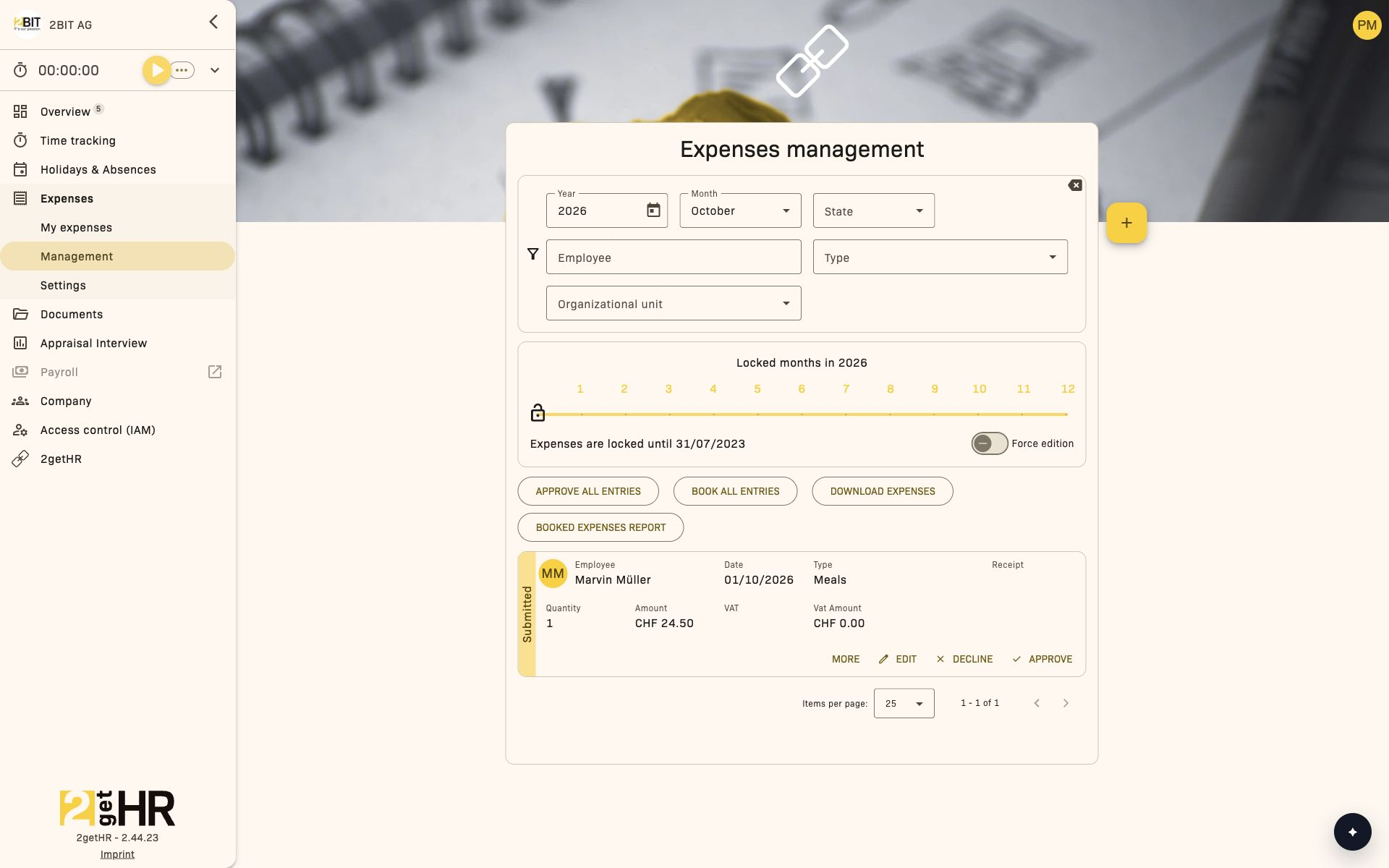
Use Expenses management to review submitted employee expenses and manage the booking workflow reliably.
This area requires access to the Expenses module. If access control (IAM) is enabled, your effective permissions determine whether the module is available to you. The role and record restrictions for each action still apply.
Access the area via Expenses > Management in the main menu.
Main workflow: Submitted -> Approved -> Booked.
What the tabs are for
- Overview: Filter, review, approve, decline and book.
- bexio (if visible): Transfer selected expenses to bexio.
Permissions for individual actions
| Action | Authorized users |
|---|---|
| Approve or decline submitted expenses | Administrator, Backoffice, and heads or deputies within their area of responsibility |
| Book approved expenses | Administrator or Backoffice |
| Transfer expenses to bexio | Administrator or Backoffice; active integration required |
| Rescind booking | Users with management access to the entry, including the responsible head or deputy |
For heads and deputies, the scope includes their own organizational unit and its subordinate units. An empty organizational filter does not extend this scope to the entire company. Entry status and period locks also apply; management access alone does not permit every action.
Common tasks
Review submitted expenses
- Open Expenses > Management > Overview.
- Filter by status, period, employee or organizational unit.
- Open relevant entries.
- Approve or decline with a reason.
Take automatic policy checks into account
If an automatic check is available, the entry shows processing in progress or a result: compliant, non-compliant or unclear. Open the details and review the guidance for individual rules and follow-up questions to the employee. A positive check result is not approval; review the expense and perform the required approval separately.
Book approved expenses
- Set the filters for period, employee and organizational unit and select Approved status.
- Review all matching expenses, including further results if there are multiple pages.
- Click Book all entries only if all approved expenses matching this filter should be booked.
- Then check for Booked status. If the Approved filter remains selected, successfully booked expenses disappear from the list; change the status filter to verify them.
Important: Book all entries includes all approved expenses matching the current filter, including those on further pages. Selecting individual rows or viewing a particular page does not limit the action. For a single expense, use Book directly on the relevant entry.
Lock or reopen expense periods
Administrators and back office staff can change the period lock for the entire company. Employee and organizational unit filters do not limit this lock.
- Open Expenses > Management > Overview and select the required Year.
- Under Locked months in …, select the last locked month using the slider or by clicking the month number. For example, 3 locks entry up to and including the end of March in the selected year.
- The change is saved automatically. Check the Expenses are locked until … notice and verify the cutoff after reopening the page.
- To reopen periods, move the cutoff to an earlier month. The leftmost starting position opens all months of the selected year; the lock then ends on December 31 of the previous year. It does not fully remove locks from earlier years.
On a smartphone, use Locked month in …. NONE corresponds to the leftmost starting position.
Force edition allows authorized corrections despite a period lock, but does not move the lock cutoff for other employees. The entry's status and other permissions still apply.
Rescind a booked expense
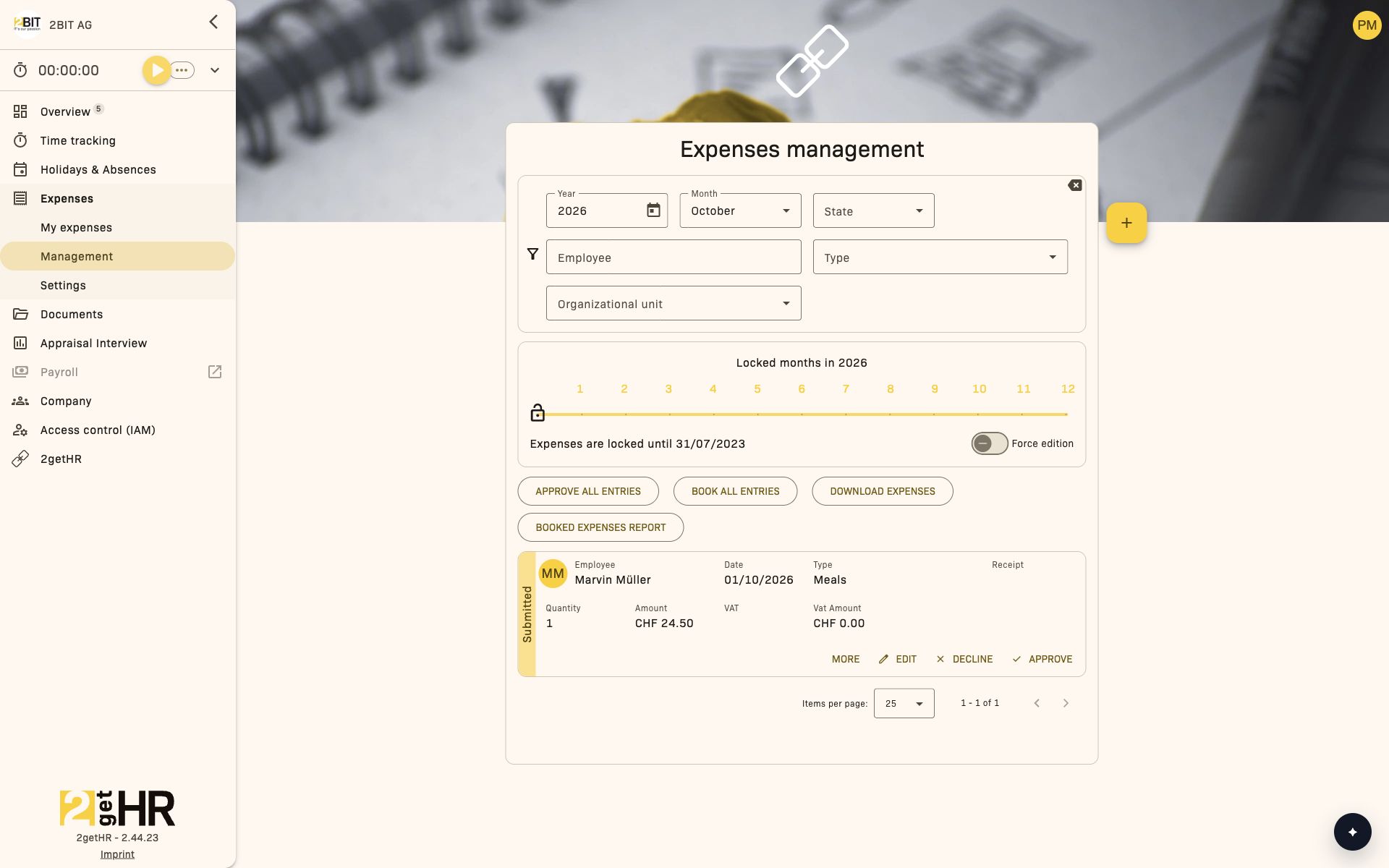
- Find the booked expense.
- Select Rescind.
- Provide a clear reason.
- Confirm and check the new status.
Export expense data
- Set the required filters.
- Use Download expenses or the booked expenses report.
- Save the export for finance/controlling.
Transfer to bexio (if enabled)
- Open Expenses > Management > bexio.
- Select the expenses to transfer.
- Start the transfer and check the synchronization feedback.
Settings
Integration behavior is controlled in the global integration settings.
Operational behavior in this module
- Approve only applies to submitted expenses.
- Book all entries applies to all approved expenses matching the current filter, regardless of the visible list page.
- Rescind is used for expenses that have already been booked.
- Actions remain deliberately disabled when status or rights do not permit them.
Tips and troubleshooting
- Actions disabled: Check status, selection and role permissions.
- Cannot edit: The period may be locked.
- bexio tab missing: Transfer to bexio may not be enabled.
- Synchronization fails: Check the integration status and error message.
Expenses settings
Overview
Use Expenses settings to maintain expense rules, policy documents and expense type behavior.
This area requires access to the Expenses module. If access control (IAM) is enabled, your effective permissions determine whether the module is available to you. The role and record restrictions for each action still apply.
The area is intended for admin and back office roles.
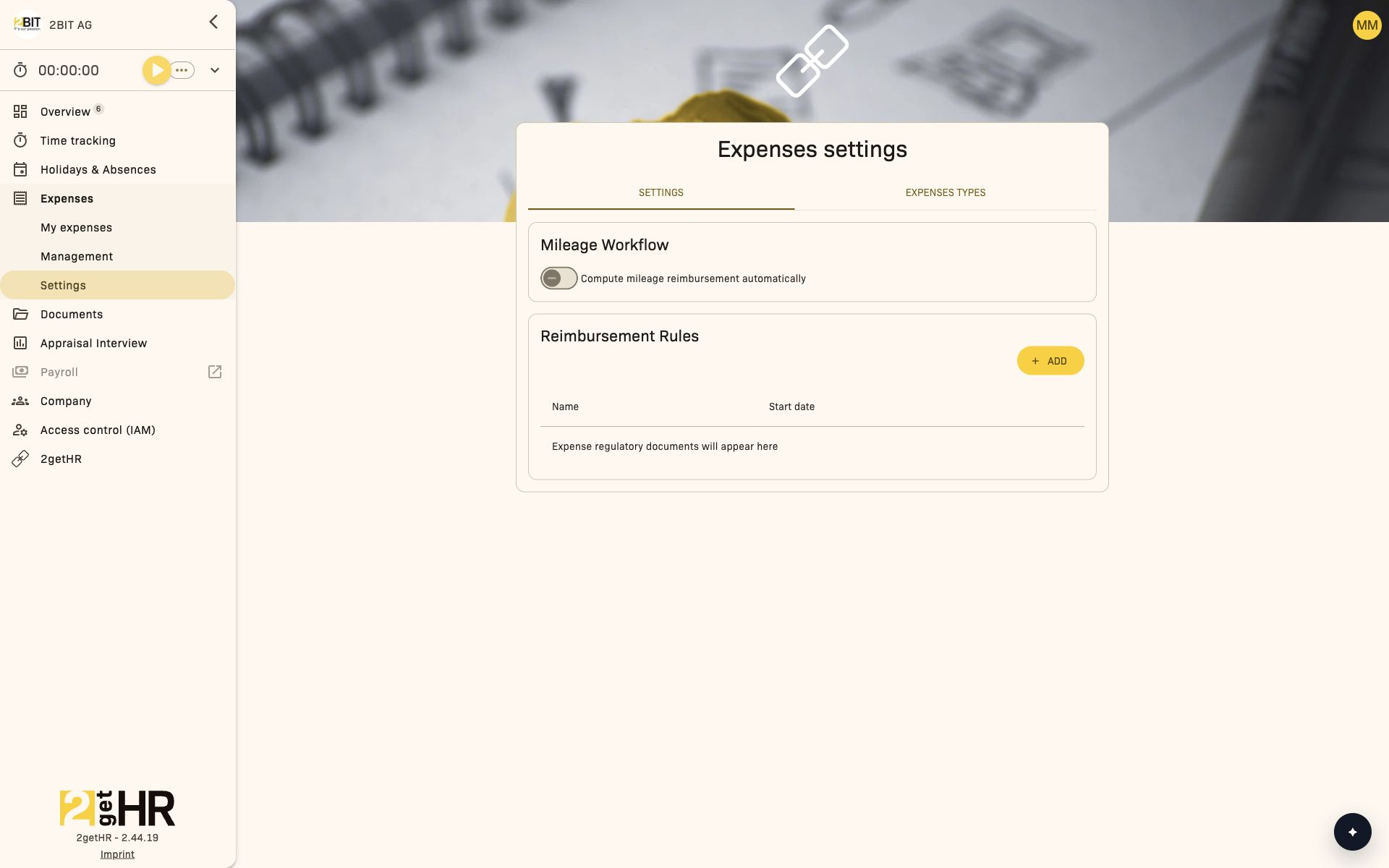
What you control here
- Settings: Mileage workflow and reimbursement rules.
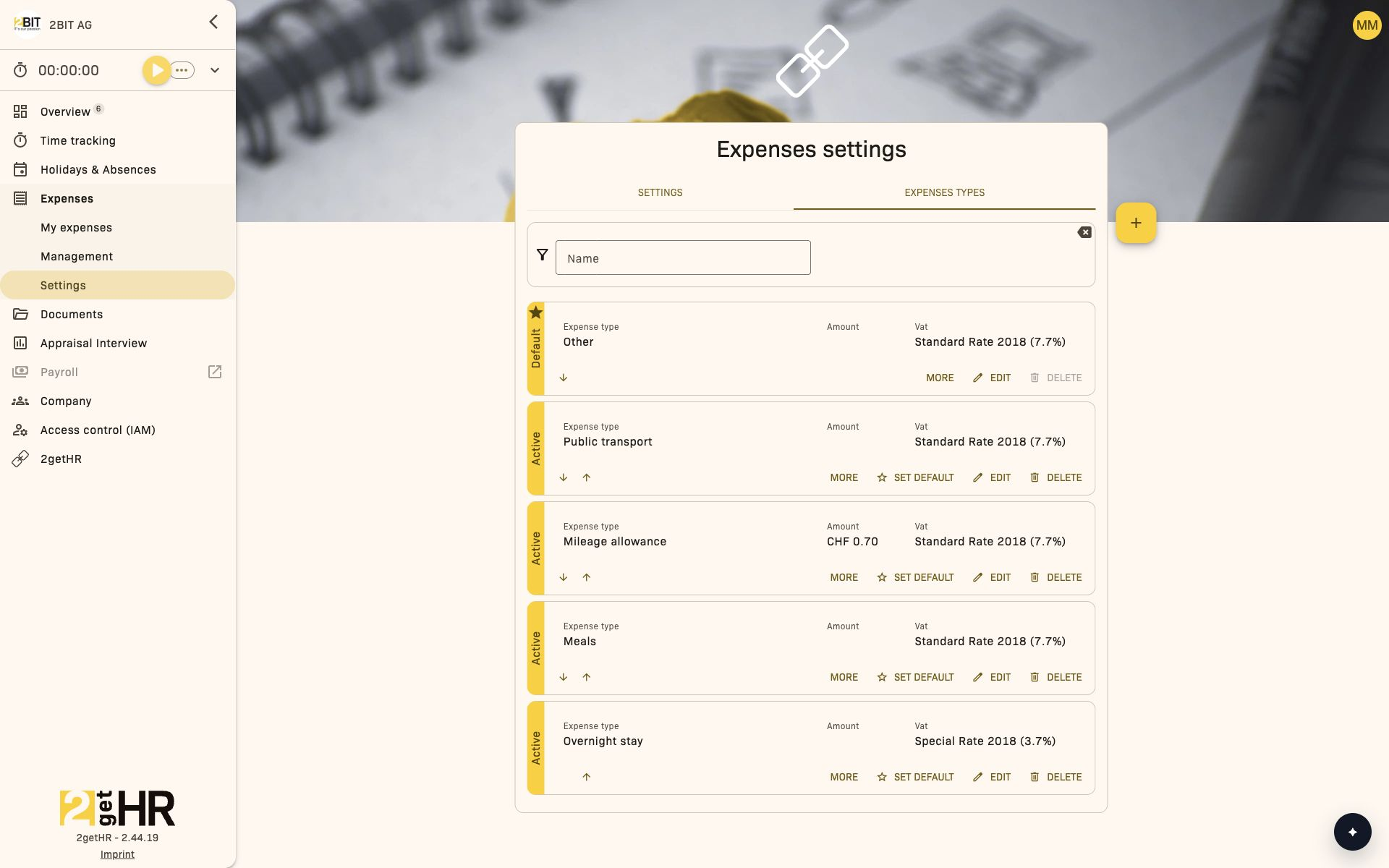
- Expenses types: Categories available in expense forms.
Common tasks
Configure automatic mileage reimbursement
- Open Expenses > Settings and go to the Settings tab.
- Under Mileage Workflow, enable or disable Compute mileage reimbursement automatically.
- Check the confirmation that the setting was saved.
Upload a new reimbursement document
- Open Expenses > Settings and go to the Settings tab.
- Click Add in the rules area.
- Upload the PDF file and set the start date.
- Save and check the entry in the rules list. The PDF text is automatically split into paragraphs and assigned to expense types.
- Reopen the policy and check the detected paragraphs and assignments; correct them if needed.
Update an existing rules document
- Find the required document in the Expense policies table.
- Open Edit.
- Adjust the start date and, if needed, the paragraphs.
- Save the changes.
Maintain expense types
- Open Expenses > Settings > Expenses types.
- Open an existing expense type using the Edit pencil icon or use + to create a new one.
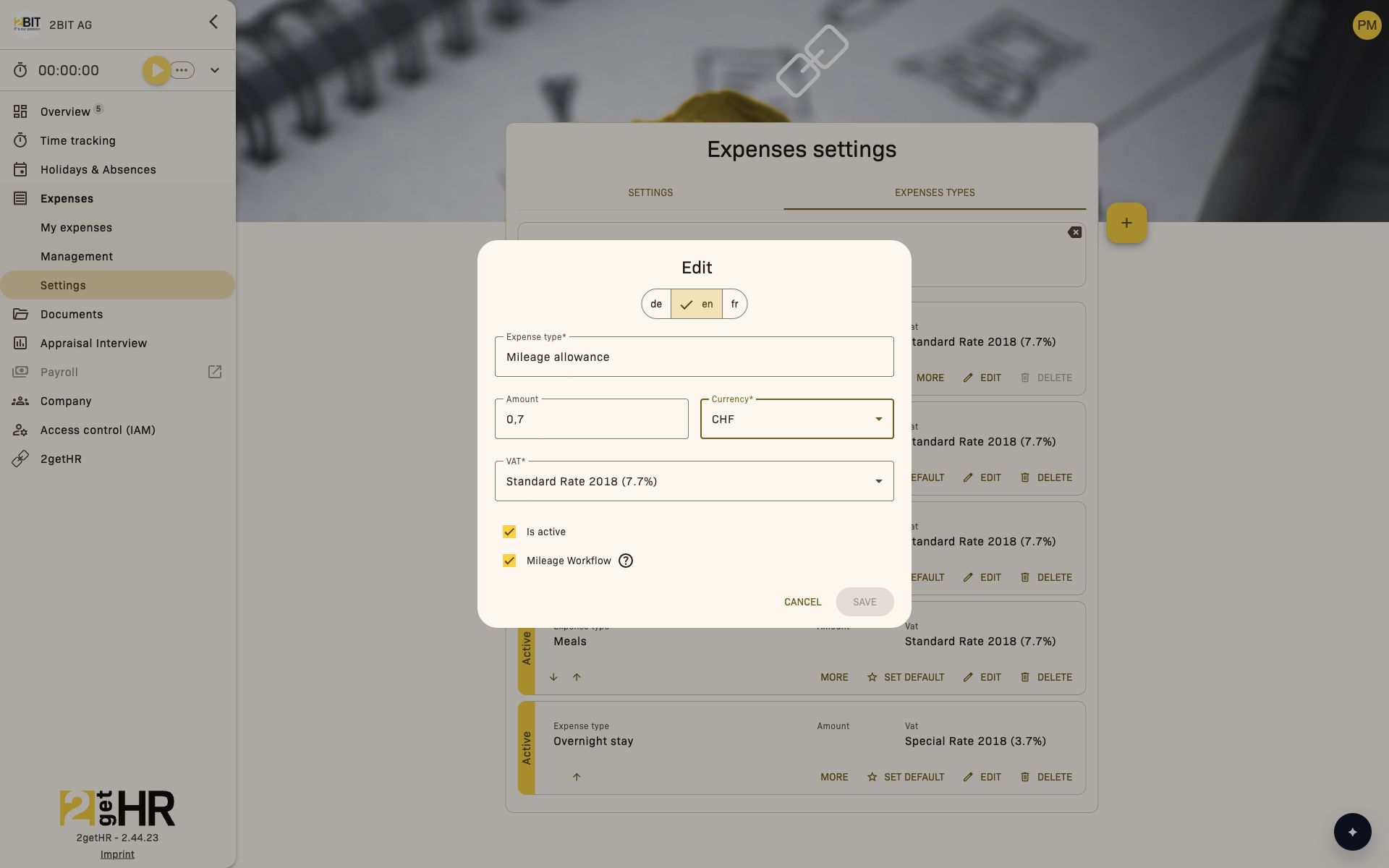
- Fill in the following fields and check the required calculation.
- Click Save or Add and check the selection and calculation when entering an expense.
| Field | Meaning |
|---|---|
| Expense type | Category name. Use de, en and fr to provide the label in each language. |
| Amount | Optional fixed rate for this expense type, such as the amount per kilometer. If you enter an amount, it must be at least 0.01. |
| Currency | Required for a fixed amount. Without Amount, currency is disabled; removing the amount also resets the currency. |
| VAT | Select the corresponding VAT rate. The selection shown in the example is not a recommendation for your accounting. |
| Active | Controls whether the expense type can be selected for new expenses. This option cannot be disabled for the standard expense type marked Default. |
| Mileage Workflow | Identifies mileage expenses so that the actual driving distance can be checked against the company's expense rules. |
With a fixed rate, Quantity is calculated together with Base amount during expense entry. For mileage allowances, for example, use the agreed rate per kilometer. Mileage Workflow and Compute mileage reimbursement automatically are different settings: the first identifies the expense type; the second controls automatic mileage reimbursement under Settings.
Automatic policy checking
The stored paragraphs can be used to check expenses automatically. Expense views show processing, results, explanations for individual rules and follow-up questions to employees. The check can find an expense compliant, non-compliant or unclear. It assists review but does not replace approval in management.
Why these settings matter in the app
- Policy documents are the active reference in the expense process.
- Expense types control selection and behavior in entry and management views.
- Dating/versioning determines which rule applies in which period.
Tips and troubleshooting
- If Add fails, check that the uploaded file is a PDF and the start date field is not empty.
- Changes to rule text only take effect after saving.
- If no expense types are visible, check the expense type configuration first.
- For access errors, check the administrator or back office role and access to Expenses. If access control (IAM) is enabled, also check effective module permissions.